
Change history shows what changed when the project was saved, who made the changes and when. Use it to find an element's earlier changes or to return to that element in the editor.
The project's owner needs Pro or Team. The owner can read the history; a member needs the separate Change history permission. Full editor access and History & restore do not grant that permission. See member permissions.
Open the history
Choose History → Change history… for the whole project. To start with one element, select it and choose History beside Help in the right panel. This opens the same window with that element selected as a filter.
The newest saved versions appear first. Each block has the author's name and email, the version number and the date and time. Its rows show the element type and icon, its recorded name, the action and its details. Where a change has scalar details, an arrow separates the previous and new values. Hover shortened text to read it in full.
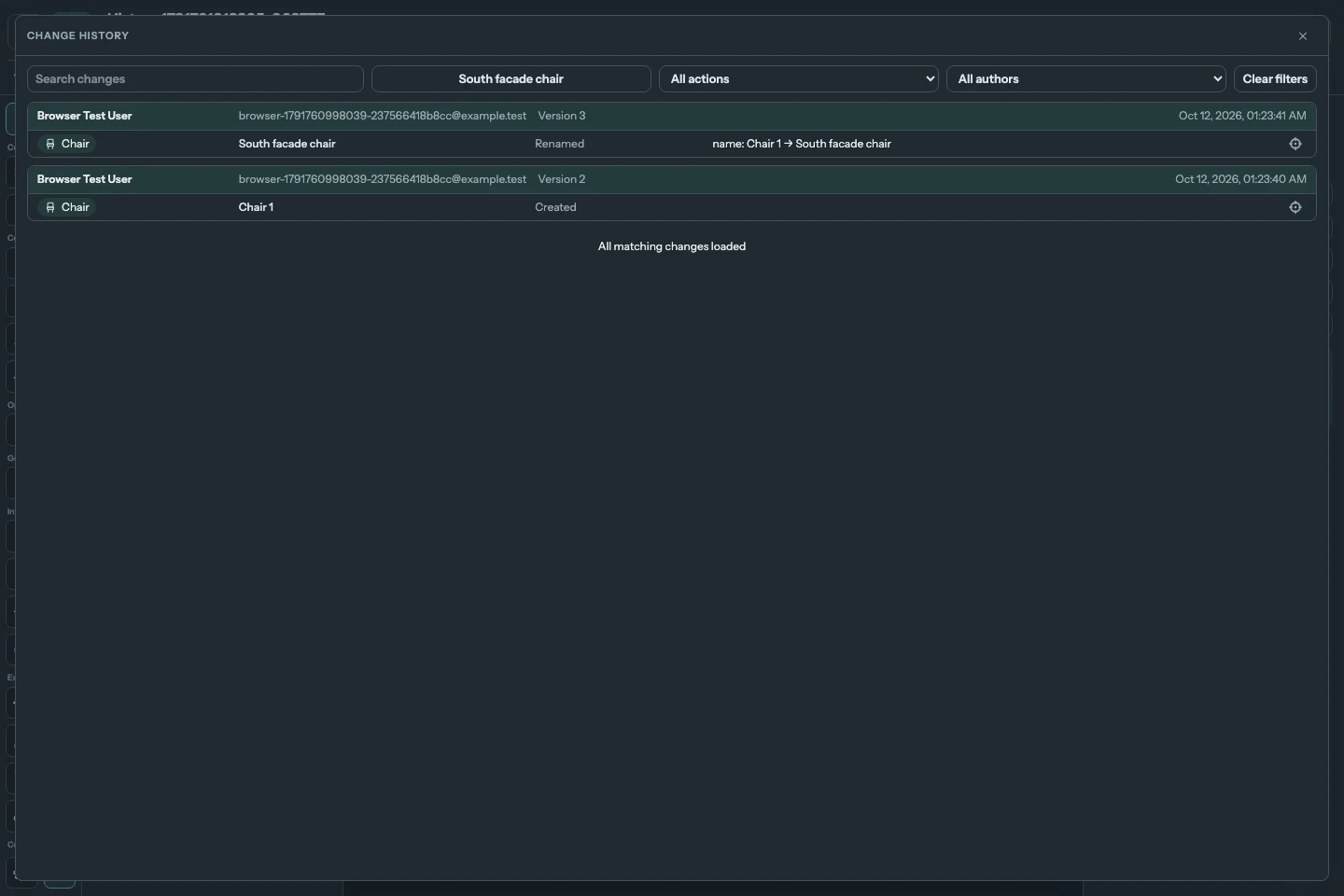
View the full-size history screenshot.
The window loads changes when you open it and shows Loading changes… while waiting. Scroll down to load more. Each portion aims for about 50 matching entries and completes the last saved version, so a large save can return more than 50 rows. Load more also requests the next portion when that button is visible. All matching changes loaded marks the end.
Combine filters
| Control | What it selects |
|---|---|
| Search changes | Words in an element's recorded name, change details, or the author's name and email. |
| All elements or the selected element's name | An element from the same Project tree used by the editor. Choosing it here changes the history filter, without selecting it in the editor. |
| All actions | One kind of change, such as Created, Deleted or Renamed. |
| All authors | One author, or Deleted user when records from a removed account exist. |
| Clear filters | The whole project's history again. |
You can use these controls together. Changing a filter starts again at the newest matching saved version. The search and other filters apply to the whole stored history, including versions that have not yet been loaded.
The element tree opens directly below its filter control. Choose an element to apply the filter, or press Escape or click elsewhere in the history window to dismiss the tree and keep the history window open.
Search is case-insensitive and splits the query into words. Every word must match somewhere in the same entry; their order does not matter, and part of a name is enough. For example, Ivan facade can find an entry by Ivan for an element named South facade. It does not require that phrase to occur together. Search does not correct spelling or expand words into other grammatical forms. Use All actions to find an action rather than typing its label.
The element filter follows the element's identity through renames. Click an element name in a history row to filter by that element, including a deleted element that no longer appears in the Project tree. Searching for an old name can also find a rename whose details contain that name.
For a Roof, the filter includes its recorded masses, slopes and hosted elements. A Roof mass or slope includes changes to its historically attached children; a Dormer includes its nested window. Roof-child rows retain the Roof and slope context recorded at the time of the change, including after deletion or a move to another slope.
Return to an element
Choose the crosshair Locate in editor at the right end of a row. The history window closes, and the editor selects and locates the current element using the same Locate operation as the Project tree. For a hosted Roof element, it opens the relevant Roof selection.
A deleted or otherwise unavailable element keeps its history, but its crosshair is disabled. Returning to an element shows its current state; the historical row remains a record of the earlier change.
What is recorded
The history compares the saved document with the next saved document. It records creation, deletion, movement, rotation, changes to shape or size, Level or elevation, host or group, type or material, names, other authored parameters, and locking or unlocking. Roof masses, logical slopes, Roof windows, Dormers and their nested windows are separate subjects.
Unsaved edits, camera navigation and temporary editor visibility overrides are not records. Saved visibility parameters of Roof children can be recorded. Saving without a document change adds no entry or version. The history describes the resulting saved difference: edits made and undone before Save do not become separate entries. It does not reconstruct earlier changes from before history recording was enabled.
Records currently have no age-based expiry. Removing an element keeps its records; removing the whole project removes its history too. Restoring a separately saved version permanently deletes every history entry after that copy's source version, including changes by the owner and other authors. It adds no new restore entry.
Empty results and loading failures
No changes yet means this project has no recorded changes. Save a changed document while history recording is available to create the first entries. No matching changes means the current filters found nothing; change them or choose Clear filters.
If a request fails, choose Try again. A failure while loading more leaves the already loaded rows visible. If the owner has no eligible plan or your permission has been removed, the server rejects further reads. Losing project access closes the window.