
The mobile editor keeps the model in the central viewport and moves supporting controls into panels. In the icon row above the plan, the controls after the menu run left to right: Tools (crossed tools) chooses an action, View (eye) switches 2D/3D or projection, Properties (sliders) inspects the current selection, Tree opens the object list, and Levels opens the working-Level choices. Close a panel to return to the viewport.
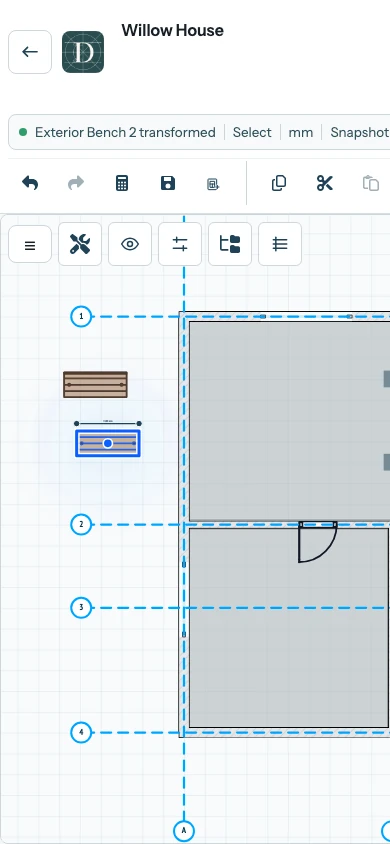
View the full-size compact-controls screenshot.
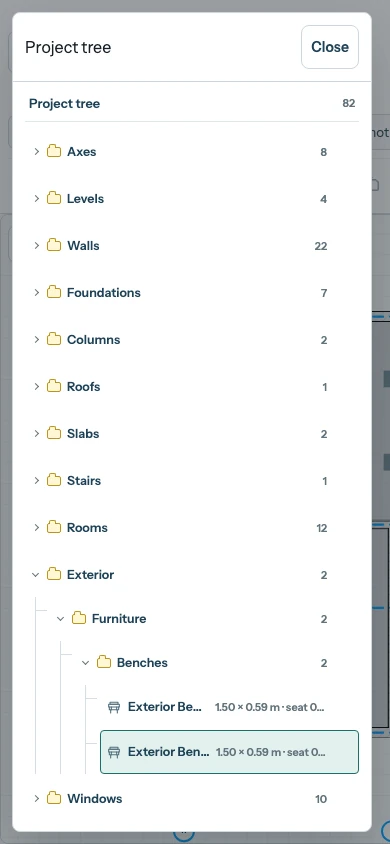
View the full-size Tree-panel screenshot.
Open Tree to select an object, close it, and open Properties to read or change that object. Use the compact menu sheet for named File, Edit, View and Add commands. If a tool is hard to use at the current zoom, use Fit viewport to content from View, then zoom into the area you need. Save and reopen the project to verify changes as on a wide screen.
Editor areas and controls maps the same parts on a wide display. Use the Project tree explains its rows and visibility controls.