
The header menus provide named actions. A dimmed command is unavailable for the current view, selection, clipboard state or access. On a narrow screen, the menu button opens the same commands in a sheet.
On a desktop, click a menu name to open it. While a menu is open, move the pointer over another menu name to switch without another click. Moving away leaves the current menu open. Click outside the menu or press Esc to close it; opening another menu then requires a click again. Choosing a command also closes the menu.
| Menu | Commands and purpose |
|---|---|
| File | Save, Rename project…, Project settings and sharing…, Level underlays…, Import IFC…, Export 3D model…, Back to projects. |
| Edit | Undo, Redo, Copy, Cut, Paste, Duplicate, Delete. Clipboard actions require supported objects and Top 2D or 3D; Delete requires an eligible selection. |
| History | Change history… opens the saved-change journal when your access allows it. Saved versions… lets the project owner save, preview and restore model copies. |
| View | 2D or 3D, the current projection, 3D camera presets, Usage zones, Fit the drawing to the window, Light theme, Dark theme. Fit is available in 2D. |
| Add | Axes, Levels, Room, then Construction, Openings, Generic, Interiors, Exterior and Communications tools or catalogs. Choosing a tool prepares placement; it does not immediately create an object. |
| Drawings | New drawing sheet… from Top 2D and Drawing album… to manage sheets. |
| Estimate | Calculate opens this project's estimate workspace when your access allows it. Start the calculation with Calculate inside that workspace. |
| Help | Documentation opens the documentation home page in a new browser tab. Support… opens a form for writing to the Dravit team. |
History appears when at least one of its actions is available to you. The journal uses a clock icon; saved versions use an archive box.
The top toolbar provides direct Undo, Redo, Estimate, Save, Create drawing from current view, Copy, Cut, Paste, Duplicate and Delete buttons. Hover an icon to identify it. The drawing button also requires Top 2D. The theme control changes workspace appearance; it does not change model materials.
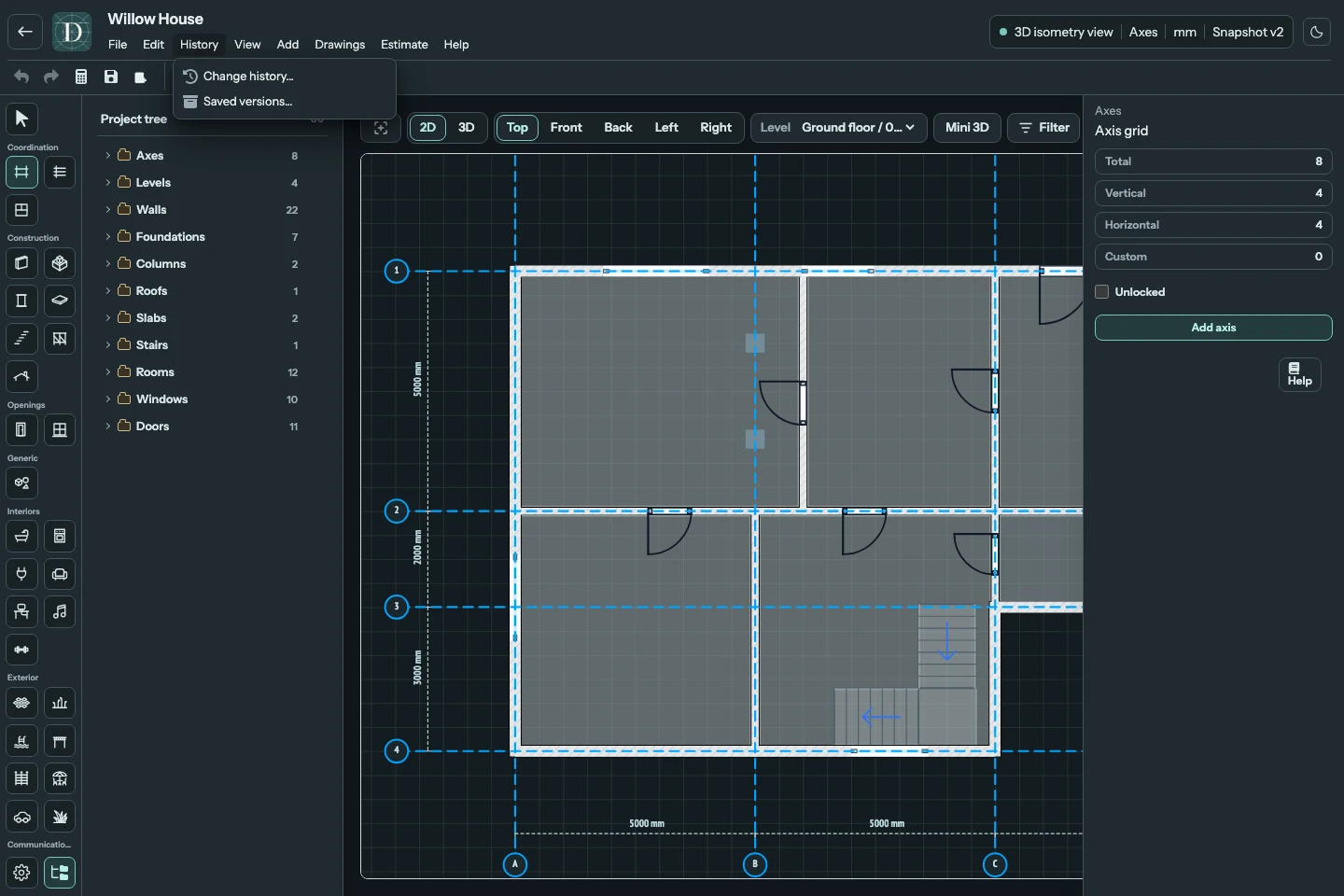
View the full-size History menu screenshot.
Write to support
Choose Help → Support… to open Contact support. Reply to starts with your account email; change it if the answer should go to another address. Enter a Subject of up to 150 characters and a Message of up to 5,000, then select Send. All three fields are required. The answer arrives by email at the Reply to address, so check that address before sending.
After sending, the form confirms Sent. We will reply to your address. The message also tells the team which account and project it came from and which browser you use. If sending fails, your text stays in the form; try again. A closed form keeps its text until you send it, leave the editor or reload the page. A Too many messages notice means your account has reached its hourly limit; try again later.
The IFC panels also provide IFC import guide and Editable IFC conversion guide links to their workflows.
To read about the panel you are working in, use Help in the right panel instead; see the workspace map.
Editing shortcuts
Use Ctrl on Windows or Linux and Command on macOS for the modifier below. Menu hints display Ctrl.
| Action | Shortcut |
|---|---|
| Save | Ctrl/Command + S |
| Undo | Ctrl/Command + Z |
| Redo | Ctrl/Command + Shift + Z, or Ctrl/Command + Y |
| Copy, Cut, Paste | Ctrl/Command + C, X, V |
| Duplicate | Ctrl/Command + D |
| Delete selected object | Delete |
| Cancel or release the active action | Esc |
When a text field has focus, ordinary editing keys operate on the field, rather than deleting or copying a model object. Tool shortcuts do not fire while typing or while a modal dialog is open. Esc first closes a supported dialog or cancels a current sketch; outside a sketch it clears selection and returns to Select as needed.
Tool shortcuts
| Tool | Key | Tool | Key |
|---|---|---|---|
| Select | S | Axes | A |
| Levels | L | Room | O |
| Wall | W | Foundation | Shift + F |
| Column | C | Floor | F |
| Stair | T | Roof | R |
| Door | D | Window | I |
| Bathroom catalog | B | Pipes | P |
A shortcut has the same view and access limits as its tool button. Some catalogs have no letter shortcut; find them in Add or the left rail. For pipe drafting, Z toggles its vertical lock, Backspace removes the last point, Enter finishes and Esc cancels.
The workspace map locates the controls. See clipboard, move and reshape, 3D navigation, drawings and estimates for complete workflows.