
Use Interiors → Electronics → Television to compare a screen's size, position and height in a room. The television is one object, including its cabinet when On cabinet is chosen.
Place a television
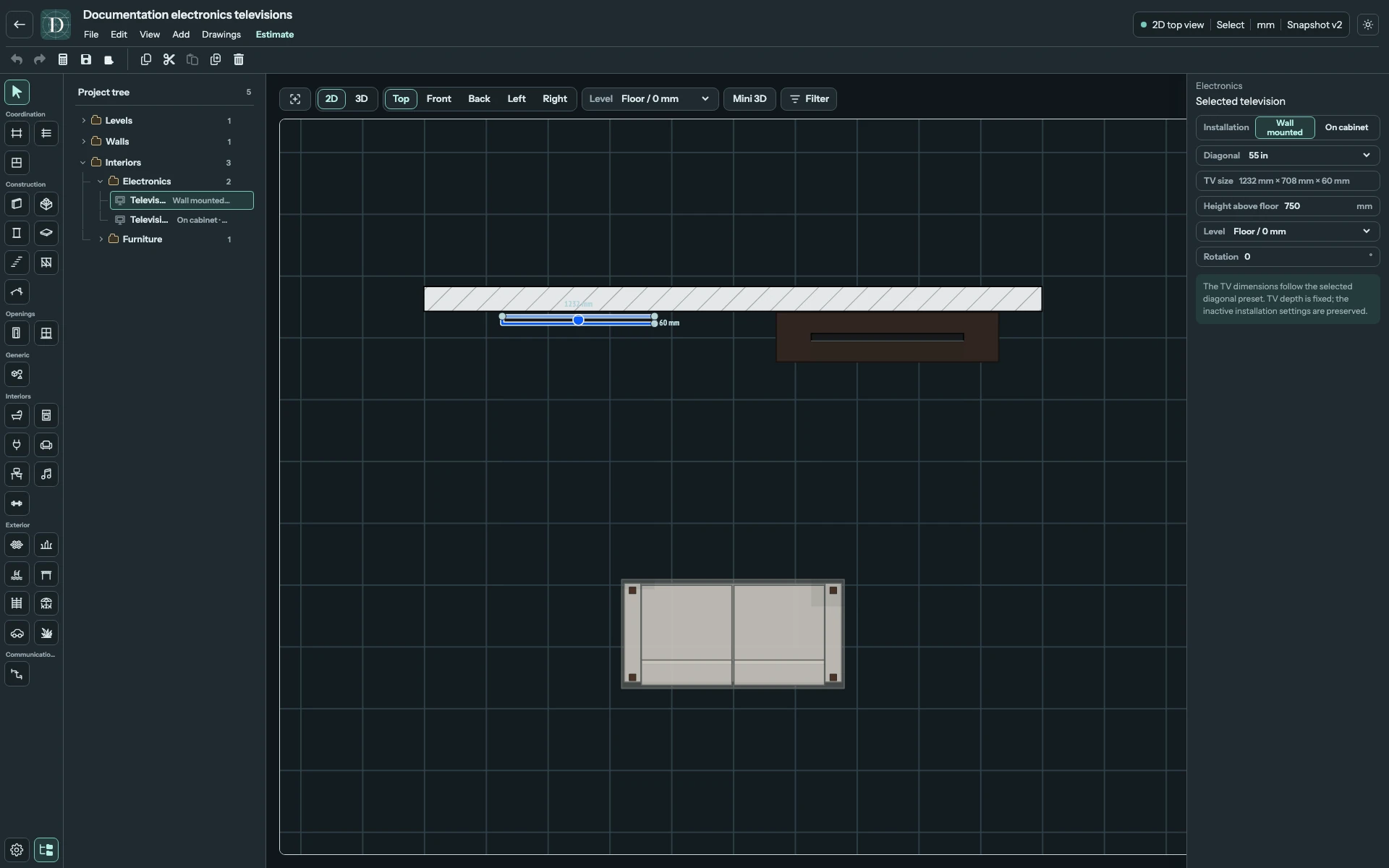
- Choose 2D → Top and the working Level.
- Open Electronics and select Television.
- Choose Installation: Wall mounted or On cabinet.
- Choose Diagonal, then set the relevant height or cabinet dimensions, Level and Rotation.
- Position the complete preview and click. Choose Select or press Escape when finished, then select the television to revise it.
The Television uses free placement. Position its rear edge beside the Wall manually in Top. The label Wall mounted selects a representation; it does not create a persistent host relationship. An optional Room link comes from the object's center on the selected Level.
View the full-size screenshot.
Size and elevate the assembly
Diagonal uses inch-based screen presets. The derived TV size shows its width, height and fixed depth; these are not separate size inputs. For Wall mounted, Height above floor places the screen above the Level. For On cabinet, Cabinet width, Cabinet depth and Cabinet height configure the support assembly. Switching installation retains the inactive settings for later reuse.
| Diagonal | Display width × height | Display depth |
|---|---|---|
| 43″ | 968 × 572 mm | 60 mm |
| 50″ | 1118 × 644 mm | 60 mm |
| 55″ | 1232 × 708 mm | 60 mm |
| 65″ | 1453 × 836 mm | 60 mm |
| 75″ | 1669 × 958 mm | 60 mm |
| 85″ | 1892 × 1082 mm | 60 mm |
These are the catalog representation's dimensions. 55″ is the starting choice. Choosing another Diagonal rebuilds the screen and updates TV size together.
All television settings
| Field | When visible and what it changes |
|---|---|
| Installation | Wall mounted includes a rear bracket; On cabinet includes the cabinet and screen feet. The support is part of the same object. |
| Diagonal | One of the six screen sizes above. |
| TV size | Read-only width × height × depth of the chosen screen. |
| Height above floor | Wall mounted only. Distance from Level to the bottom of the screen, not its centre. Starts at 750 mm; minimum 0 mm. |
| Cabinet width | On cabinet only. Width of the support body; starts at 1800 mm, minimum 600 mm. Compare it with the chosen screen width. |
| Cabinet depth | On cabinet only. Support depth; starts at 400 mm, minimum 250 mm. |
| Cabinet height | On cabinet only. Overall support height above Level; starts at 380 mm, minimum 200 mm. The television feet lift the screen a little above the cabinet top. |
| Level | Datum for the television assembly. The wall-mounted offset is added to it; the cabinet base starts at it. |
| Rotation | Turns the whole assembly in plan, including its cabinet or rear bracket. |
For a wall-mounted 55″ screen on Level 0 mm at Height above floor 750 mm, the screen extends from 750 to 1458 mm. Raising the offset to 900 mm moves its lower edge to 900 mm. For On cabinet, change Cabinet height to raise the supported screen instead; Height above floor is hidden and does not position that installation.
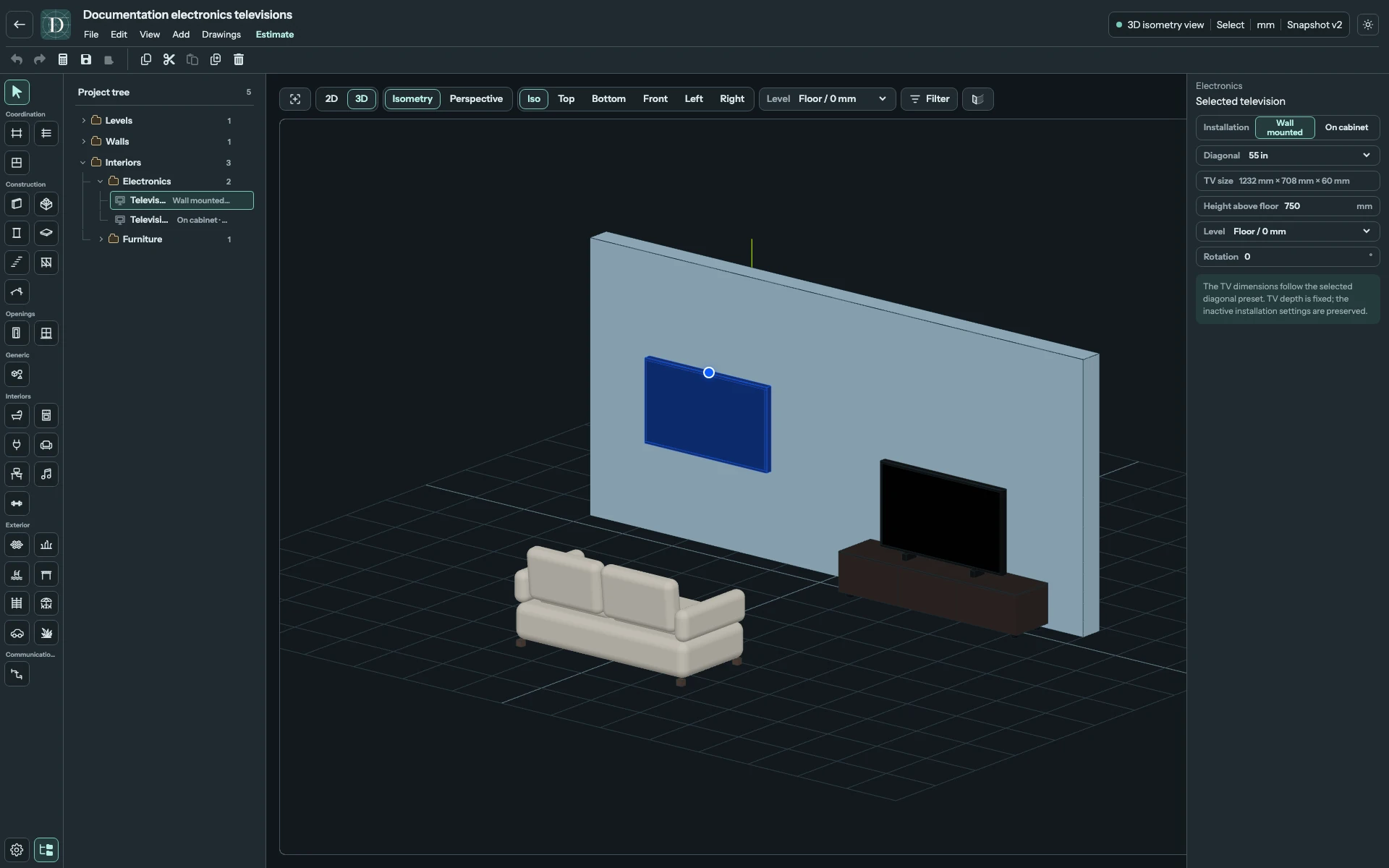
View the full-size screenshot.
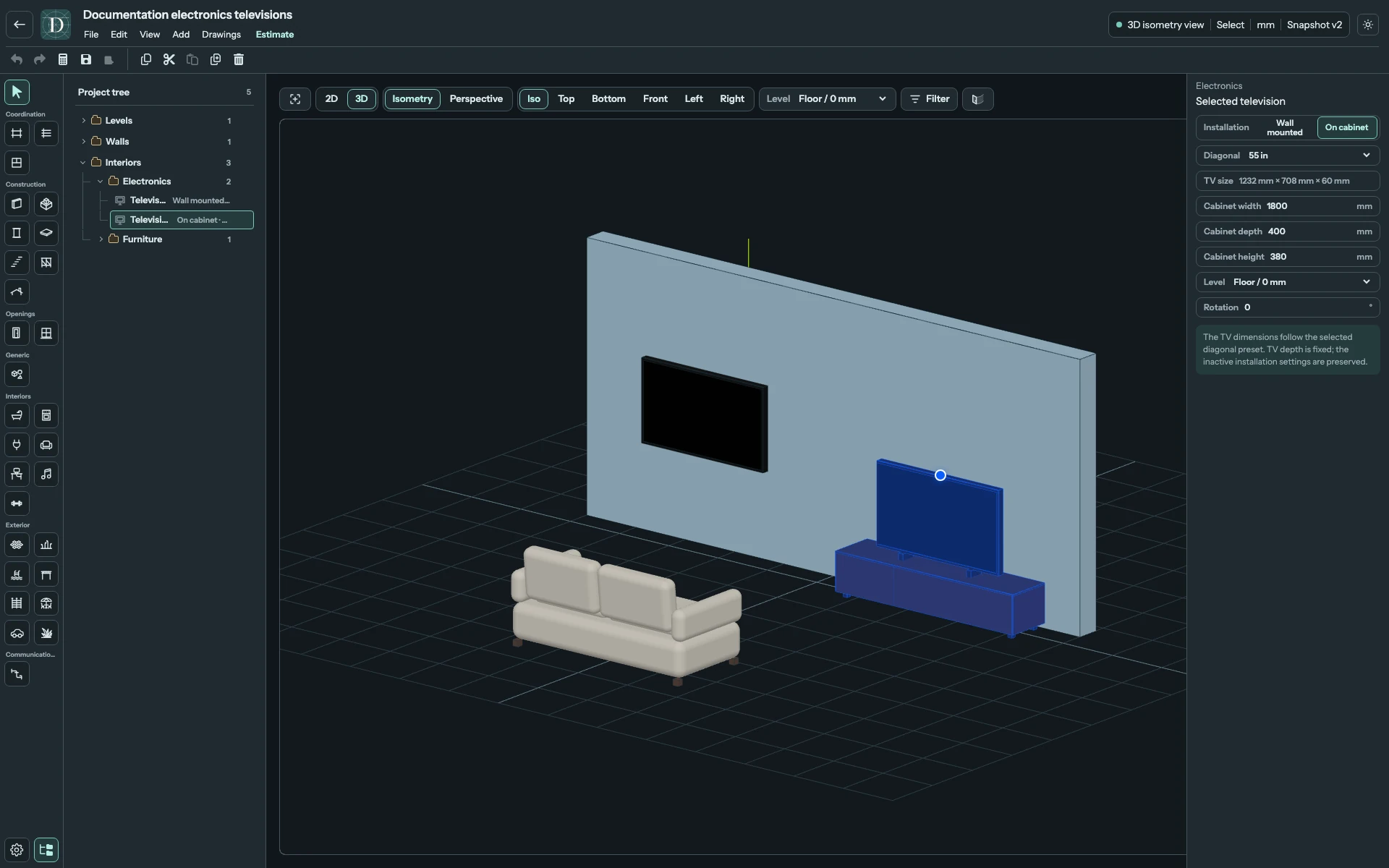
View the full-size screenshot.
Use Rotation or the supported movement and rotation handles to arrange the object. Check a side view or 3D to judge the screen's height, since Top primarily shows its depth and footprint. Save and reopen to confirm the selected installation and location. This catalog geometry does not add power, cabling or a mounting specification.
To delete a television, select it and use Delete. An included cabinet is removed with the screen. Use Undo if the removal was accidental.