
As the project owner on Pro or Team, use File → Import IFC… to turn a local IFC file into editable Dravit objects. Import chooses the required ownership, Levels, construction types and opening presets automatically. Your existing objects stay in the project.
Upload the file
- Open File → Import IFC…, choose a STEP .ifc file, then select Upload IFC. The current native importer accepts IFC2x3 and IFC4.
- Wait for Importing editable objects…. If your project has unsaved changes, Dravit saves them before uploading. A failed Save preserves the draft and stops the operation.
- After Imported … source elements as editable objects, close the panel. The imported objects appear in their ordinary Project tree families. Select one to use its usual controls.
You can close the panel while processing continues. Reopen Import IFC… to see its state. Cancel import stops an unfinished operation; an import that has already committed is part of the saved project.
Dravit removes its uploaded copy and temporary conversion data when processing ends. The imported objects belong to the saved project.
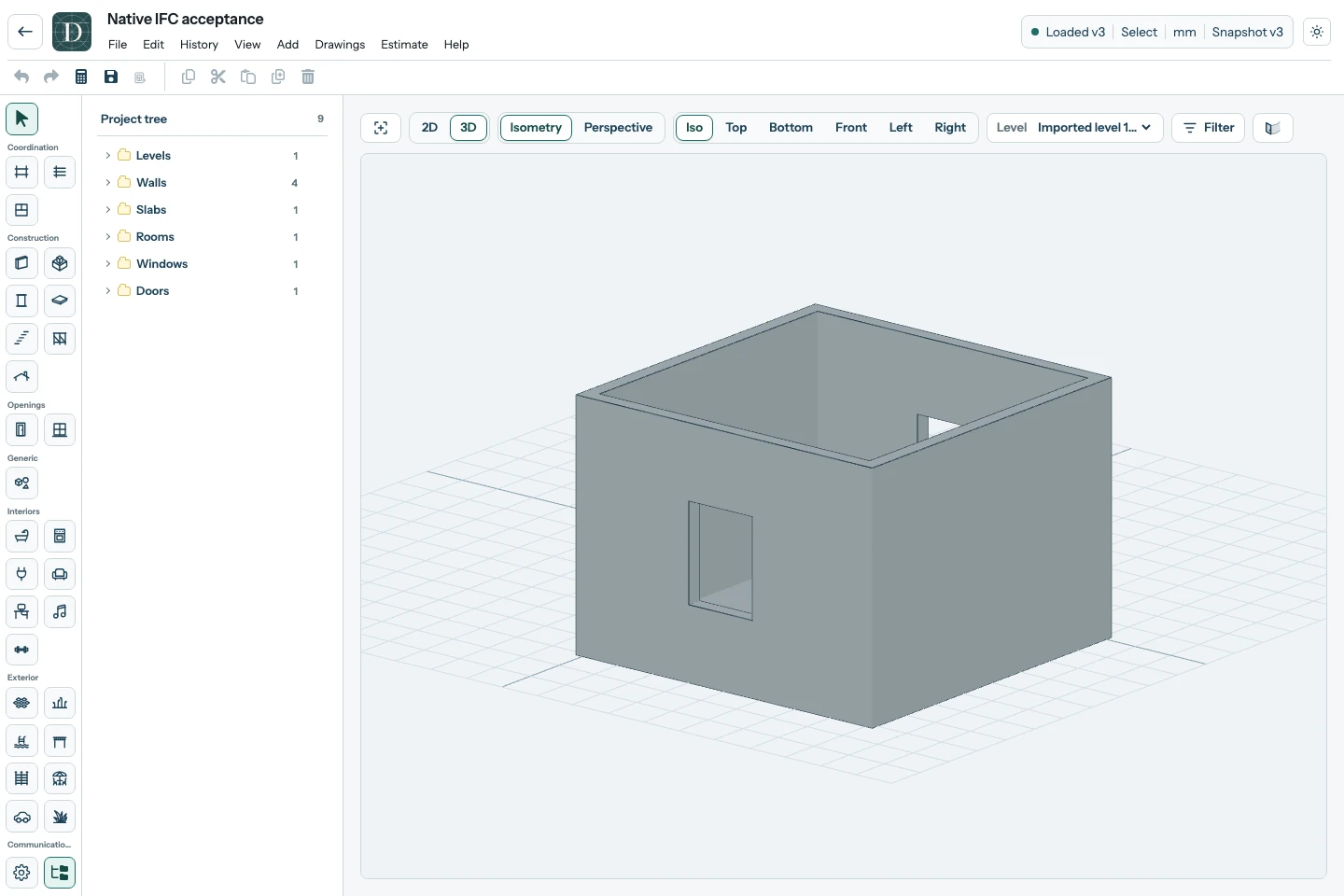
Open the full-size imported-model screenshot.
Continue working with the model
Use the normal Project tree, object properties, visibility controls and Top, side or 3D views. Imported objects participate in Save and reopen and 3D model export.
The importer adapts supported source elements to Dravit's available representations. Walls and Slabs currently use Dravit’s concrete defaults; source construction materials are not transferred. Door and Window fillings use native assemblies at the supported opening dimensions. Choose the intended native types and materials before using the imported model for an estimate. An unfilled source void stays an empty opening. A Room becomes a logical plan boundary; its source height and volume are not transferred.
When a file cannot be imported
The panel displays the current file-size limit; its conservative default is 5 MiB. A smaller file can still exceed geometry, processing-time, memory or storage limits. The current native converter supports straight vertical Walls, horizontal polygon Slabs, logical Room footprints and rectangular wall-hosted openings. Other source content may prevent conversion.
If the upload connection is interrupted, use Retry upload to continue the same request with the same file. Dravit checks the existing operation so the retry does not import a second copy.
If meaningful source content cannot be represented, the import fails and preserves the project. It does not save part of the model, silently omit those elements or add an external reference. Read the error before trying another file. Archives, IFCXML, RVT and DWG are not accepted by this command.