
In 2D → Top or main 3D, select a supported object and use Edit → Copy, Cut, Paste or Duplicate. The same commands appear in the toolbar. Choose the destination working Level before pasting, then inspect the new instance before saving.
Copy or duplicate
- Choose Select and select an eligible instance, such as a Chair, appliance, exterior furniture item, transport object, Shape or Stair.
- Use Copy, then Paste, or choose Duplicate to create a nearby copy in one action.
- Locate the selected new instance in the Project tree. Use its move or rotation grips to separate it from nearby objects.
- Check its Level, dimensions, Room assignment and position, then Save.
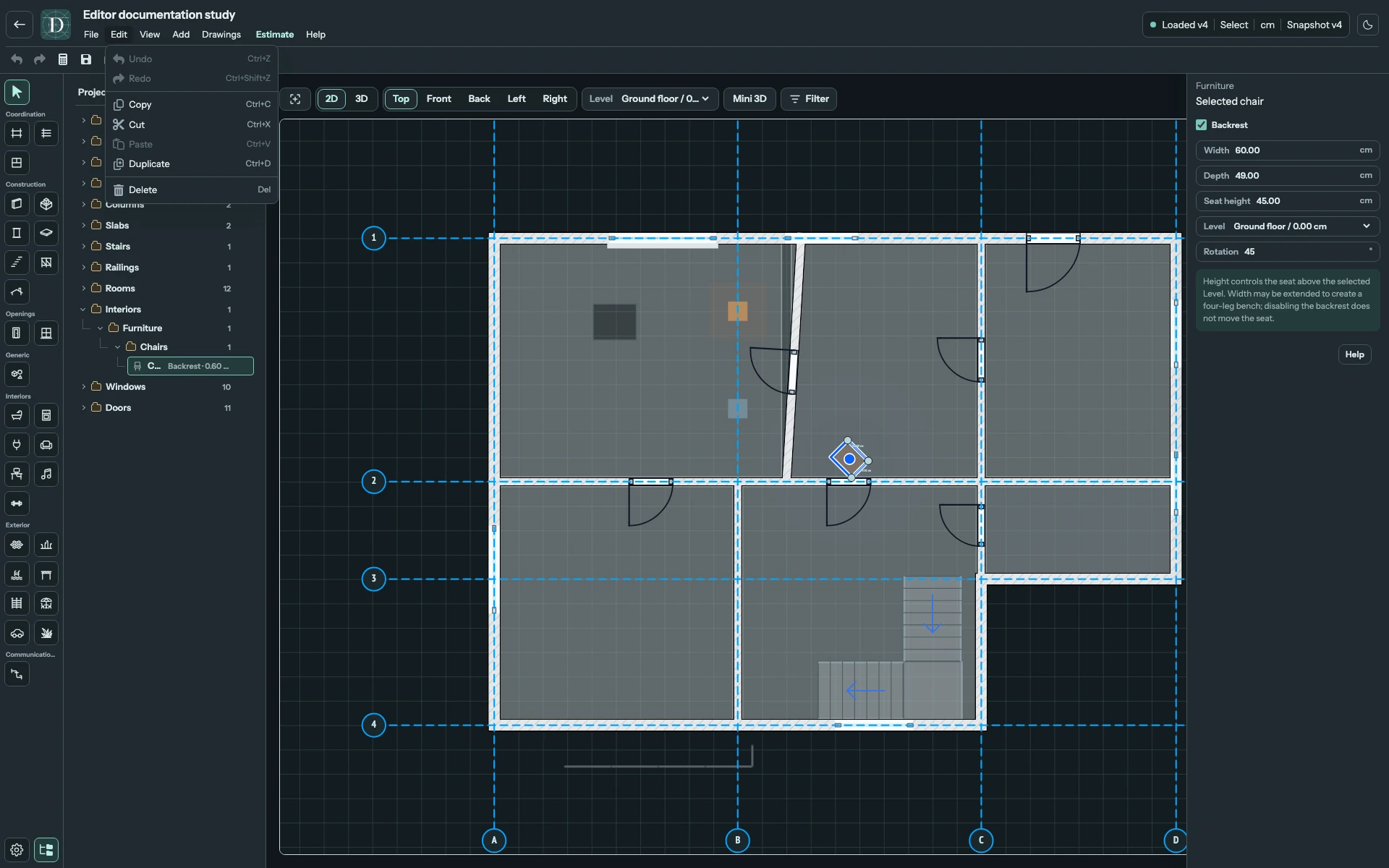
View the full-size clipboard screenshot.
Menu and toolbar Paste use the center of the current viewport. A right-click Paste uses the clicked plan position. In 3D, the destination is resolved on the active Level's horizontal plane, so inspect the result from Top if the camera makes that position difficult to judge. Duplicate uses a small plan offset from the original, rather than asking for a placement click.
The new instance uses the active Level and preserves its source height relative to a Level. This can place it at a different absolute height on another storey. It preserves supported object settings and material assignment. Interior objects acquire the Room containing their new center, if one exists on that Level. Exterior objects require a valid Site owner. A Stair copy also updates its generated Floor-opening relationship; check the result in both views.
Cut and recover
Cut copies the eligible selection and removes it from the model. It is not a promise that a later paste will succeed in every destination. Check the destination's Level and ownership first. Use Undo promptly if the cut was unintended; local history is not a saved-snapshot browser.
Keyboard equivalents are Ctrl/Command + C, X, V and D. While a text field has focus, these keys operate on its text rather than model objects. See menus and shortcuts.
Availability and limits
Walls, Foundations, Floors, Rooms, Railings, Roofs, Canopies and Vegetation do not use this general catalog-copy workflow, even when a family has other direct editing grips. A Shape group is copied as a group; a member selected inside a group is not copied independently by these commands.
A Roof window has a separate hosted clipboard workflow, requiring the original Roof and a compatible host surface. Follow Roof windows rather than treating it as free-standing furniture. Wall-hosted Doors and Windows use their own placement and editing tools.
If a command is dimmed, check the view, selection, clipboard content and editing access. Clipboard state can be retained locally by the browser; it is separate from saving the project. If the status reports Clipboard not persisted, do not assume it will remain after reopening the browser. When transferring between projects in the same browser, also check the destination's Levels and Site before accepting the copy.