
An Axis can coordinate more than one Level. In this saved Willow House example, Axis 1 runs through a bearing Wall and strip Foundation. A Door and two Windows are hosted by that Wall. Dragging the Axis moves the Wall and Foundation baselines; the openings follow their Wall. The example distance is only for showing the change.
- Open a project with construction points on an Axis. Switch to 2D → Top, choose the Ground floor Level, and select Axes in the left strip. Select the Axis in the viewport or Project tree. Confirm Locked on Constructions is Enabled in the right panel and the Axis itself is Unlocked. The Willow House screenshot shows Axis 1 at -5000 mm.
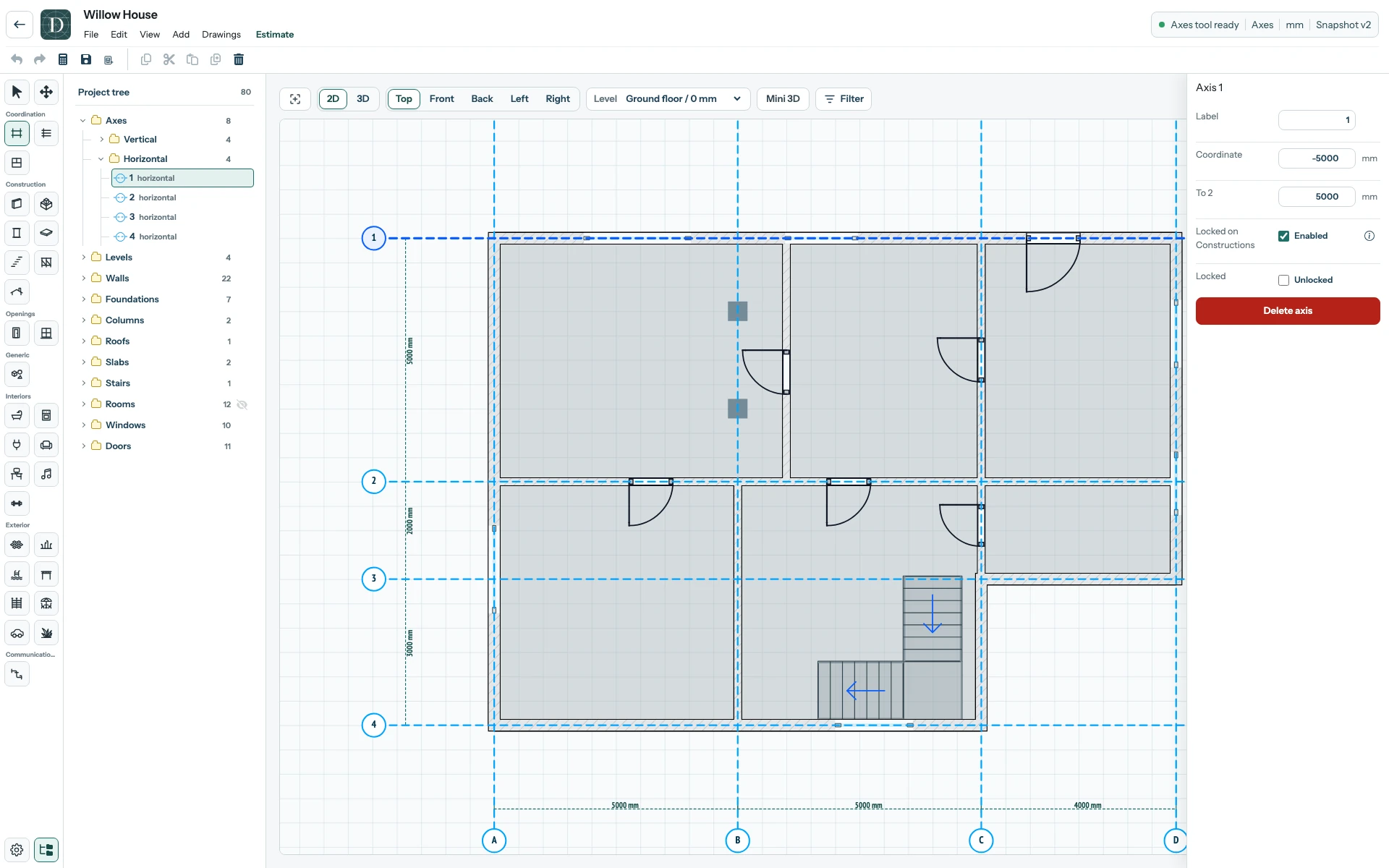
View the full-size ground-floor view before the move.
- Drag the Axis line perpendicular to itself. In the example, Axis 1 moves outward to -5624 mm. The Wall baseline moves with it. The Door and Windows stay in that Wall, so their displayed positions move too. Select Save, reopen the project, and check the Axis coordinate and openings again.
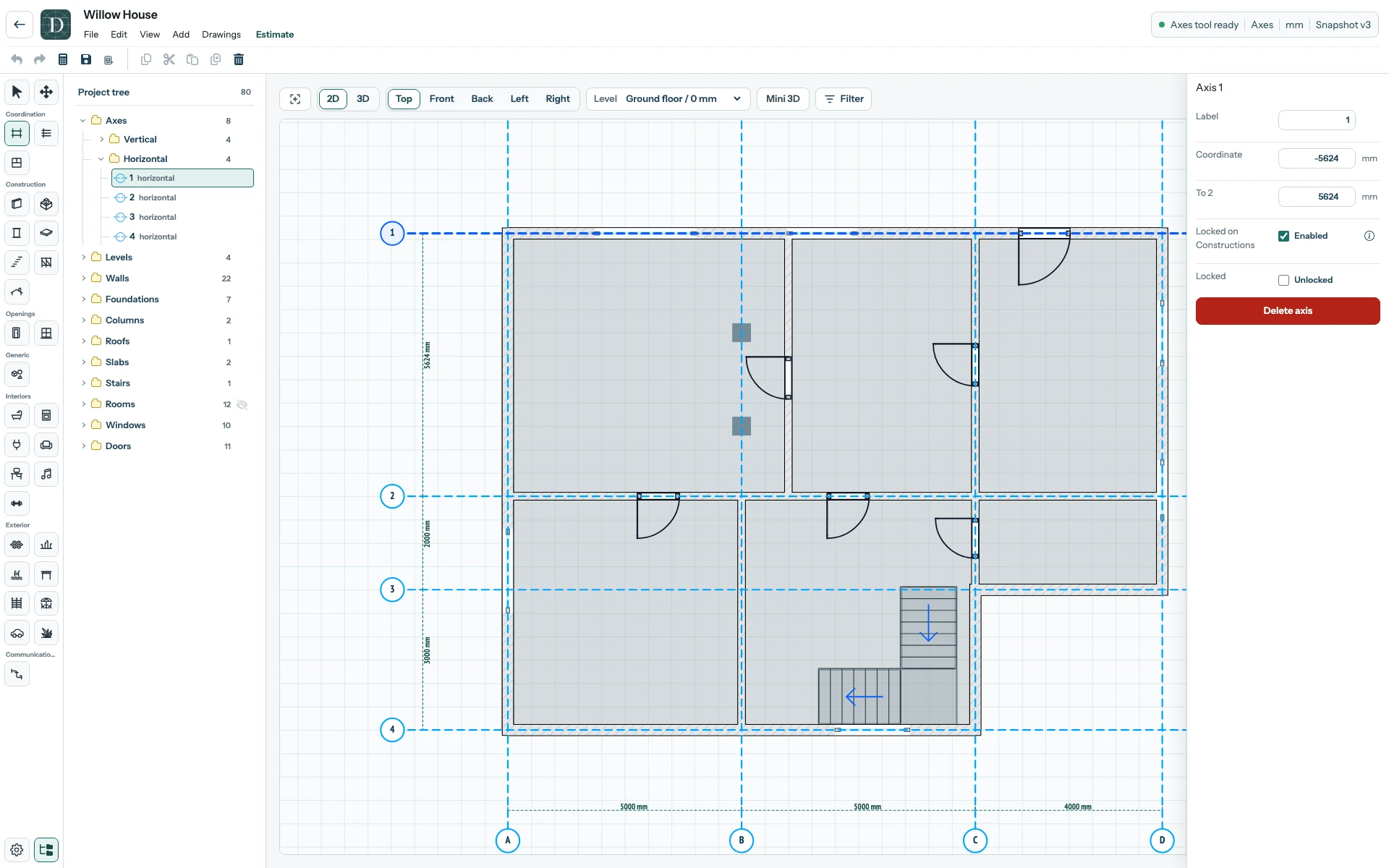
View the full-size ground-floor view after the move.
- Switch the active Level to Foundation. The strip Foundation baseline was on the same Axis and moved by the same distance, even though it is on a lower Level. These two views show the same project before and after the drag.
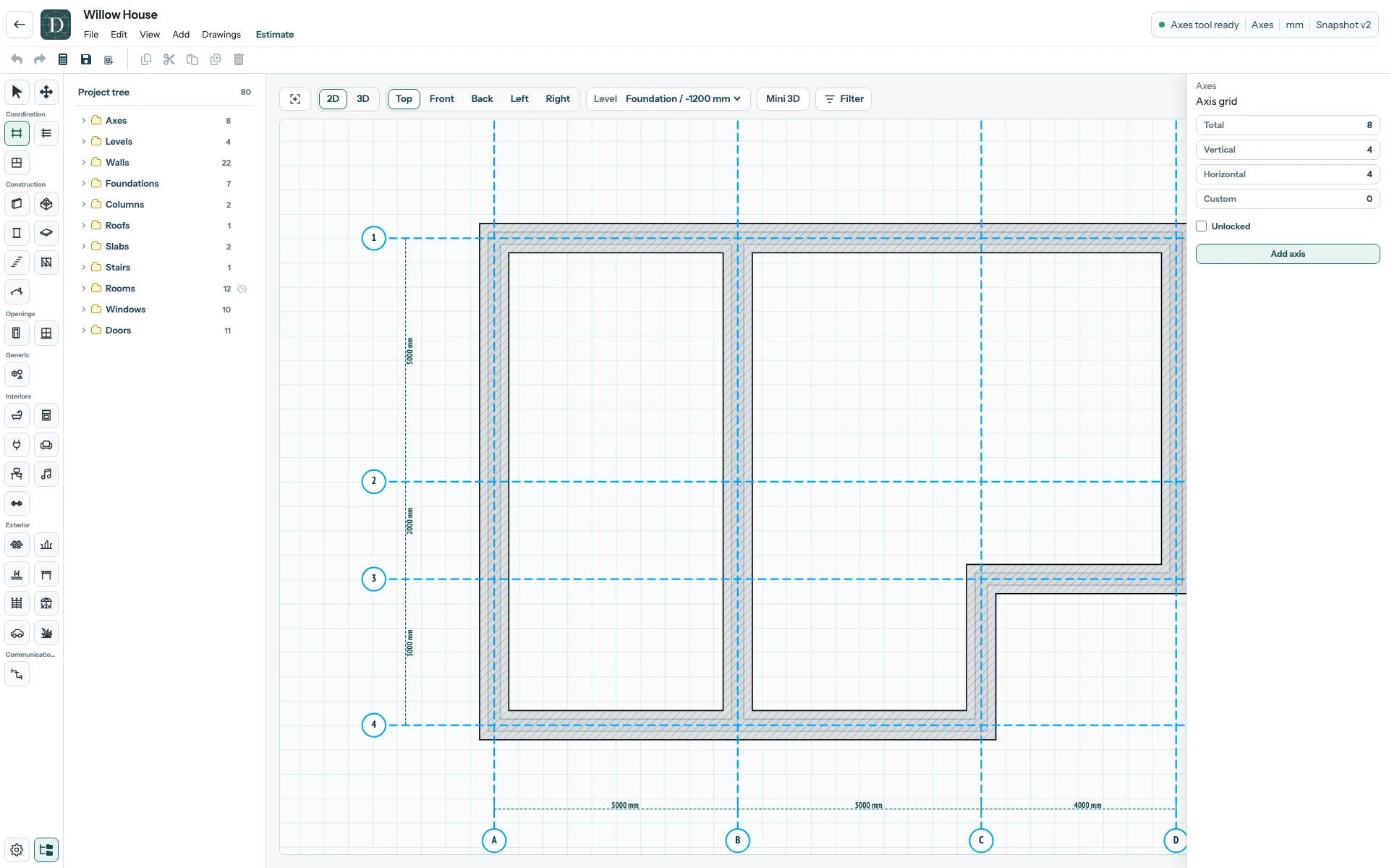
View the full-size Foundation view before the move.
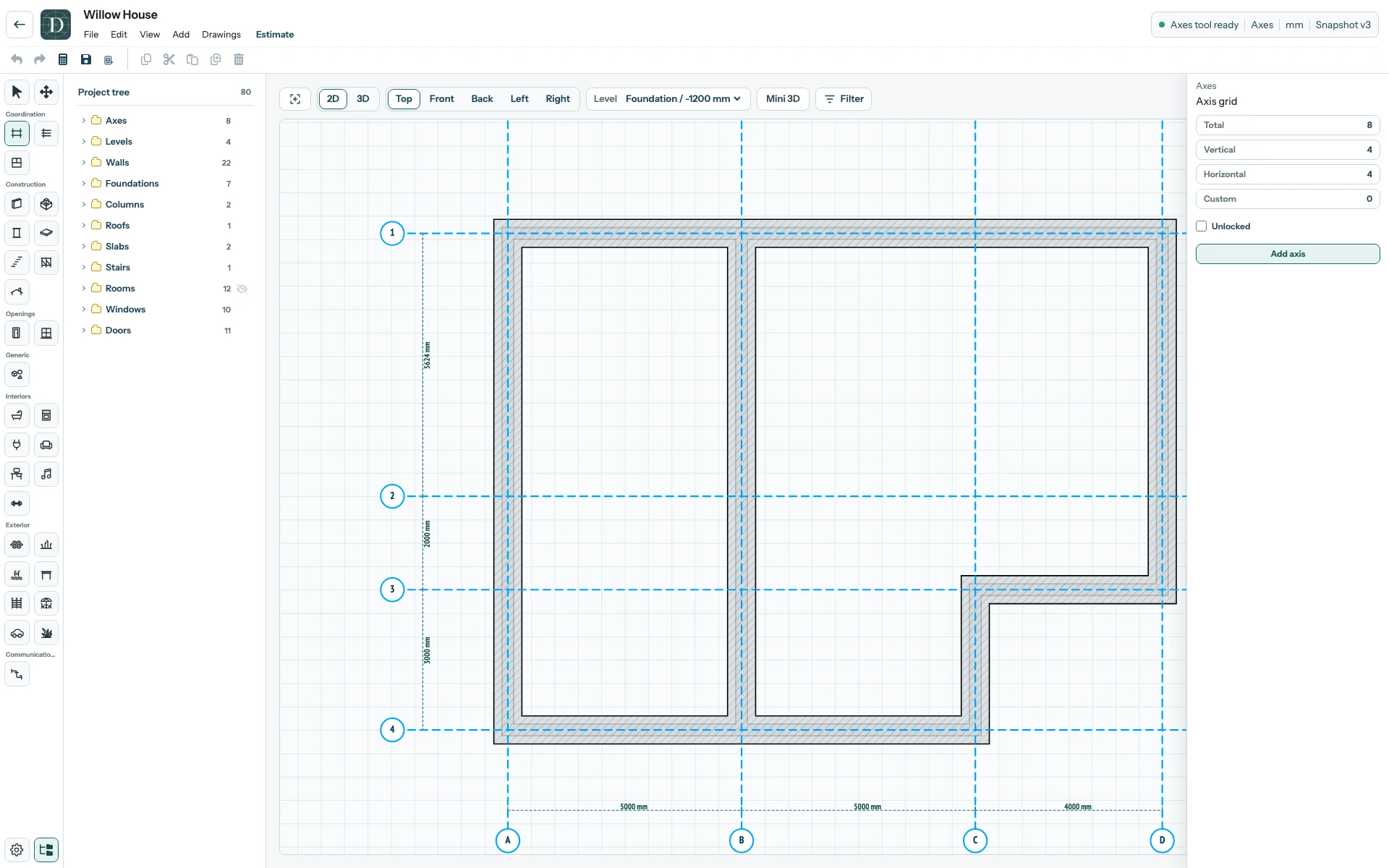
View the full-size Foundation view after the move.
Check the rest of the model after any Axis move. The editor moves supported construction points lying on the Axis; it does not shift every nearby object. A Wall with one endpoint on the Axis may change length or angle. Slab and Roof vertices on the Axis can also reshape. A Door or Window follows through its host Wall, while a logical Room boundary does not move automatically. The Rooms are hidden in these screenshots so the construction change is easier to see; show them again and review their boundaries, areas and finishes before using drawings or estimates. Turn Locked on Constructions off if you intend to move only the Axis line.