
An album combines included saved drawings and supplementary sheets into an ordered set for PDF or DXF export. Open Drawings → Drawing album… to inspect the set. The example contains a plan, elevation, section, cover and model-derived specification.
Add and inspect sheets
- Select a saved row under Sheets to open it. Add drawing and + New drawing start another drawing from the captured editor state; configure it, then Save drawing.
- Turn on the required Additional sheets: Title sheet, Architectural specification or Estimate.
- Open every included sheet and inspect its preview for Draft reasons, Update available or a failed render. A saved ordinary sheet shows Saved in the list even when its title block is incomplete. Resolve the relevant content and layout issues before using the set.
Turning off a supplementary switch marks that item Not in album while retaining its saved record. It is different from removing the model or deleting the project.
Reorder ordinary drawings
Drag an ordinary saved row onto another ordinary row. The example moves Front elevation before Front section. Check both the list and the cover's sheet index after reordering.
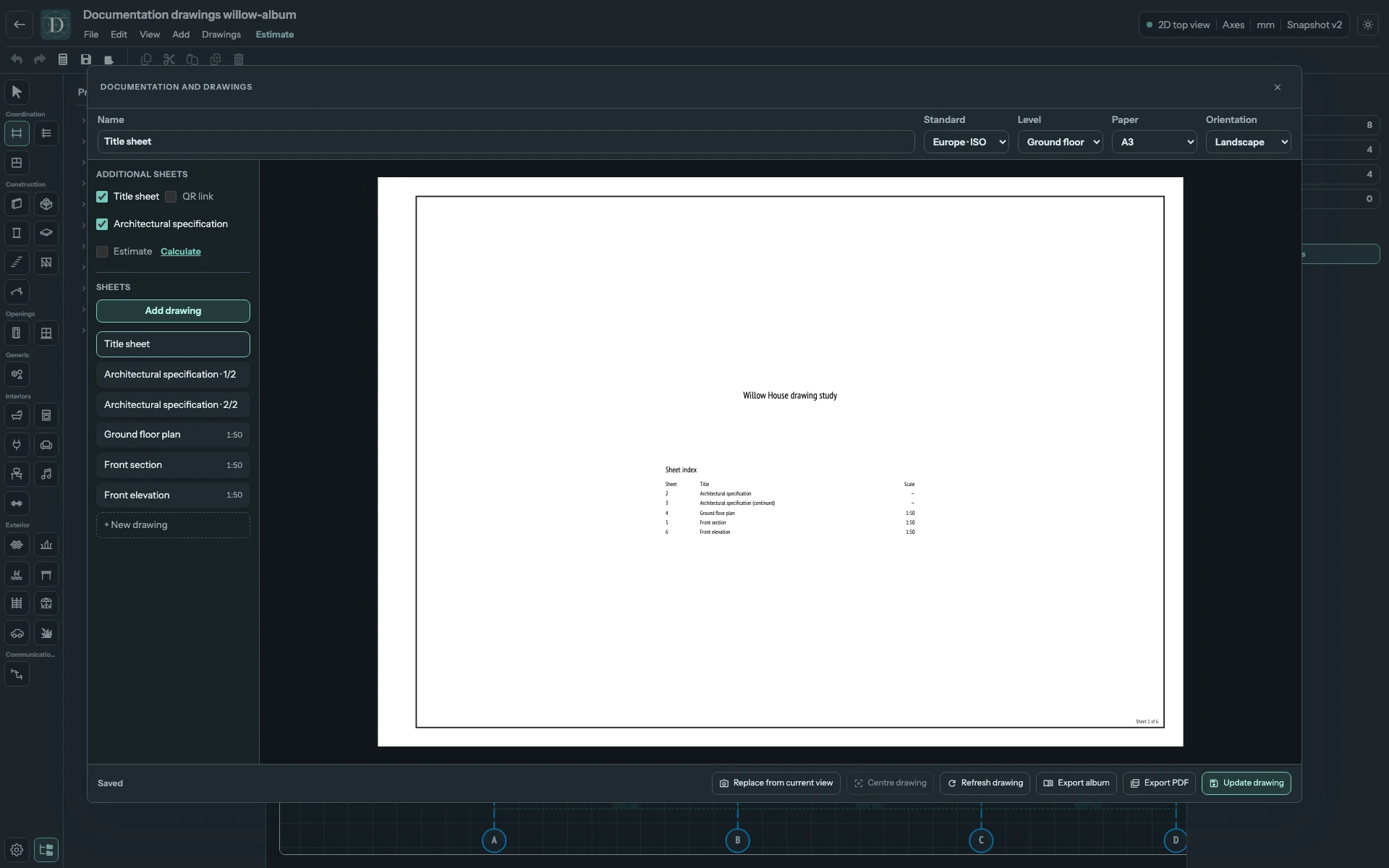
View the full-size screenshot.
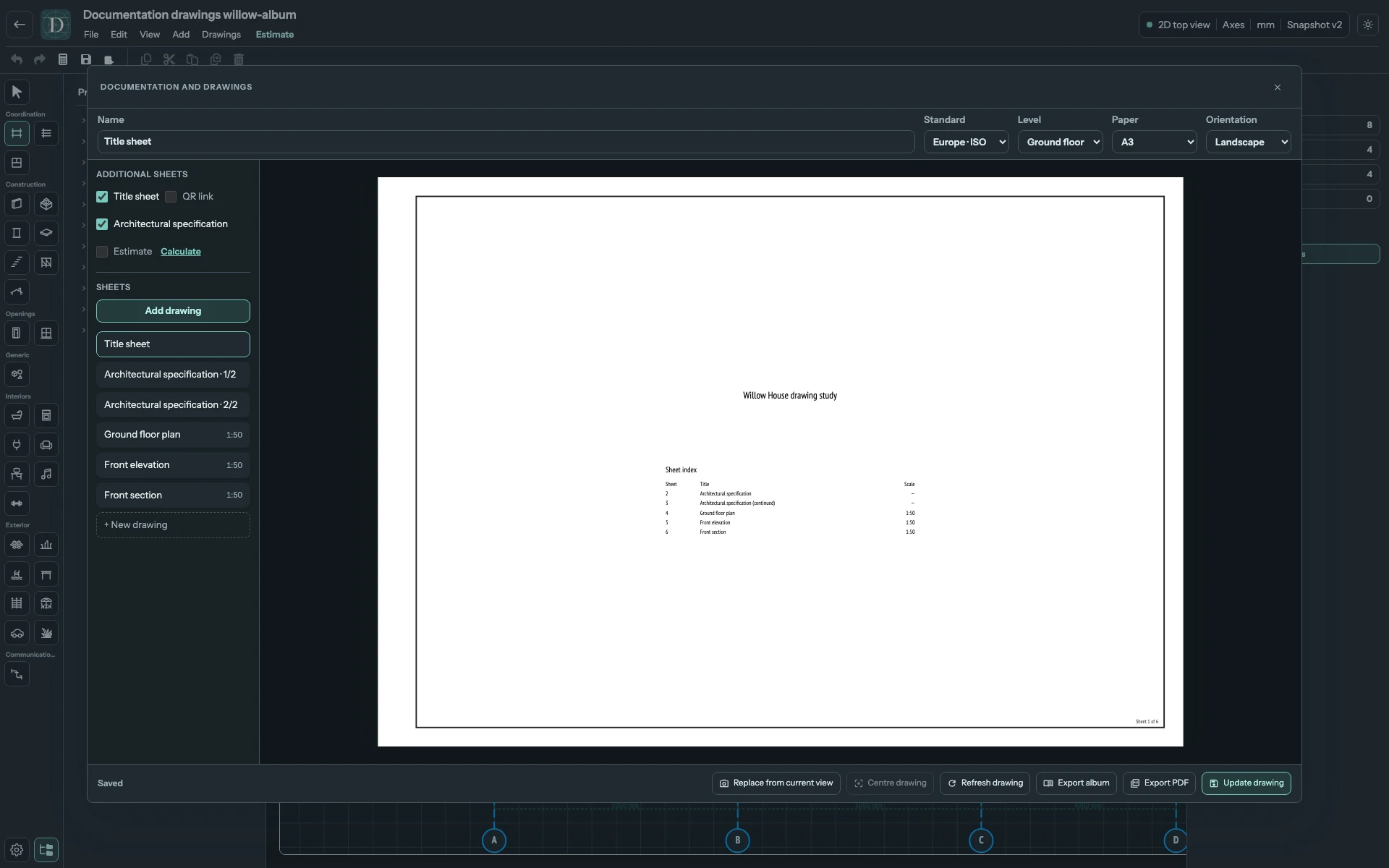
View the full-size screenshot.
The Title sheet, architectural specification and estimate supplements remain at the beginning in that order. Ordinary sheets cannot be moved before them. A multi-page specification or estimate is one saved item even when the list shows its individual pages.
Check common paper and export
Paper sets the common project format for saved sheets. Changing it marks saved drawings Update available; open each, check its placement and select Update drawing. Exports preserve the saved paper shown in each preview until you update the sheet. Orientation belongs to an individual sheet.
The project owner on a paid plan can choose PDF or DXF, then Export album. PDF produces one multi-page file; DXF produces a ZIP with a numbered file per included physical page. A specification or estimate needs a complete saved source; an update becoming available does not replace its saved contents. Review page count, order, text and layout using the export checks.