
Use Interiors → Music to compare the space occupied by instruments. A grand piano, upright piano or drum kit is one catalog object. The drum kit's drums and cymbals remain parts of that single assembly.
Choose an instrument
| Choice | What you place | Useful layout comparison |
|---|---|---|
| Grand piano | A curved piano body, keyboard, open lid, supports and piano bench. | Check the deeper footprint and the playing position in front of the keyboard. |
| Upright piano | A tall piano body, keyboard and piano bench. | Compare a compact instrument against a Wall with room for its player. |
| Drum kit | Bass drum, snare, two rack toms, floor tom, cymbals, stands and stool as one assembly. | Reserve space for the whole kit rather than placing each drum separately. |
The catalog forms have fixed dimensions in the current panel. The piano body examples are 1460 × 1510 mm for Grand piano and 1530 × 620 mm for Upright piano; the included bench adds to the occupied space in front. The Drum kit envelope is 1800 × 1600 mm. These describe the editor's examples; measure the instrument you intend to install when checking a real room.
Place an instrument
- Choose 2D → Top and the working Level.
- Open Music and choose an instrument, for example Grand piano or Drum kit.
- Set Level and Base offset in the right panel. The base elevation is the selected Level plus this signed offset.
- Position the complete preview and click. Repeat placement if needed, then choose Select or press Escape.
- Select the instrument in the plan or Project tree. Use Name to distinguish it and revise Level or Base offset.
All three instruments use free placement. Position an Upright piano's rear edge beside the Wall manually in Top. A center inside a same-Level Room gives the instrument an optional Room link.
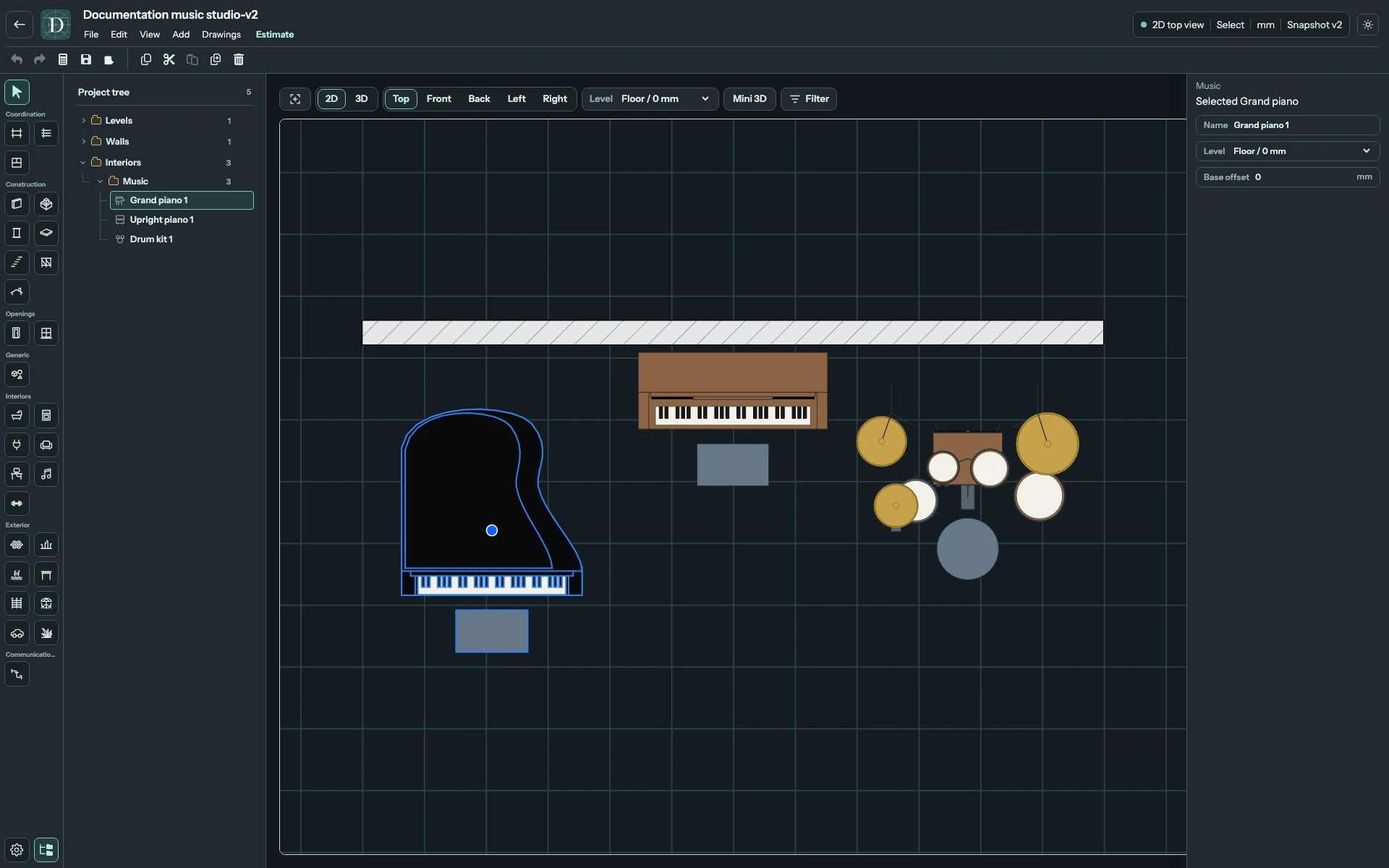
View the full-size screenshot.
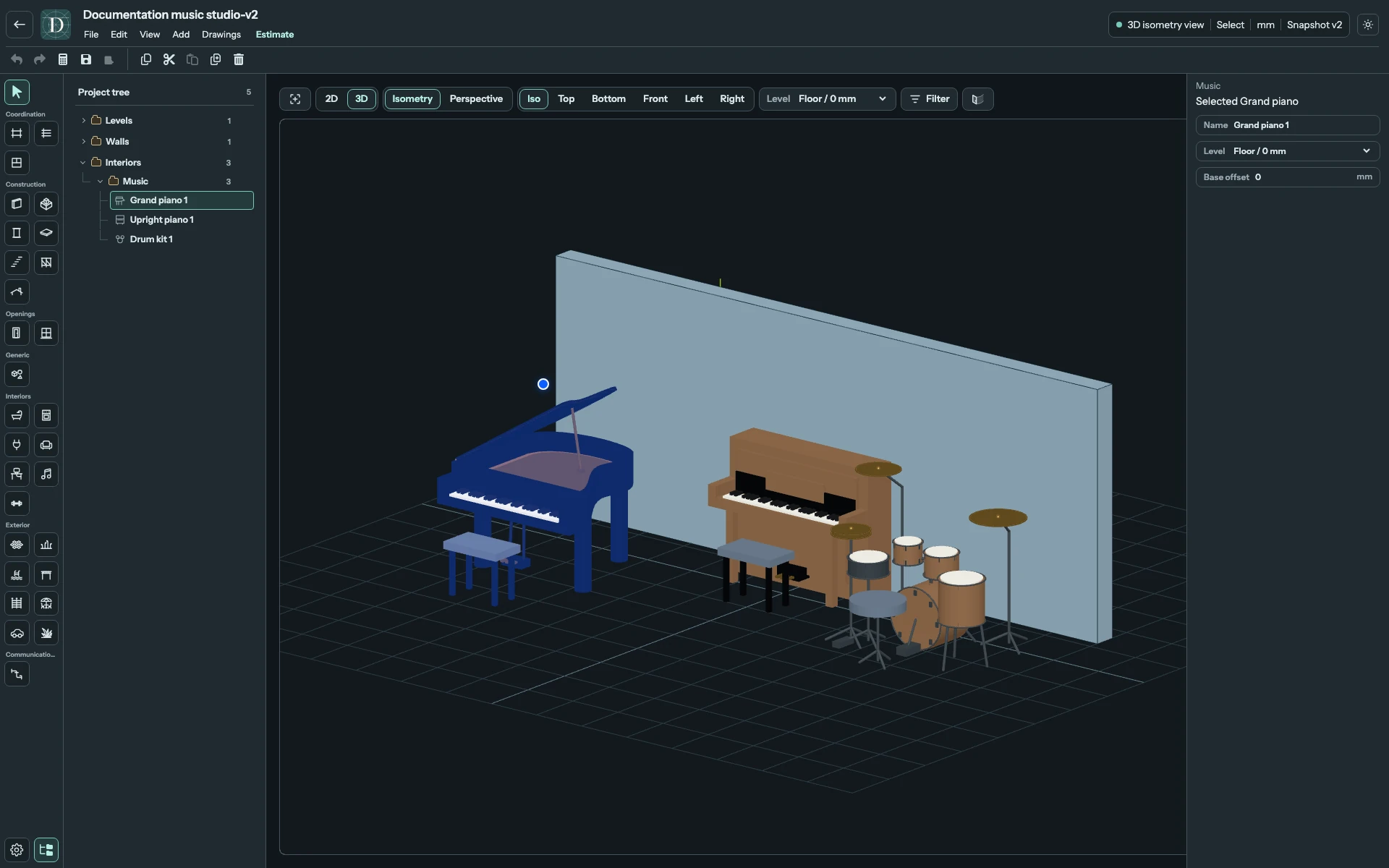
View the full-size screenshot.
All Music settings
| Field | How to use it |
|---|---|
| Name | Available after placement. Give the complete instrument a recognisable name in Project tree, such as Rehearsal piano. |
| Level | Choose the floor datum for the instrument. Moving to another Level changes its base elevation while retaining Base offset. |
| Base offset | Signed distance from the chosen Level to the instrument base. Use 0 on the floor, or a positive value for a raised platform. A negative value lowers it beneath that Level. |
For example, an instrument on a Level at 3000 mm with Base offset 150 mm has its base at 3150 mm. This moves the whole assembly, including its bench or stool. The panel does not expose Width, Depth, lid, bench or individual drum settings. To use a different instrument family, choose it from Music and place a new object.
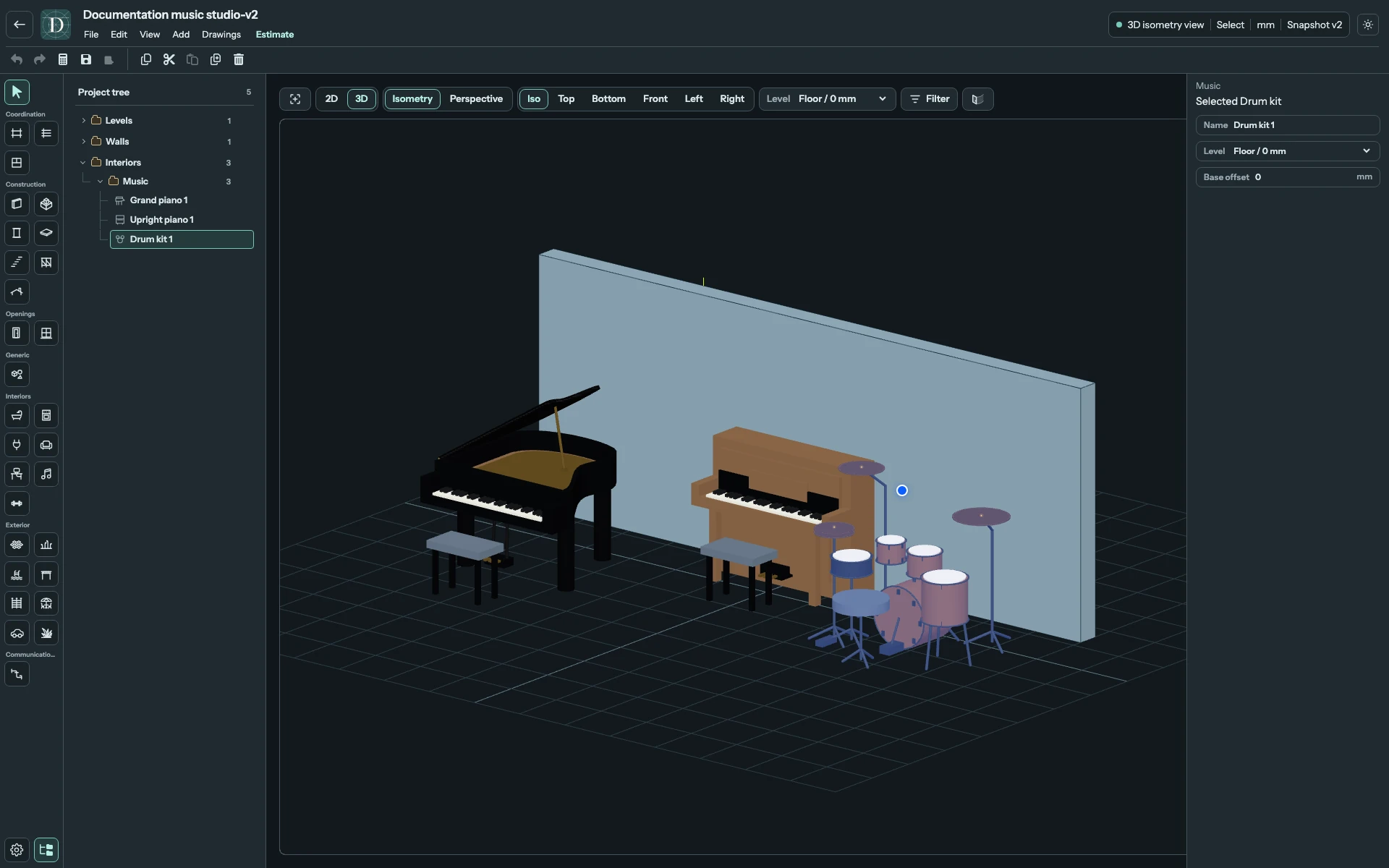
View the full-size screenshot.
Arrange and check the instruments
Use the supported movement and rotation handles to turn the instrument or move the complete assembly. The current Music panel exposes placement and naming rather than instrument dimension fields, so choose the catalog form whose footprint suits the comparison.
Inspect Top for the instrument footprint and a side view or 3D for its body, supports and included parts. Save and reopen useful changes. The catalog is a spatial illustration: it does not calculate acoustics, isolation, instrument weight or floor-loading suitability.
To remove an instrument, select it and use Delete. Its included parts are removed together. Use Undo to restore an accidental removal.