
Dravit documentation Dravit documentation
Start

Create and open a project

Name a new Dravit project, find its card, and open the initial saved model in the editor.

Sign in to Dravit. Name a project for your own work and open its editor. The screenshots use Cedar Court House as an example.

  1. Open Projects. In New project, enter your project name and select Create.
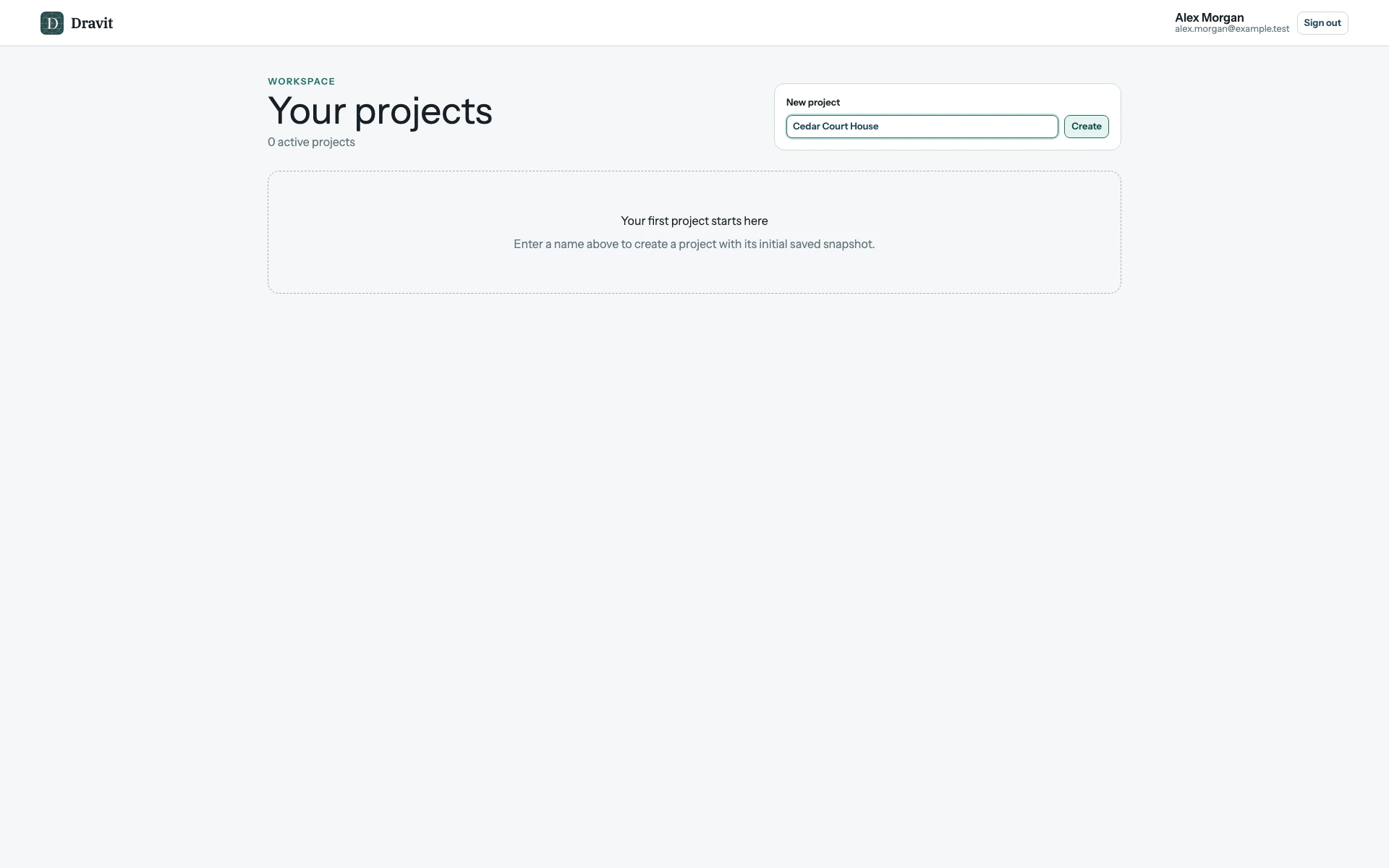
The complete Projects page before creation, with Cedar Court House entered in the New project field beside Create.
Enter a project name on the Projects page.

View the full-size creation screenshot.

  1. Find your new project card and select Open.
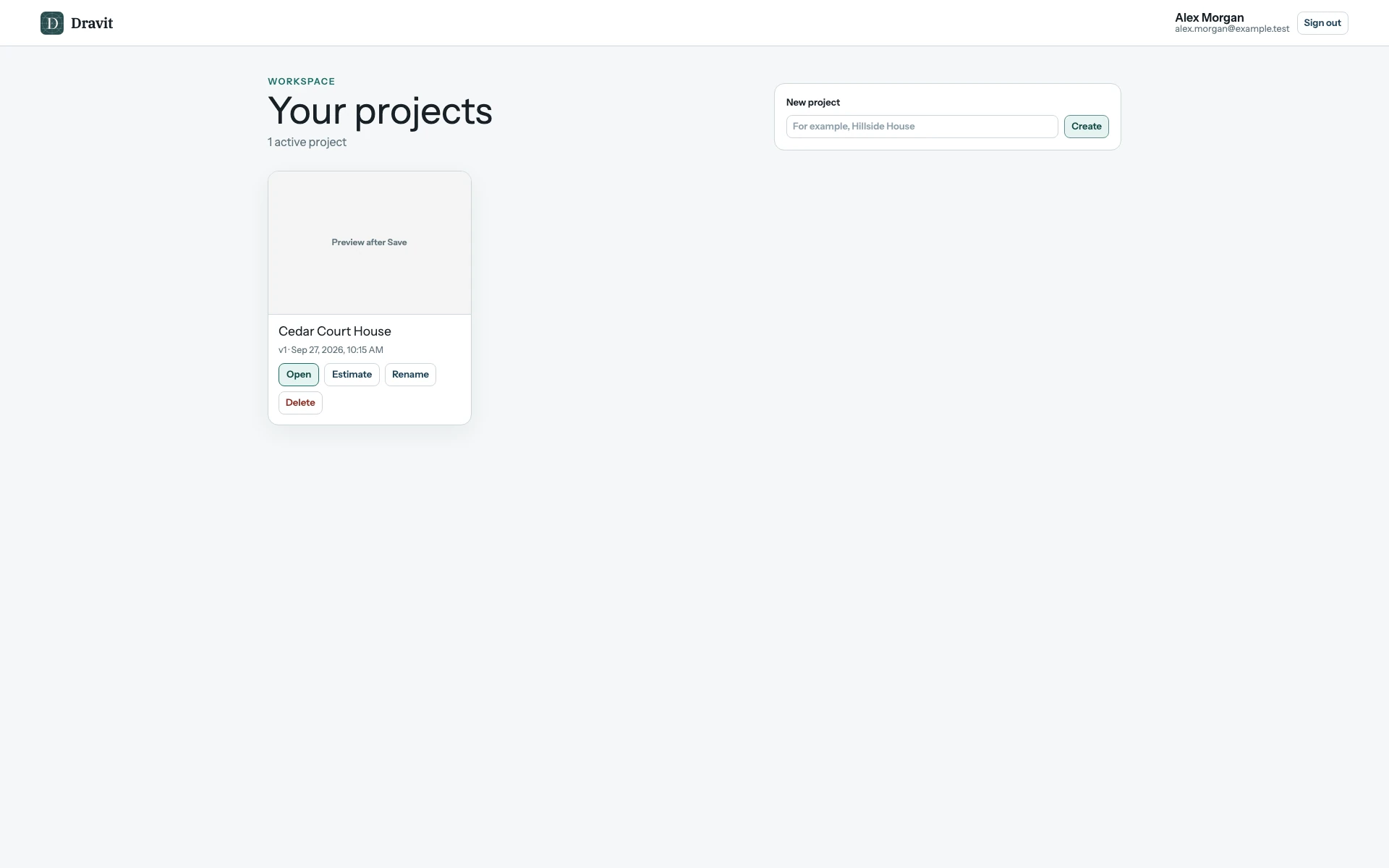
The complete Projects page after creation, showing the Cedar Court House card with its Open action and initial v1 snapshot.
The newly created project appears as a card with an Open action.

View the full-size project card screenshot.

The editor shows your project name and Loaded v1. A new project has a starter grid of six Axes, but no Levels or building elements yet. The Level selector reads No levels.
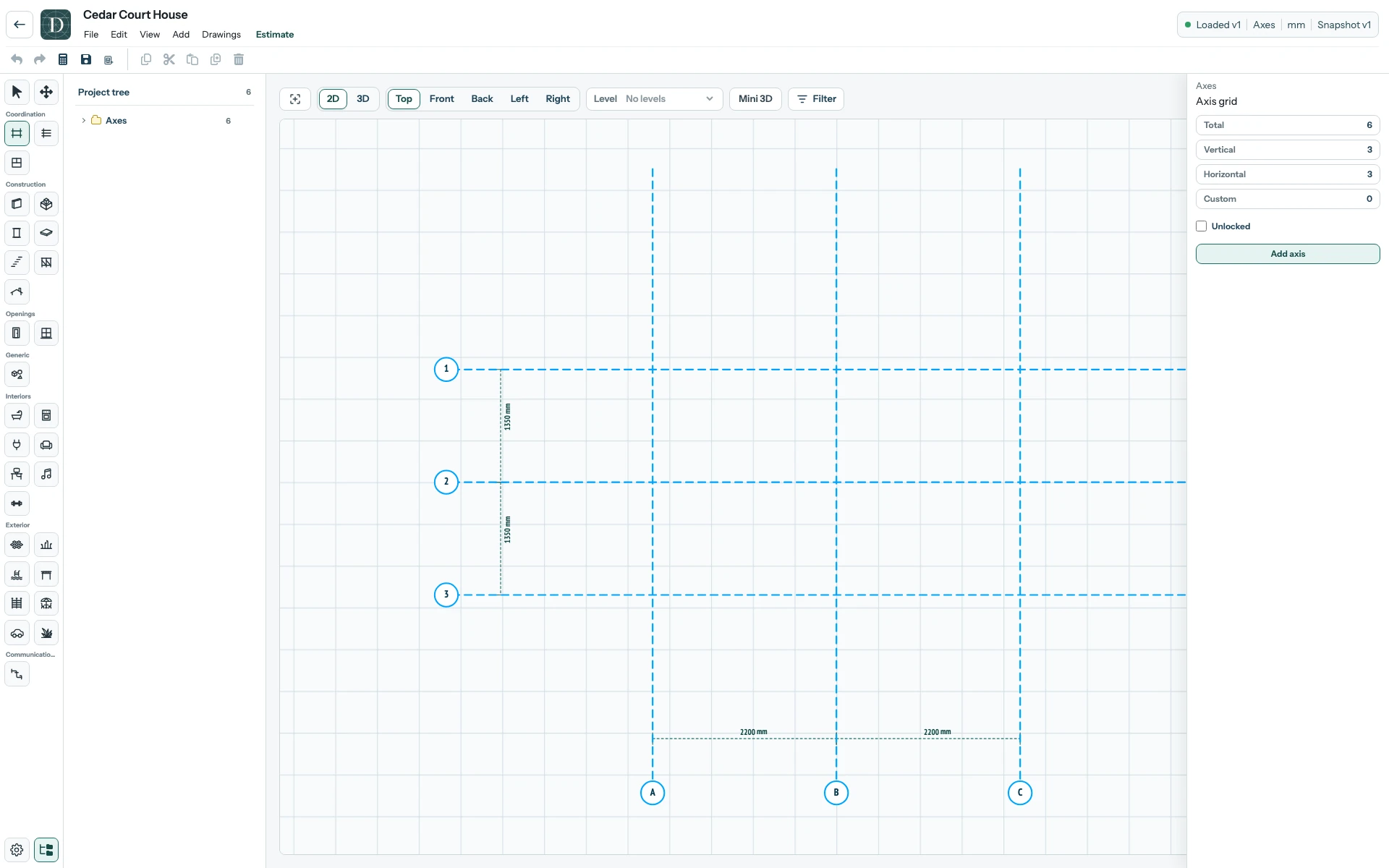
The complete editor for the new Cedar Court House project, showing six starter Axes in Top 2D, No levels in the Level selector, and Loaded v1 in the header.
The initial saved project opens in the editor before its first Level is created.

View the full-size initial editor screenshot.

Last updated 27th September 2026