
Select Save in the top toolbar or File → Save after editing. The status changes to Saved v… and the snapshot number increases. Return to Projects, open the same card, and look for Loaded v… with the version you saved. This confirms the current document was retrieved again.
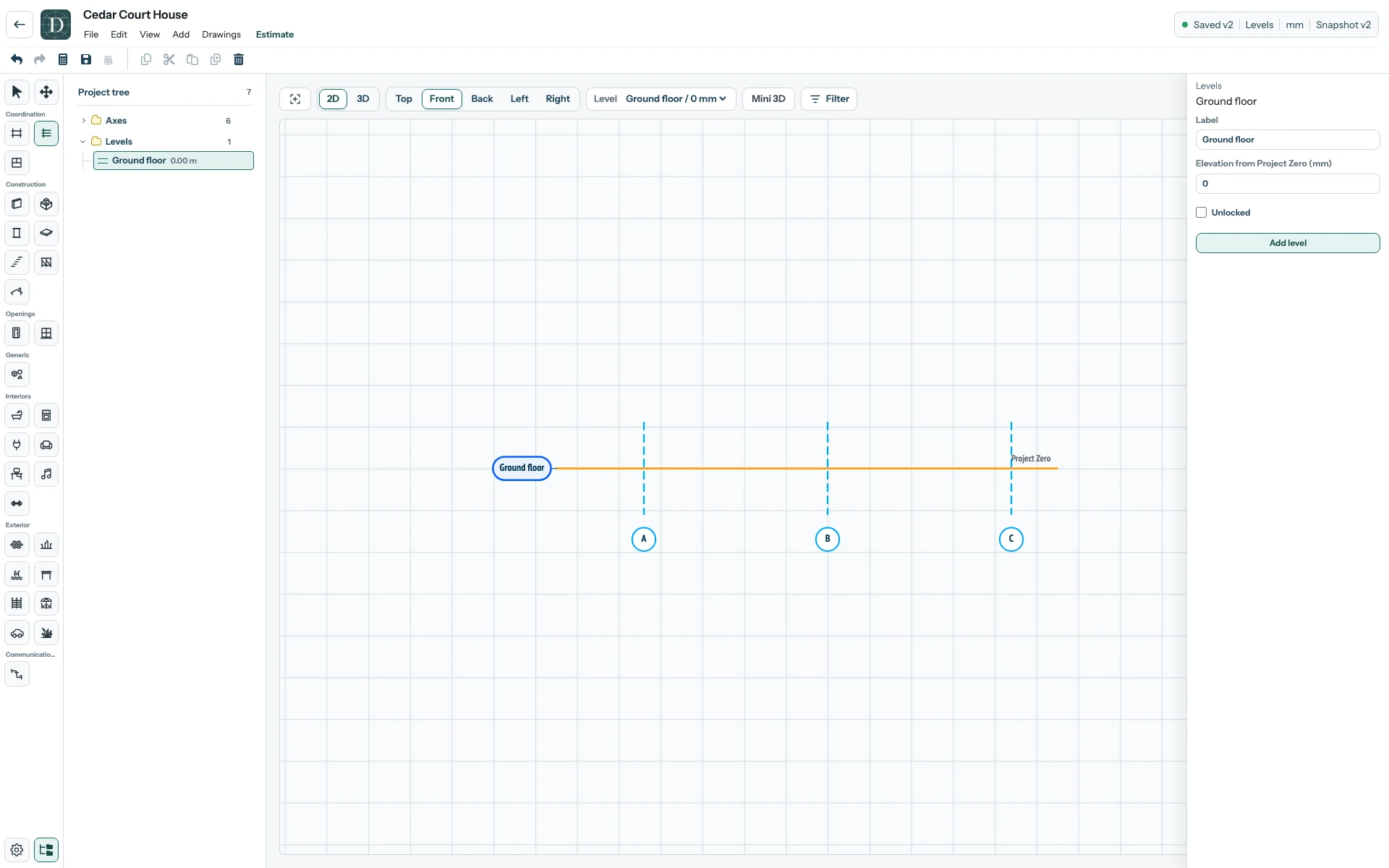
View the full-size saved-editor screenshot.
Leaving with unsaved changes
If you leave the editor after changing the model, Save changes before leaving? offers three actions:
| Action | Result |
|---|---|
| Keep editing | Closes the dialog and retains the current unsaved work in the editor. |
| Leave without saving | Leaves the editor and discards changes since the last saved version. |
| Save and leave | Saves the current document, then follows the requested navigation if saving succeeds. |
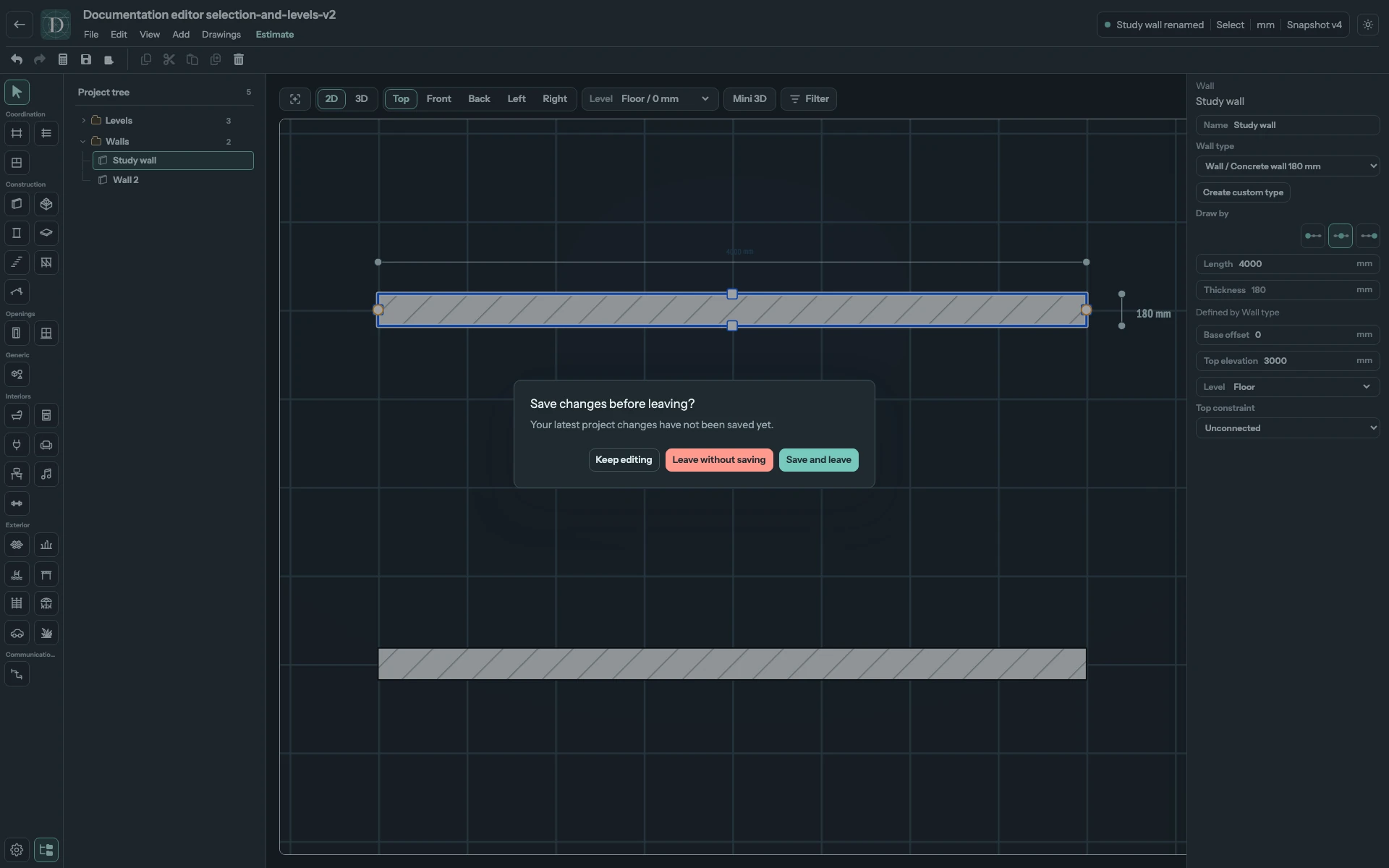
View the full-size unsaved-changes screenshot.
Opening Estimate with unsaved changes shows Save changes before estimating? instead. Choose Save and continue to save the document used by the estimate, or Keep editing to return to the editor. This dialog has no Leave without saving action because the estimate uses the saved model. See calculate an estimate.
When another saved version replaces your draft
If someone saves a newer version while you have an older one open, your Save can meet a version conflict. The editor automatically loads the latest saved document. Its status becomes Updated to v…, and the notice identifies the external update. Your unsaved changes were replaced. means that those local edits were replaced by the newer document; they were not saved or merged. The local Undo/Redo history is cleared, so Undo cannot recover the replaced draft.
Inspect the updated version before making further changes. Reapply any required edits from a record you already have, then save the new work. This update can also arrive while collaborating, without pressing Save.
If the automatic refresh cannot complete, the status becomes Recovery failed. Other failed saves show Save failed. Read the accompanying message and check your access or connection before retrying. Do not treat either status as a successful save. If unsaved work remains visible, preserve a record before reloading or leaving.
The editor also marks unsaved changes in its document state. Project settings and Undo and redo describe changes made before saving; Undo is not a history of older saved snapshots.
Save before IFC import
IFC import saves an unsaved draft before uploading. A failed Save preserves the draft and stops the operation. Successful conversion is saved automatically as ordinary native objects, including their required Levels and host relationships. Reopen the project to continue editing them.