
The project owner on a paid plan can download a saved sheet or the included album. Both formats use the same saved pages, including their frames, title blocks, text and page numbers. A collaborator's drawing permissions do not grant export access.
Download a page or album
- Open Drawings → Drawing album… and select a saved page under Sheets. For a specification or estimate with several pages, select the particular page you want.
- Inspect the preview. Choose Update drawing to include changes you have made, or reopen the saved sheet to keep its saved contents. Unsaved edits must be resolved before exporting.
- Choose PDF or DXF in the format selector. Select Export sheet for the selected physical page, or Export album for every included page in album order.
- Wait for Export downloaded. The export runs in the background; the controls remain disabled while it is being prepared. If it fails, read the message and retry.
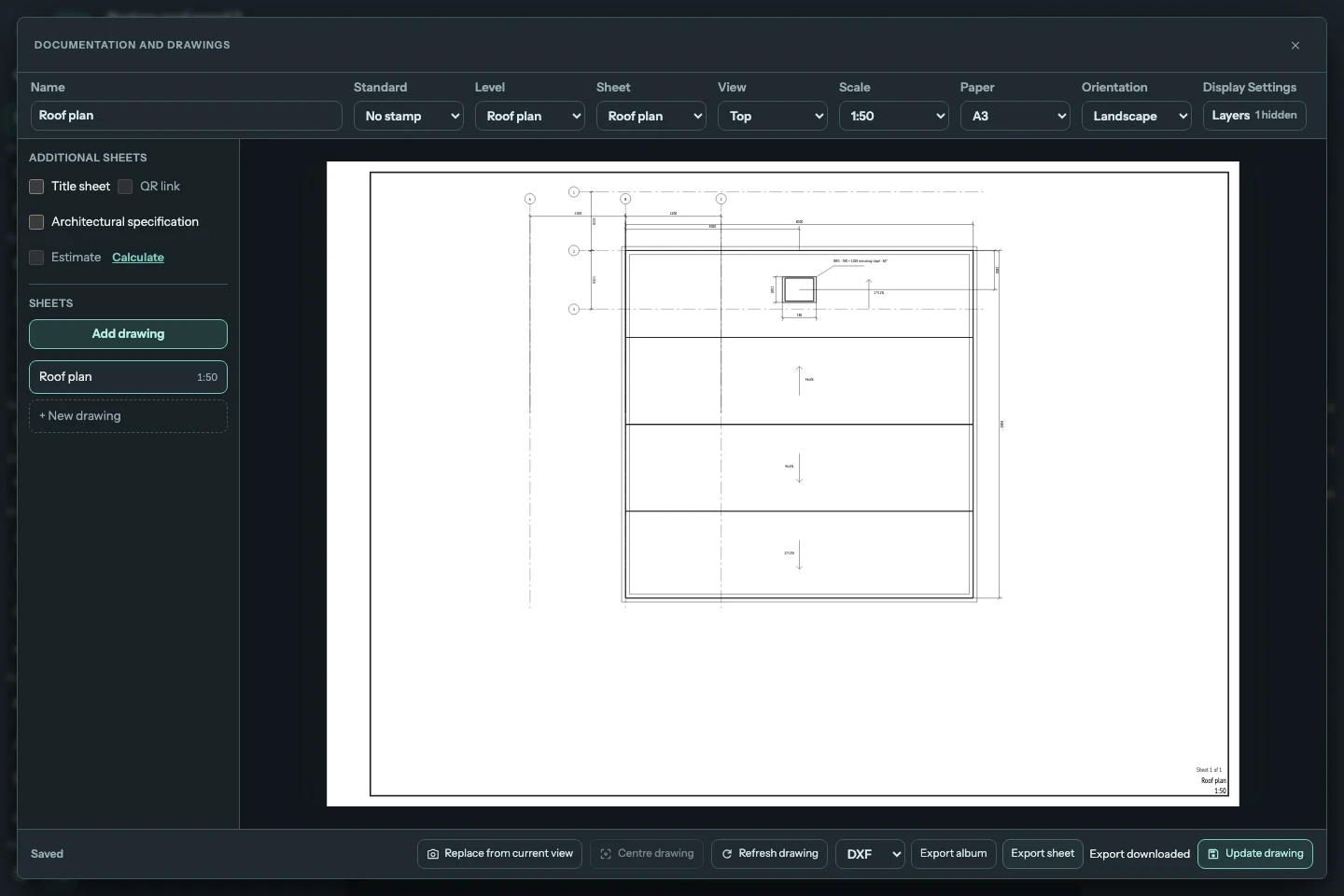
View the full-size screenshot.
| Selection | DXF | |
|---|---|---|
| Export sheet | One PDF page | One DXF file |
| Export album | One multi-page album.pdf |
album-dxf.zip, containing a numbered DXF for each included physical page |
Covers, plans, elevations, sections, axonometric views, roof and rafter drawings, specifications and estimates use the same workflow. Album downloads include continuation pages and omit items marked Not in album.
Update available means the model, estimate or paper settings have changed since the sheet was saved. Export preserves the saved page shown in its preview; it does not recalculate the model or estimate. Update the sheet first if you want those changes. A supplement without a complete saved source cannot be exported. An ordinary sheet may still have empty title-block cells: exporting does not complete them or establish that it is ready to issue.
Open a DXF in CAD
Use a CAD application that supports DXF paper layouts. The layout, also called Paper Space, contains the complete sheet at its physical paper size in millimetres. Existing frames and title blocks are preserved; a stamp-free profile stays stamp-free.
For geometric sheets with a saved drawing placement, Model Space also contains the main projected drawing at 1:1 in millimetres. It excludes the frame, title block and the smaller section locator. Covers and tables have no model geometry. An axonometric export remains a two-dimensional projection.
Install PT Sans Narrow Regular and Bold in the receiving CAD environment for matching lettering. PDF embeds these fonts; DXF names them and depends on the CAD application's font handling. Font substitution can change the appearance of a DXF even though the saved text and positions are unchanged.
Check the downloaded result
Check the page count and order, paper dimensions and orientation, linework, labels and identification. Compare the CAD paper layout with the saved preview and PDF. A CAD viewer that opens Model Space first will show the drawing without its sheet frame.
For a scaled PDF print, use actual size and verify a known dimension. Fit-to-page printing changes the physical scale. For CAD measurements, check a known distance in Model Space and confirm that the receiving application uses millimetres.
Export files remain available for one hour. Download access is checked again: changing the owner's plan or revoking a cover's public QR link can make an earlier result unavailable. Request a new export after resolving the relevant change.
A saved estimate version has separate PDF and XLSX downloads; use that workflow when you need a cost table instead of a drawing sheet.