
Use Exterior → Vegetation to compare planting positions and visual mass around a building. A tree or shrub is one plant object; a Hedge is a compact rounded rectangular volume with its own length, width and height.
Place vegetation
- Choose 2D → Top and the working Level.
- Open Vegetation and choose Hedge, Classic tree, Spruce, Palm or Shrub.
- Set Level, Base offset and the dimensions in the right panel.
- Position the complete preview and click, then choose Select or press Escape when finished placing objects.
- Select an instance in the viewport or Exterior → Vegetation in the Project tree to edit it.
For a plant, Crown diameter controls horizontal spread and Height controls its vertical envelope. For a Hedge, use Length, Width and Height. The current Hedge is point-placed rather than drawn as a polygon. Use separate Hedge objects if your layout needs several rectangular runs.
Choose and size the form
Form identifies the chosen catalog item. It is a read-only output: changing a size does not turn an existing tree into a Palm or Hedge. Place another catalog form when you need a different representation.
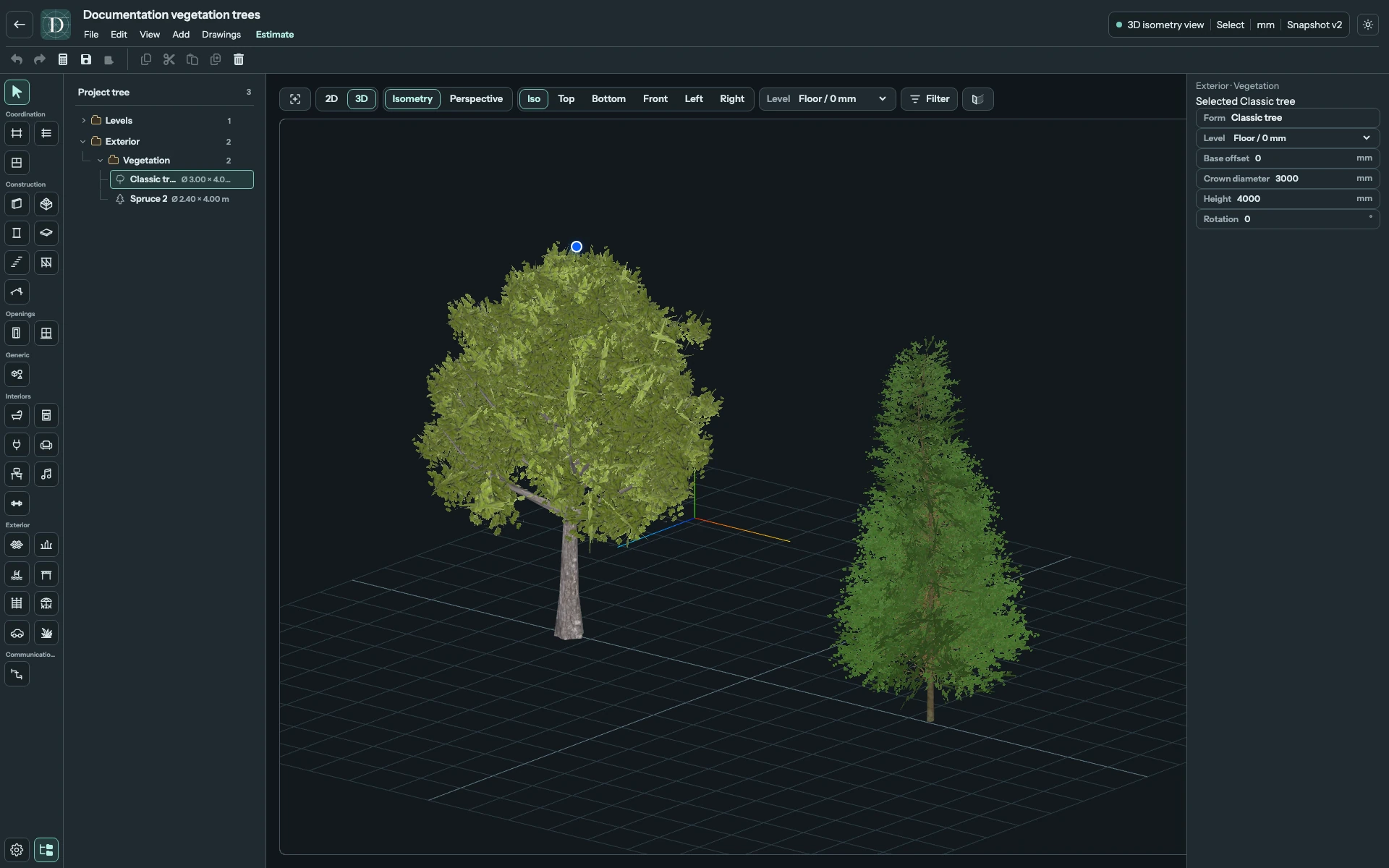
View the two tree forms at full size.
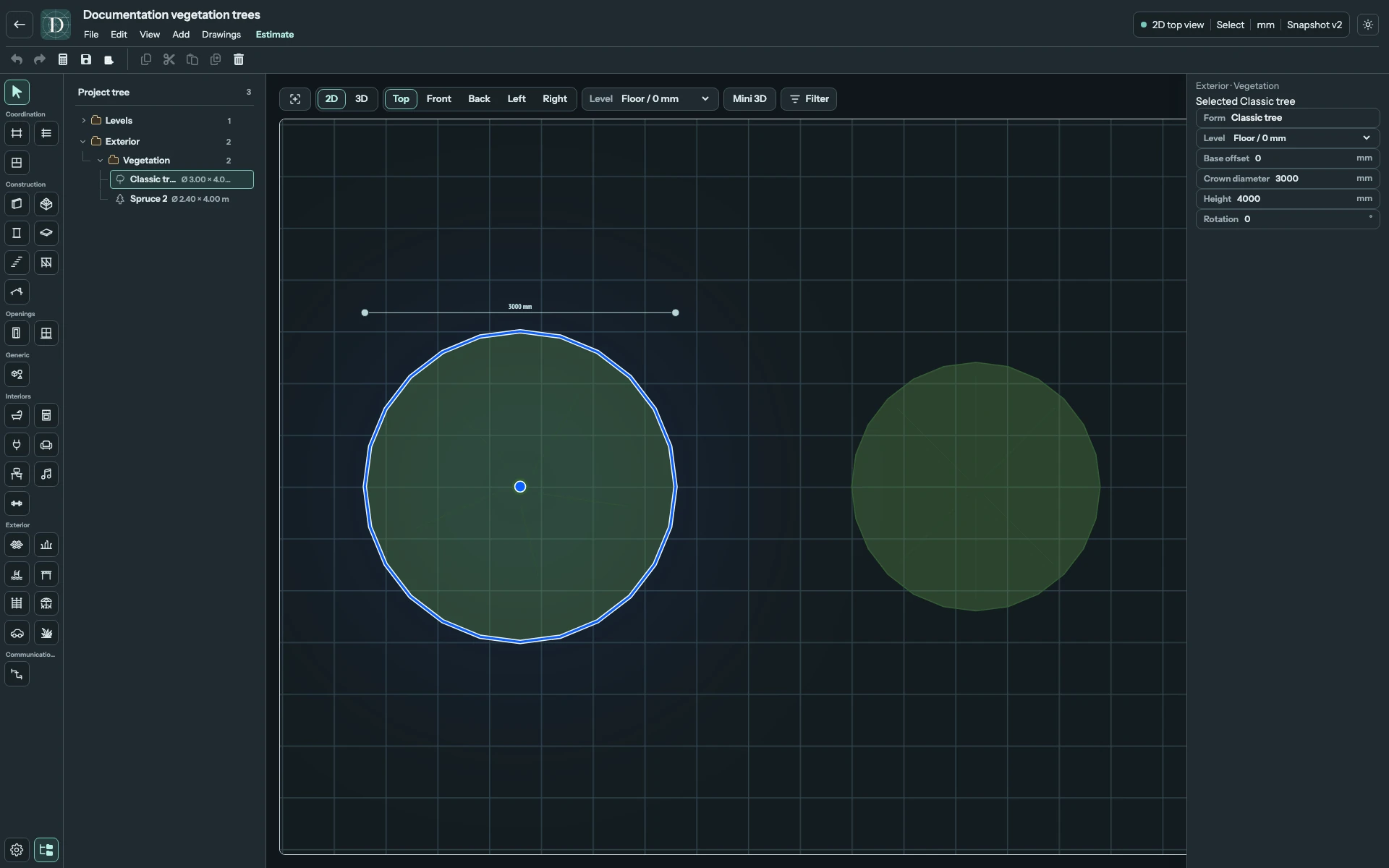
View the tree crowns in Top at full size.
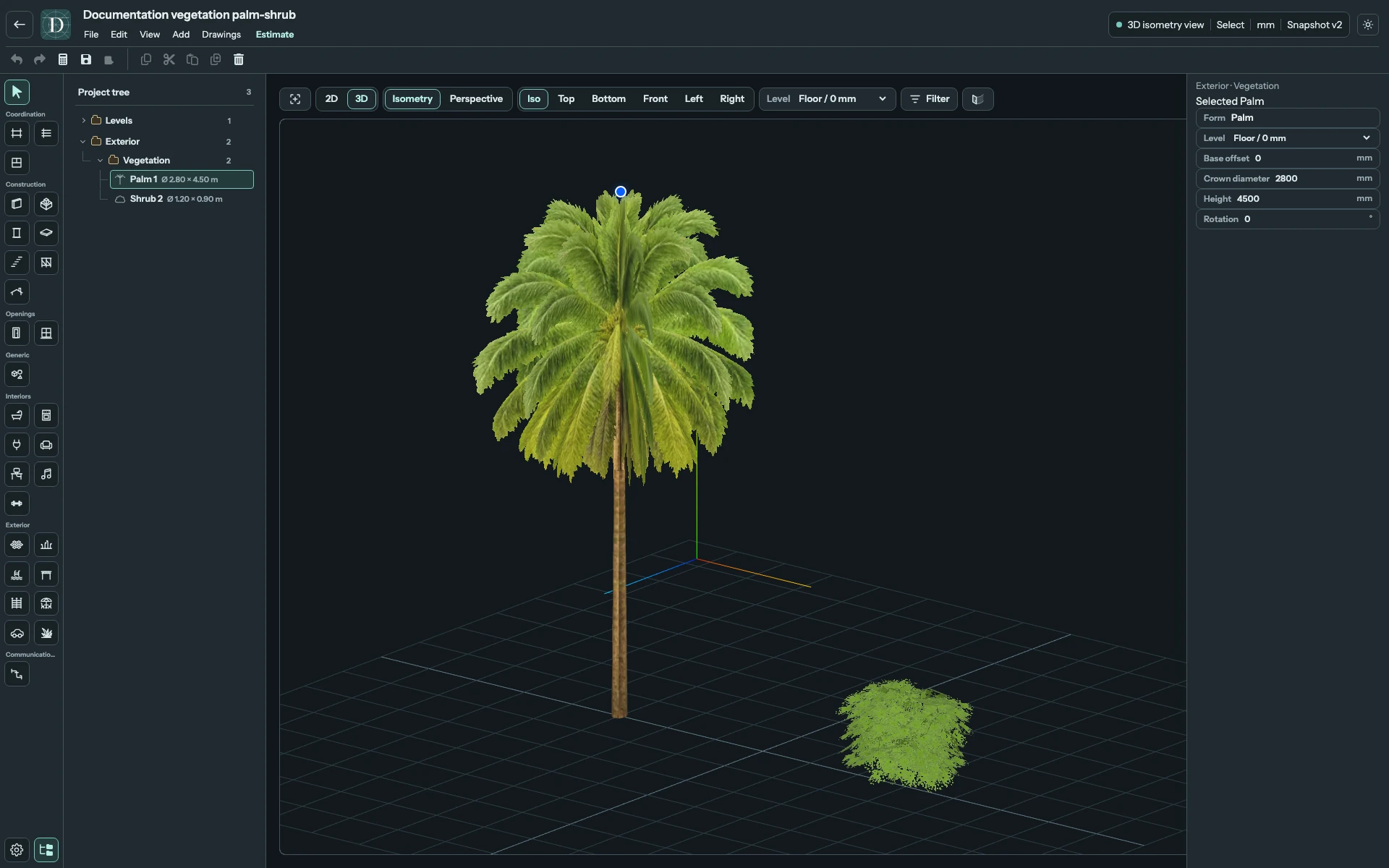
View Palm and Shrub at full size.
| Form | Horizontal size range | Height range |
|---|---|---|
| Classic tree | Crown diameter: 500–12000 mm | 1000–15000 mm |
| Spruce | Crown diameter: 500–10000 mm | 1000–15000 mm |
| Palm | Crown diameter: 800–10000 mm | 1500–18000 mm |
| Shrub | Crown diameter: 300–5000 mm | 200–3000 mm |
| Hedge | Length: 300–20000 mm; Width: 200–3000 mm | 200–4000 mm |
These are current modeling limits. Enter values in the displayed project unit; they do not prescribe planting distances or suitable species. An invalid value leaves the previous valid geometry in place.
Configure a Hedge
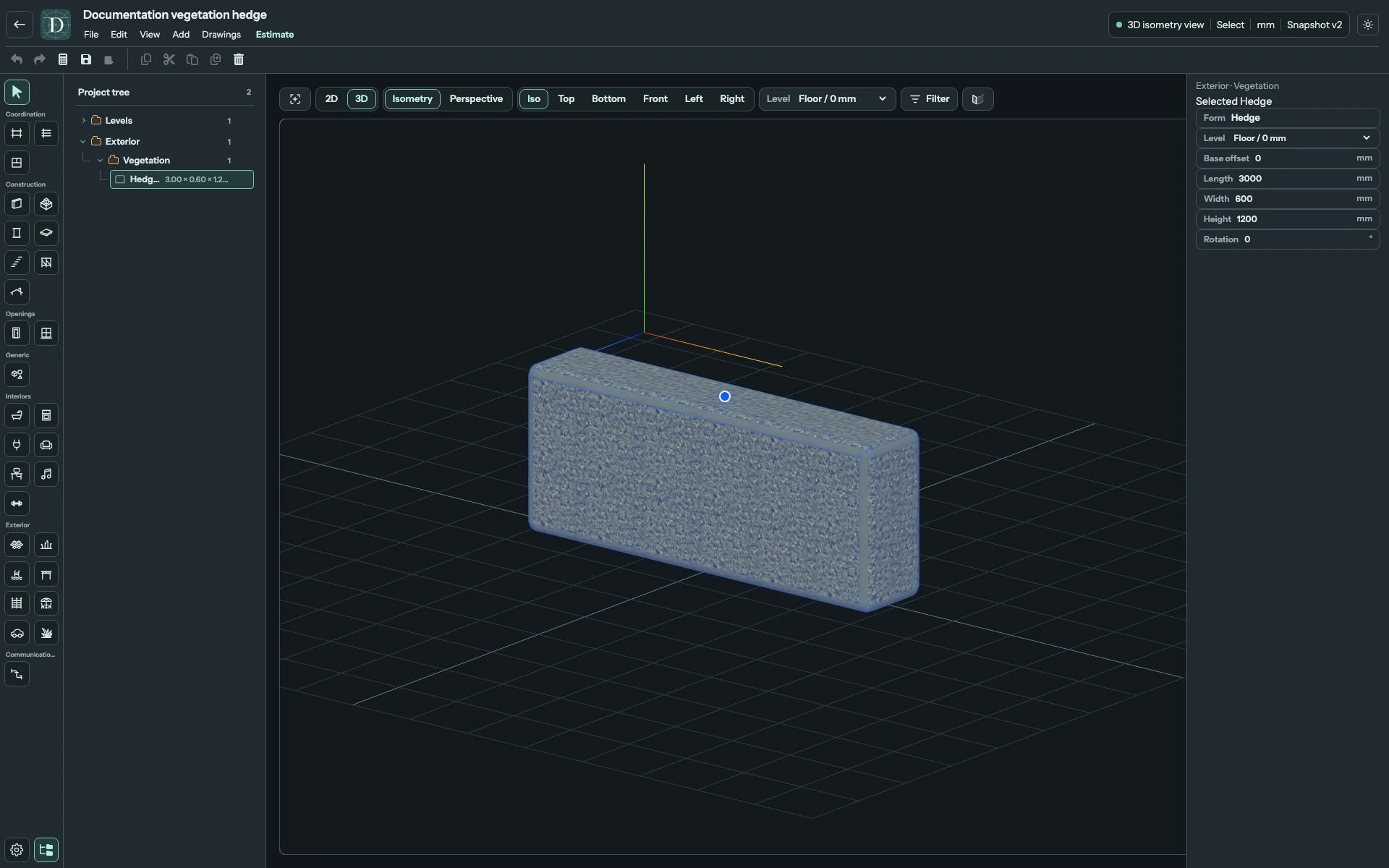
View the Hedge volume at full size.
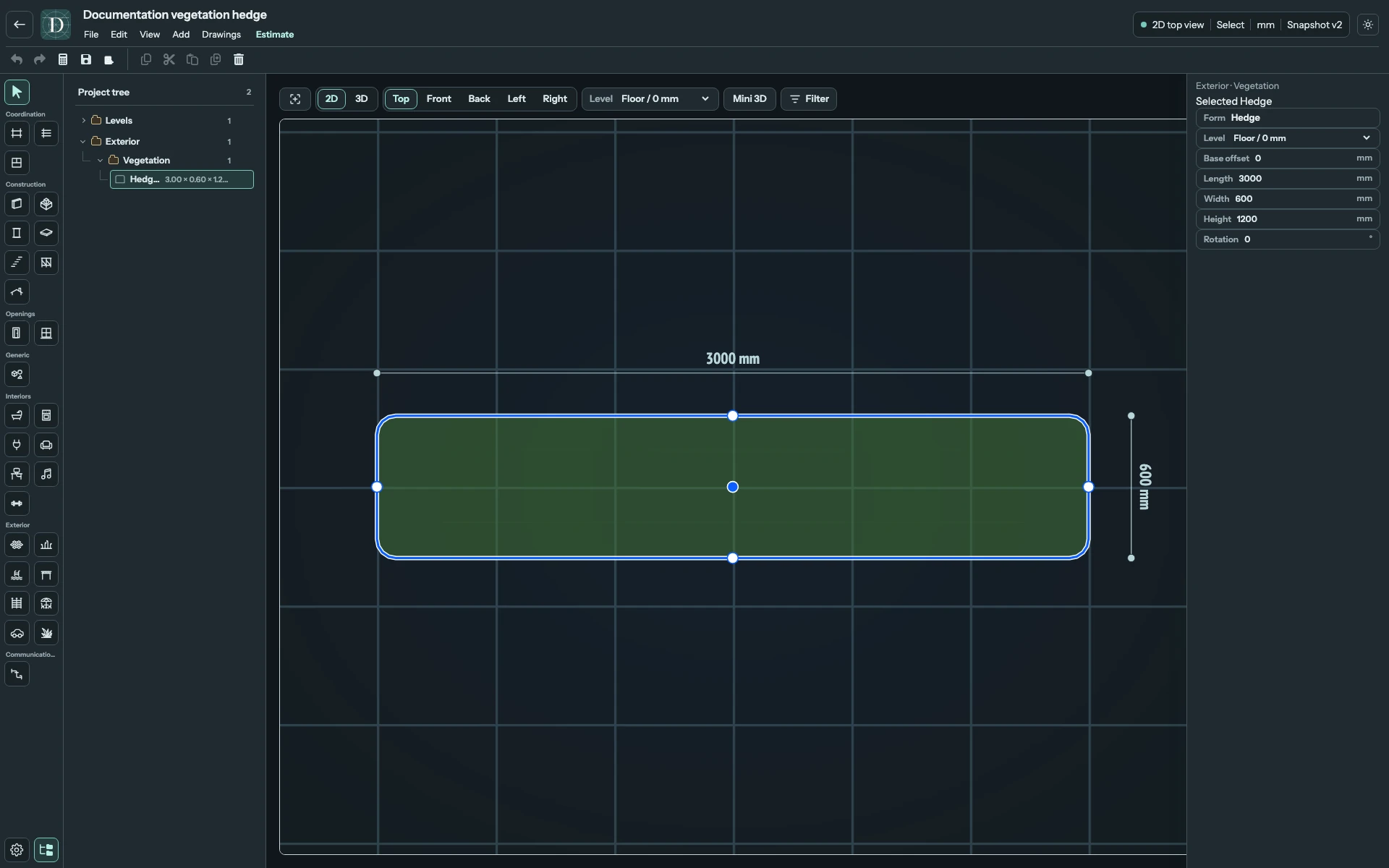
View the Hedge handles at full size.
Change Length, Width or Height in the panel. In Top, drag one of the four side-midpoint dimension handles to change the corresponding local dimension while keeping the opposite side in place. A dimension drag is different from moving the whole Hedge by its center handle.
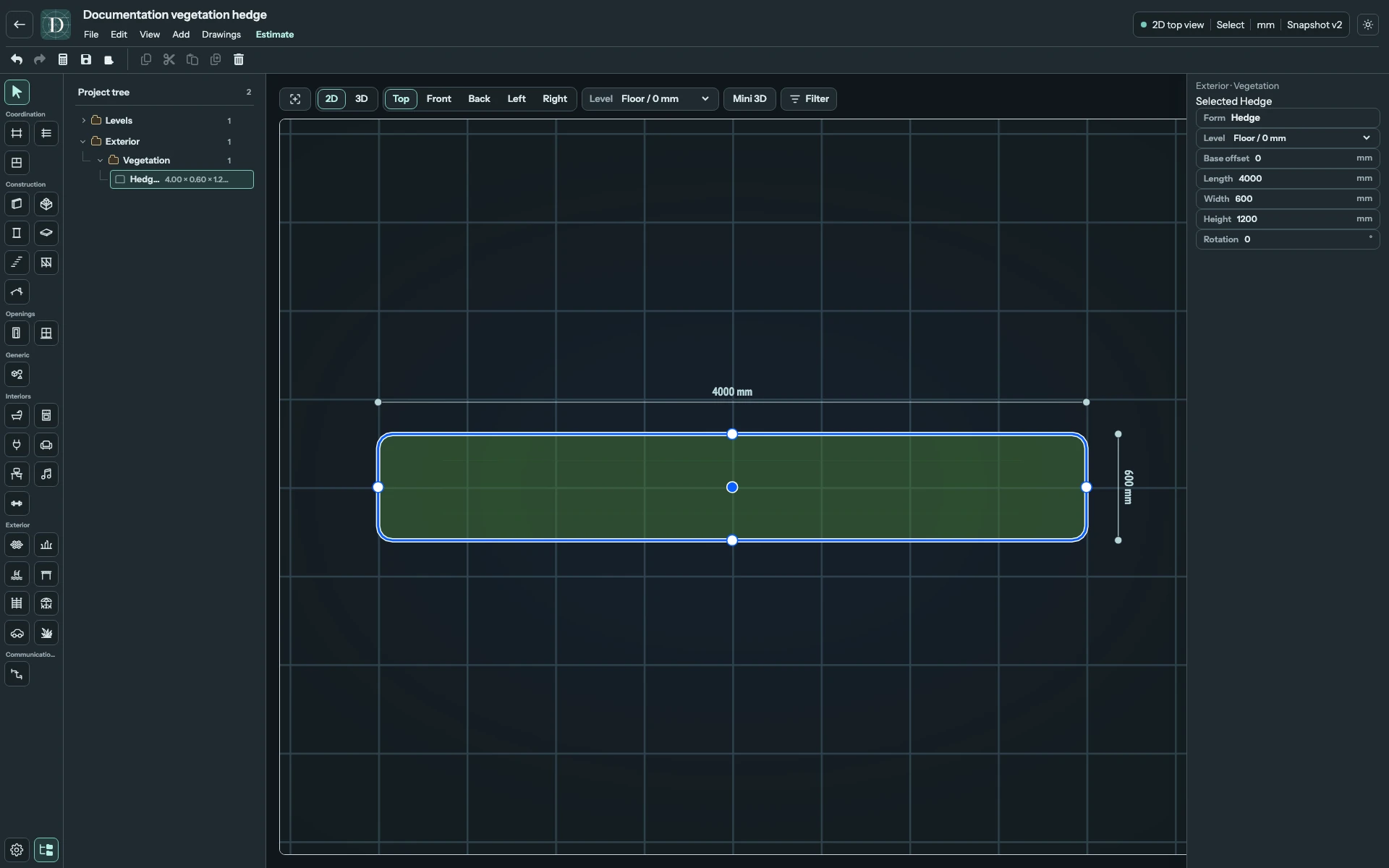
View the length change at full size.
Configure elevation and orientation
| Setting | What it changes |
|---|---|
| Form | Read-only catalog form. |
| Level | Required reference for base elevation. |
| Base offset | Signed vertical distance from the Level. |
| Crown diameter | Plant's horizontal spread; shown for trees, Palm and Shrub. |
| Length, Width | Hedge's two local horizontal dimensions; shown instead of Crown diameter. |
| Height | Vertical envelope above the base. |
| Rotation | Complete object's horizontal orientation in degrees. |
Arrange and check planting
Use Rotation or the supported movement and rotation handles for the complete object. The panel identifies the chosen Form; size edits change that instance without turning it into a different plant form.
Vegetation belongs to the Site and has no Room ownership. Its base is Level + Base offset. Terrain, Pavement and Slab are independent objects: a plant placed over a surface does not acquire a surface host or automatically move when that surface's elevation changes.
Inspect Top for the crown or Hedge footprint and 3D for height and visible mass. Undo and Redo reverse and reapply accepted changes. Delete removes the selected complete object; Undo restores it. Save before leaving, then reopen to check the form, dimensions, Level, offset and rotation. These neutral representations do not model growth, roots, species suitability, planting density or maintenance needs.
Vegetation appears in Top and 3D and is omitted from architectural 2D side views.