
A Generic Group makes two or more loose Shapes move and rotate together. The group is a container for those Shapes; it is not a new solid or a construction assembly.
Group Shapes
- In Select, select one loose Shape in Top or 3D.
- Hold Ctrl on Windows/Linux or Command on macOS while selecting another Shape. Select at least two loose Shapes and no other object families.
- Right-click the selected Shapes and choose Group.
- Check Generic Objects in the Project tree: the new group contains the selected Shapes. Select the group row to work with the whole set.
The group derives its center and bounds from its members. It has no separate Width, Height, Level, Color or Opacity controls; those remain settings of its Shapes.
To rename the container, select the Group and edit Name in its right panel. Confirm the field and check the updated tree row; its members retain their individual names. See rename a model element.
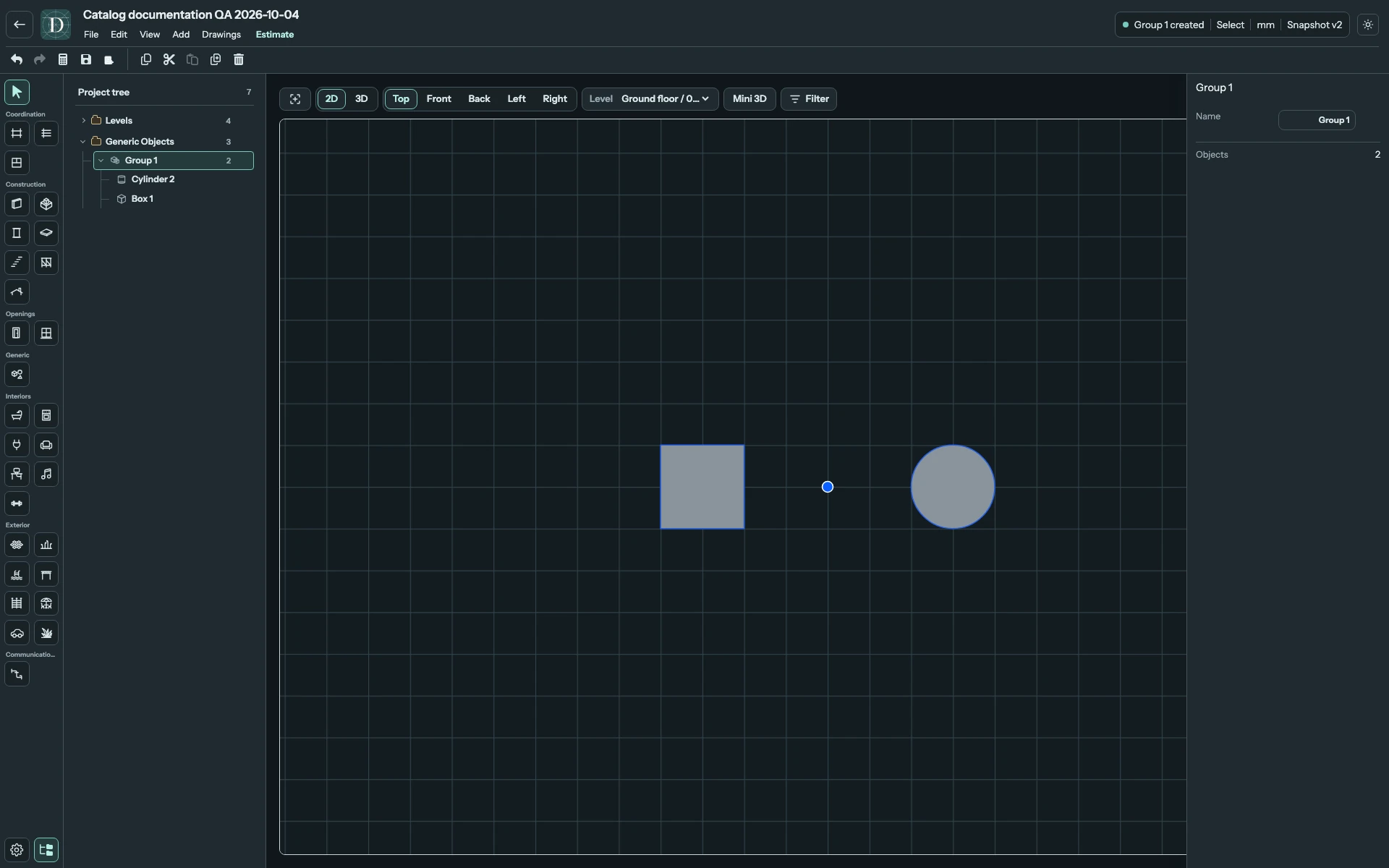
View the full-size screenshot.
Transform, inspect and ungroup
Use the group's supported movement and rotation handles to move or rotate all members around the group center. Select a child in the tree to inspect or edit its dimensions and appearance. Individual member movement, rotation and deletion are restricted while it is grouped; ungroup first when you need those operations.
Right-click the selected group and choose Ungroup to release every member. Their current geometry and appearance stay in place. Membership is flat: you cannot nest groups or add/remove a member in place. Ungroup, select the intended set and group it again.
Copying or duplicating a whole group includes its members with new identities. Deleting the group removes its Shapes. Use Undo if you remove the wrong group, and save/reopen to confirm useful changes. Grouping does not give the Shapes material, quantity, estimate or calculation meaning.