
Use Saved versions to keep a complete copy of the saved project model before making changes or giving other people access. Each copy has its own picture and remains available until you delete it or restore a version that removes it. Deleting the whole project deletes its copies too. These controls are available to every project owner. Project members cannot manage or preview these copies.
Save a version
- Open your project in the editor and choose History → Saved versions….
- Optionally enter a Version label, such as Before sharing. Labels can contain up to 120 characters.
- Choose Save version. If there are unsaved edits, a confirmation asks you to save them first. Choose Save changes to save the project and continue creating the copy. Cancel closes both dialogs and keeps your unsaved edits. If saving fails, no copy is created; retry after resolving the error.
- Wait for the new card and its picture to appear.
The card shows its label, author, date and source document number, such as v57. Without a label, it shows Saved version beside that number. The author appears with a user icon; if no name is set, the card shows their email. Ordinary Save updates the current project; Save version keeps a separate copy.
Each document version can have only one saved copy. Save version is disabled when the current version is already copied. Make changes before saving another version; unsaved changes allow you to start the confirmation above. The restriction uses the document number, so different versions can still be copied even if their model content matches.
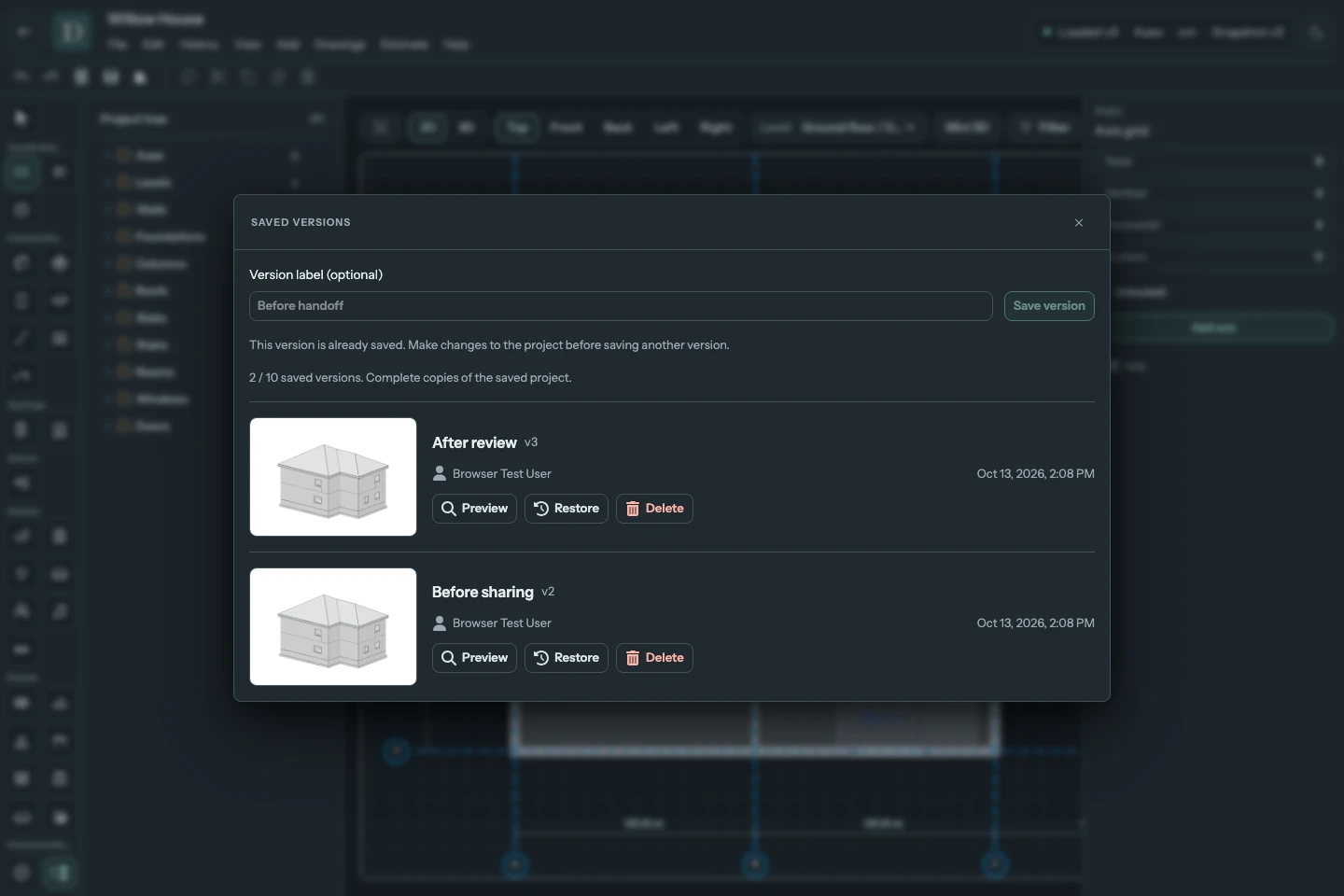
View the full-size saved-versions screenshot.
A project can keep up to 10 copies. At the limit, the editor offers to delete the oldest copy before saving another. Delete oldest and save version permanently replaces that copy; Cancel keeps it. You can also choose Delete on an individual card and confirm Delete version. Deleting a copy leaves the current model as it is.
Inspect the copy before restoring
Choose Preview on the card. A separate tab opens with the banner Saved version preview · read only. It loads that copy, including elements that have since been changed or deleted from the current project.
Use the Project tree, select elements, examine their saved parameters, switch between Top and side views, and rotate or zoom the 3D view. These inspection controls do not edit the copy. Back to project opens the current project; closing the tab leaves it as it is.
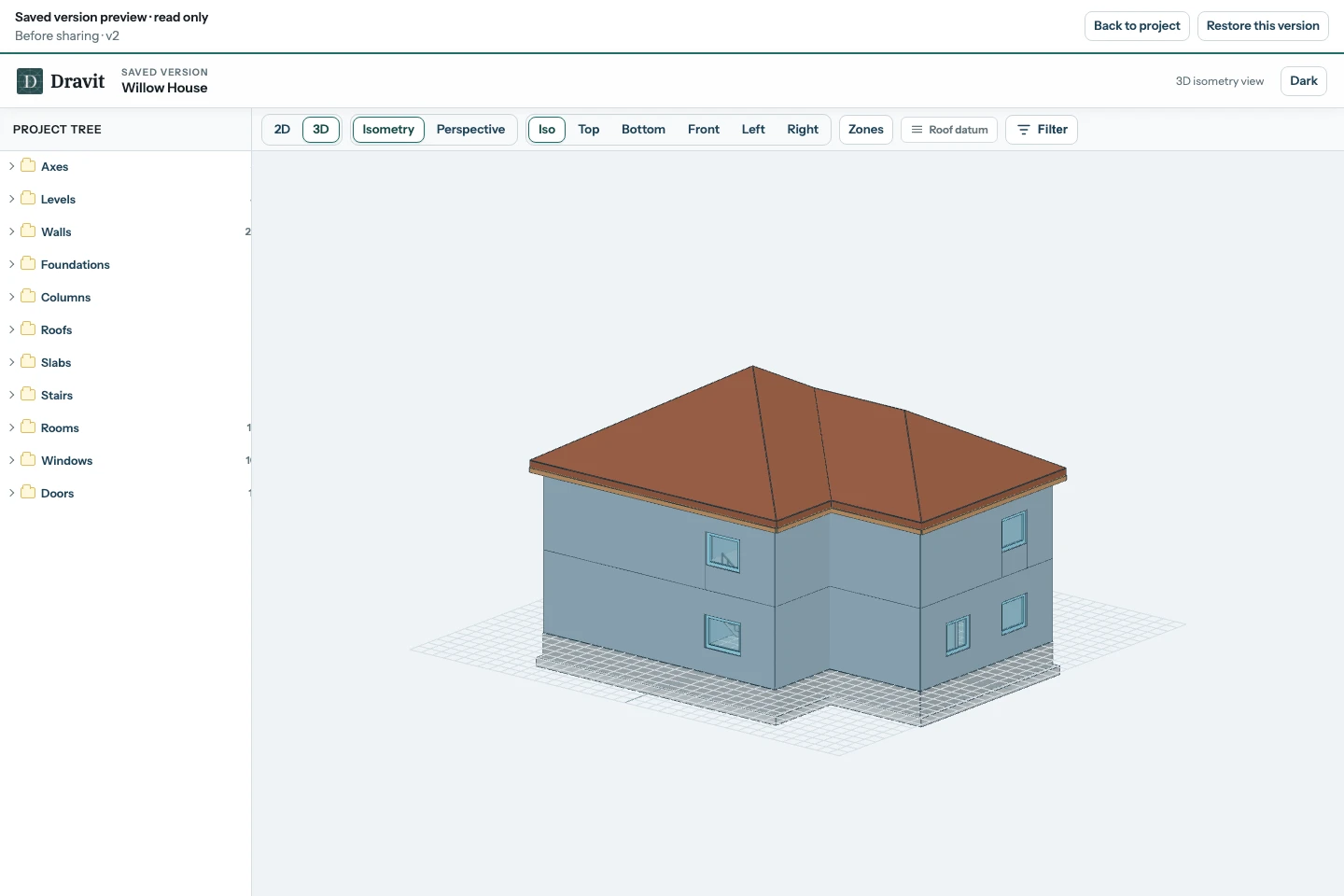
View the full-size preview screenshot.
The copy contains the project model, its saved name, units, elements, bindings, saved material choices and editor document settings. Member permissions and public sharing links belong to the project and are not restored from a model copy. Underlays are separate Level references: a copy does not include them, and its preview does not show them. Restoring retains references on Levels that remain and removes those belonging to missing Levels. Calculated estimates and generated exports are separate outputs; calculate or export again for the restored model when needed.
Restore only after reviewing the warning
Choose Restore on the card or Restore this version in its preview. Before confirming, read the consequences:
- All model changes and change-history entries after the chosen source version will be permanently removed, whether you or someone else made them.
- Copies taken from a higher document version will also be deleted. The warning lists them when there are any. The chosen copy and copies from lower document versions remain.
- Unsaved drafts and Undo/Redo in open editors are discarded when those editors receive or detect the restore. An offline editor detects it after reconnecting.
Tick the acknowledgment only if you accept this loss, then choose Restore this version. You cannot undo the restore or recover the removed work. If the current project or deletion list changes while the warning is open, review the refreshed warning and confirm again.
The current project becomes the chosen model state. Its document counter advances to identify the restore; it does not move backwards to the source number. The change history retains only entries up to that source version, without adding a restore event.
See ordinary saving and save conflicts, Change history, and member permissions for the related controls.