
Choose Standard for the sheet's presentation, then click its title-block cells to fill them. Each profile exposes its own fields. Use actual project data; the names and dates in these examples describe a documentation study.
Choose a profile
| Standard | Visible layout and required identification |
|---|---|
| Europe · ISO | Horizontal block at the lower right. Required: document designation, building, sheet contents, organisation and documentation kind/stage. A date cell is also editable. No enterprise or author input is required by this template. |
| United States · A/E/C | Vertical block along the right. Required: drawing number, project, building, sheet title, organisation (the Designer cell) and status/stage. Approved, signature and date cells can be filled separately when appropriate. |
| CIS · SPDS | Lower-right block with identification, signature and change-record rows. Required: document designation, enterprise, building, sheet contents, organisation, stage and the prepared author's name (the Разраб. row). Other role, signature, date and change-record cells retain their own text. |
| No stamp | The drawing has its name and scale without an editable title block. No title-block fields are required. |
The profile preference is remembered for this project in the current browser. It selects the product's presentation template; it does not certify compliance with every jurisdiction, contract or issue requirement.
Edit a cell and check the result
- Select a sheet in Documentation and Drawings, then choose Standard.
- Click an editable cell. Type the value in the field that appears over it.
- Press Enter or leave the field to commit. Escape cancels that cell edit.
- Continue through the identification and any applicable role, signature, date or change-record cells. Read the stated Draft reasons for fields still missing.
- Select Save drawing or Update drawing. The sheet then shows Saved even with empty cells, so finish them first. Reopen the sheet to verify the stored text.
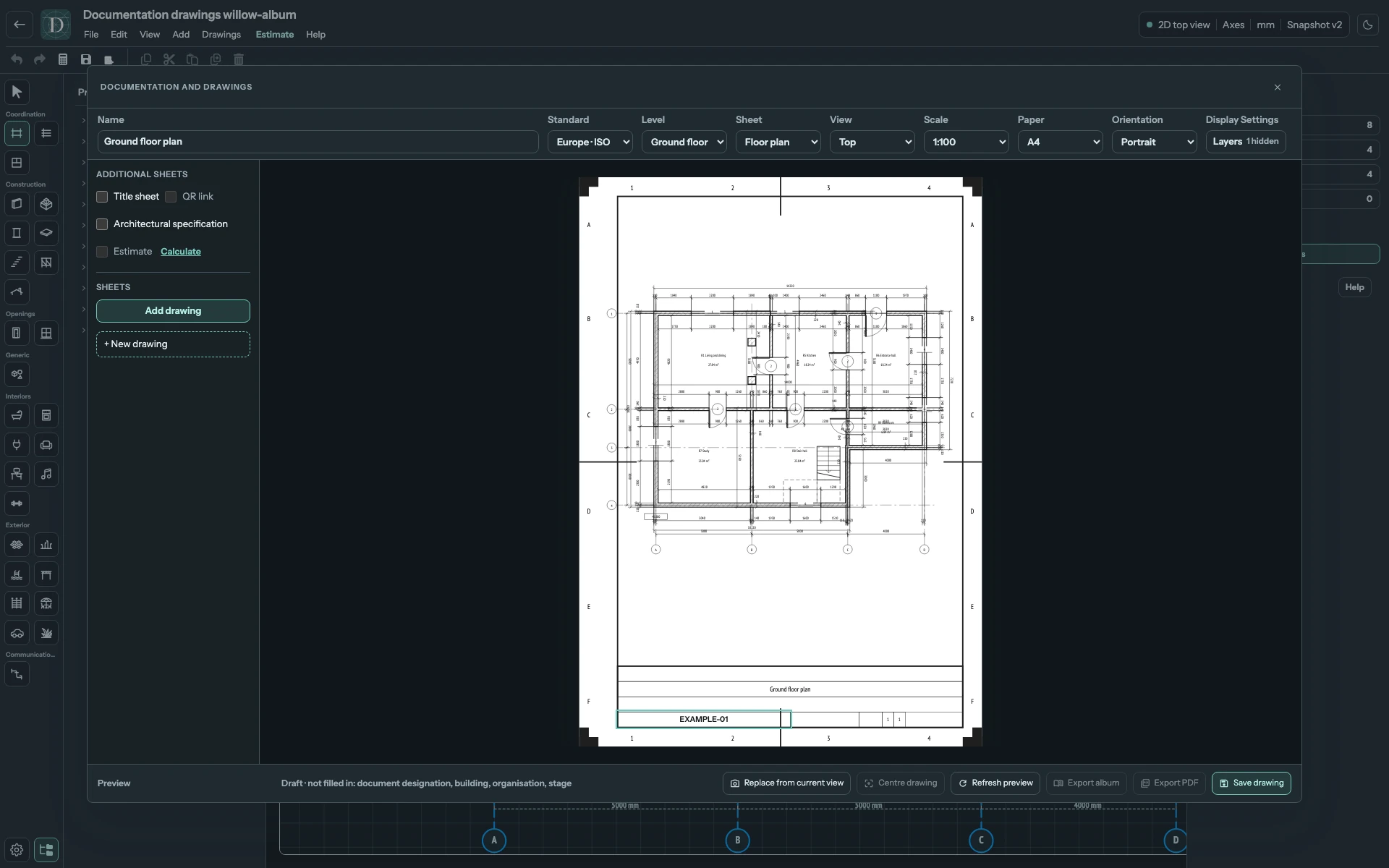
View the full-size screenshot.
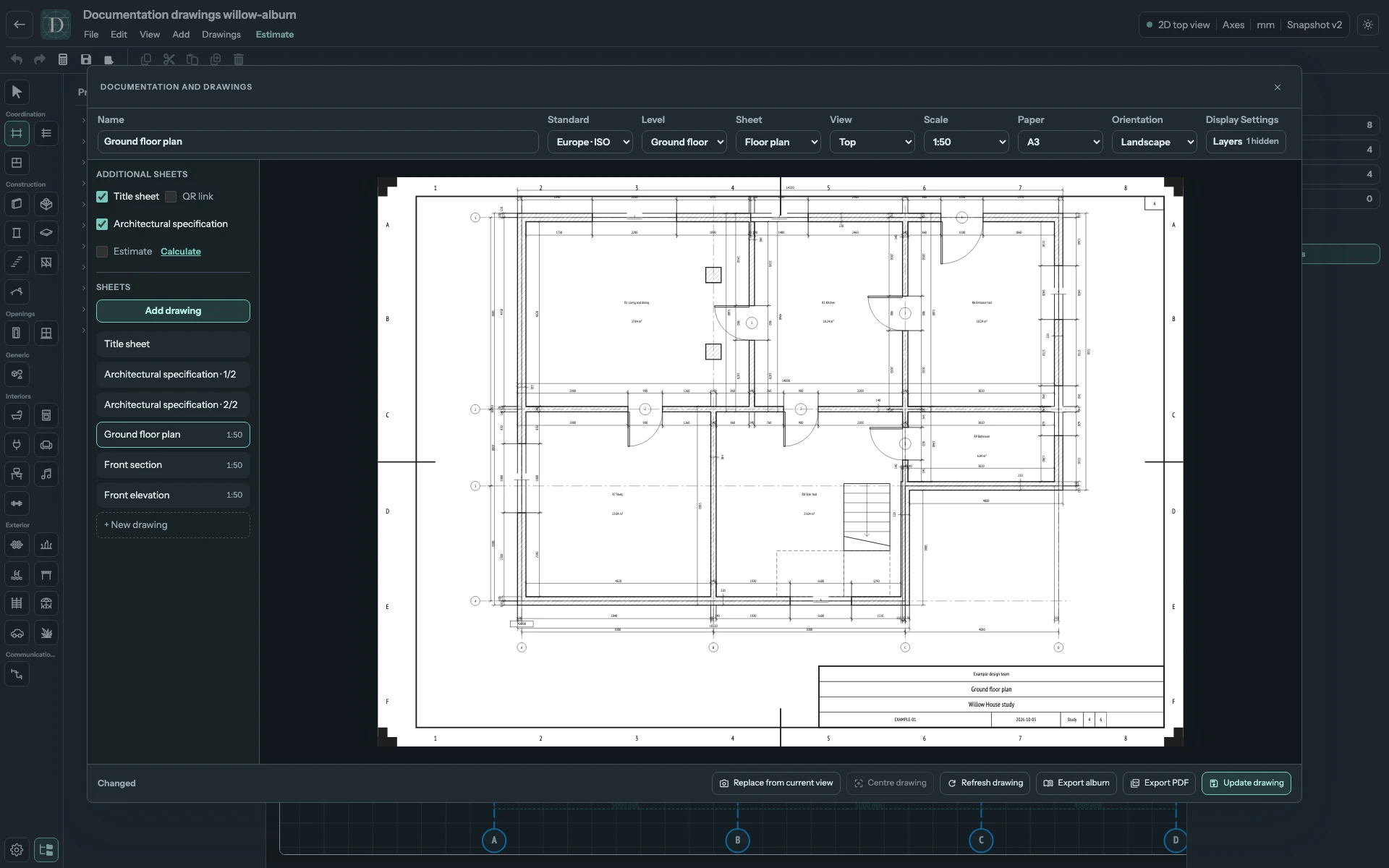
View the full-size screenshot.
Sheet contents follows Name until you enter a separate value in that cell. Document designation is the document/drawing number, enterprise/project names the project, building names the building, organisation identifies the issuing organisation and documentation kind/status carries the stage. Sheet numbers and sheet count are derived from the album and cannot be typed into these cells.
Compare the other layouts
Changing the profile changes both the title block and the available drawing area. Draft reports content leaving the drawing area but not a drawing running under the title block, so recheck placement visually after the switch. These examples use 1:100 so the plan stays clear of each block.
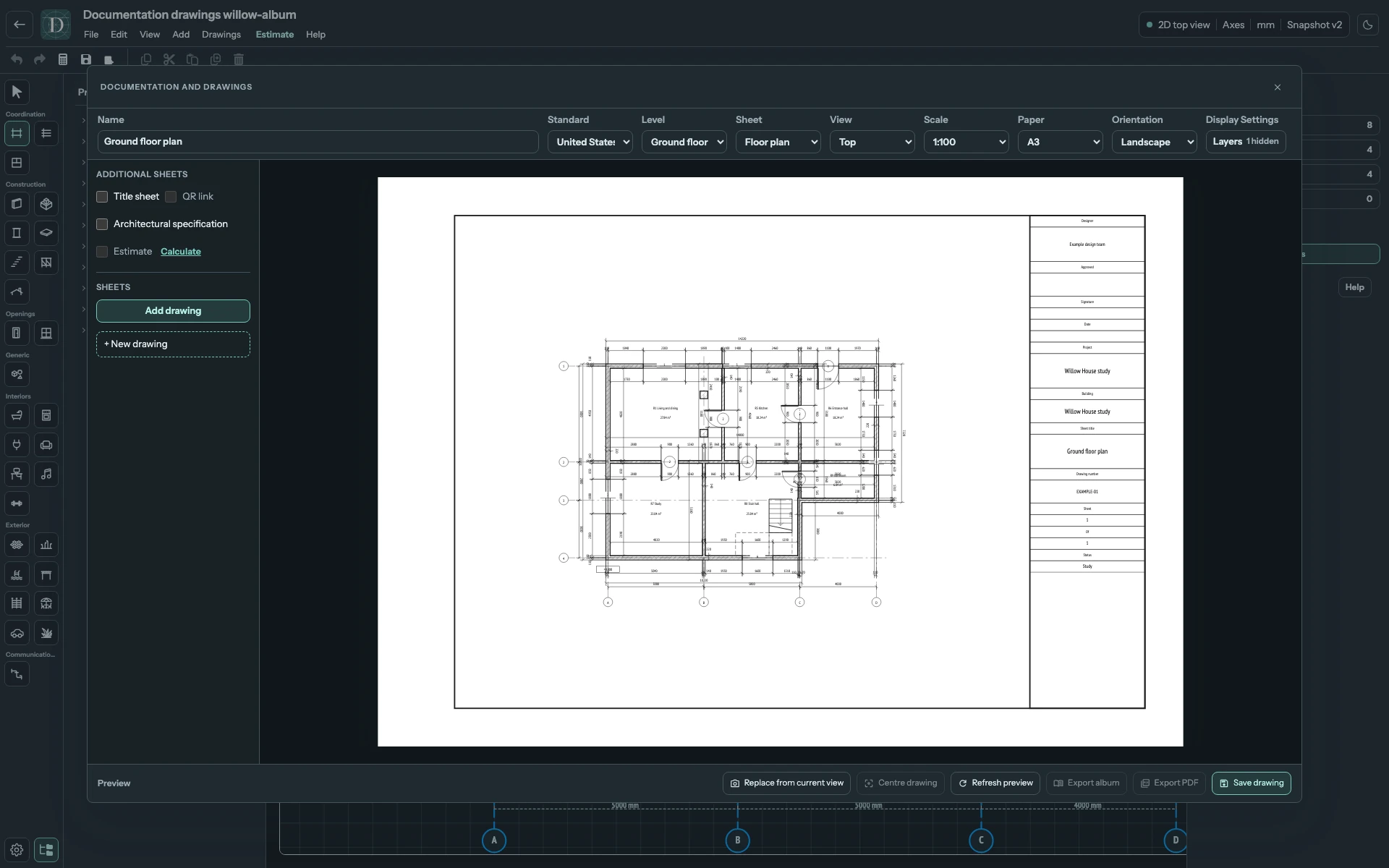
View the full-size screenshot.
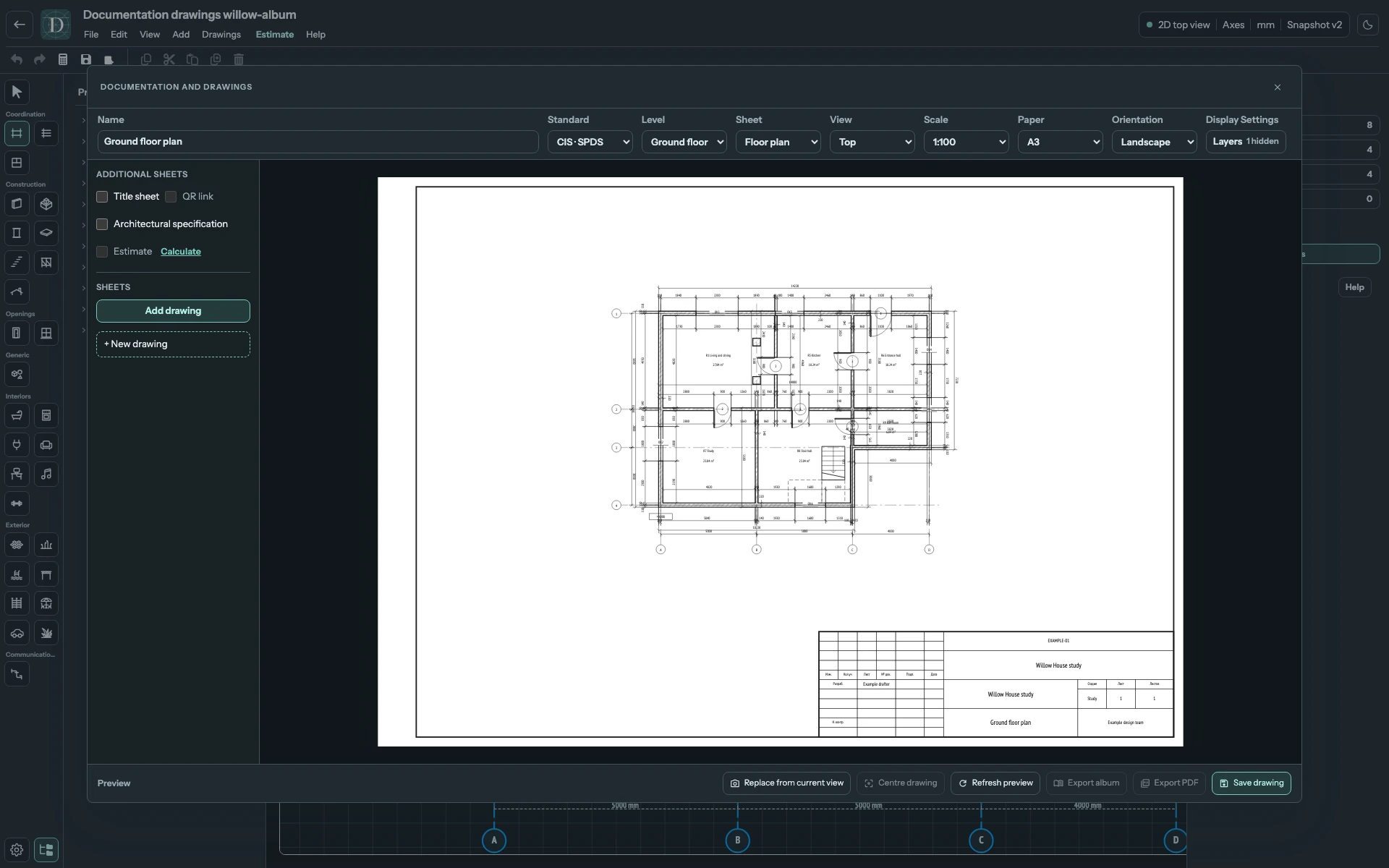
View the full-size screenshot.
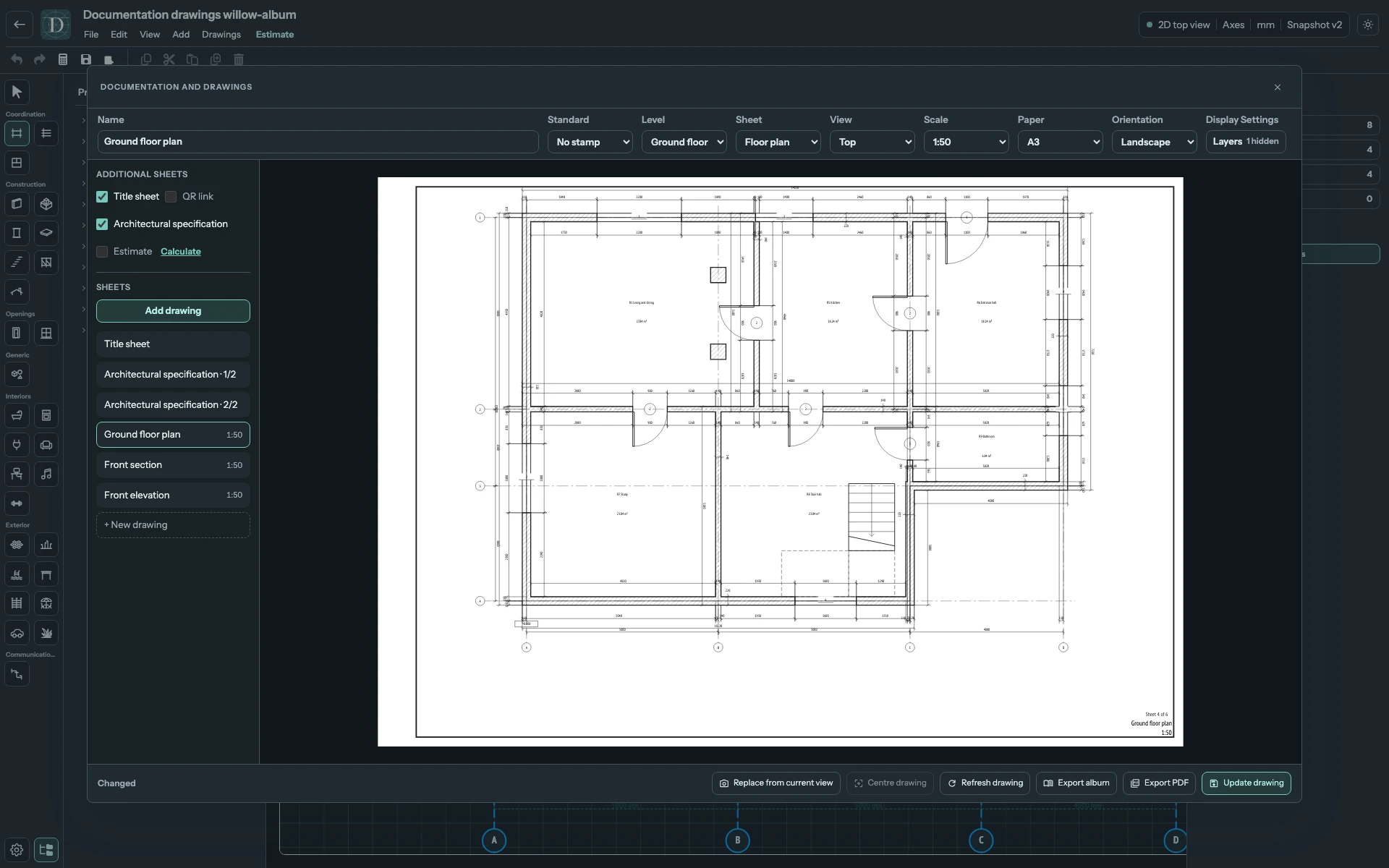
View the full-size screenshot.
The Title sheet uses editable cover text instead of these ordinary-sheet cells. A filled block removes the corresponding product warning; it does not prove that a drawing is ready to issue. Inspect the final PDF and the requirements of your project.