
The Project tree lists the model by object family. Use it to find and select an element even when that element is hard to pick in the viewport. Its eye controls change visibility, not the saved geometry.
- If the tree is closed, select Project tree at the bottom of the left tool rail. On a narrow screen, select Tree to open the drawer.
- Select a group name, such as Roofs, to expand or collapse its entries. The number beside a group is its object count. Select an object row to see its properties in the right panel; selecting an Axis or Level also opens its own controls.
- To clear a crowded view, move over an object or group row and select its eye icon. An eye with a slash means hidden. Select the same control again to show it. A group with a mixture of visible and hidden objects shows a mixed eye state.
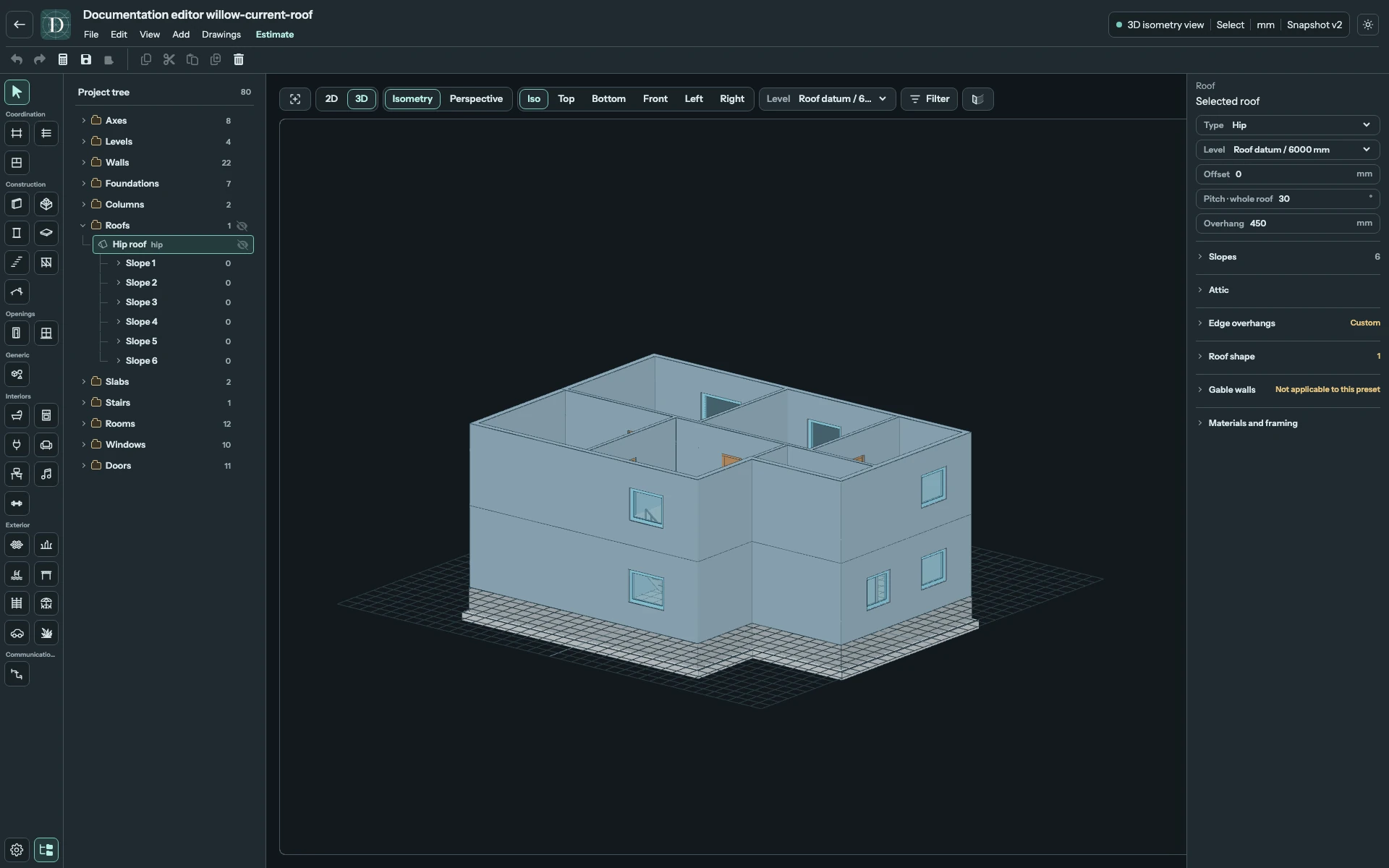
View the full-size hidden-roof screenshot.
Hiding Roofs in this example reveals the upper-storey walls and doors below. Show the group again before checking the complete shell. To hide the entire tree panel and widen the viewport, use the separate Project tree button at the bottom of the tool rail; this leaves object visibility as it was.
Imported IFC objects
Objects created by IFC import appear under the ordinary object families, such as Walls, Slabs, Rooms, Doors and Windows. Select them to use their native controls. Import creates the required Levels automatically.