
Choose model editing scope and independent operations separately. All members can view the project; an unchecked object family prevents editing that family, not seeing it.
| Access mode | Model operations |
|---|---|
| View only | Inspect the model without editing its objects. Independent permissions may still be granted below. |
| Full editor access | Edit all model object families. Estimate, document and history permissions still use their own switches. |
| Custom | Edit only the checked families in the capability tree. Group switches select or clear their child families. |
The owner always has full access and controls project membership and public viewing. A member's editing grant does not make them the owner or give them control of other members.
Custom model families
| Group | Families in the current access dialog |
|---|---|
| Model structure | Axes; Levels; Rooms & spaces. |
| Generic | Shapes. |
| Construction | Walls & columns; Floors & slabs; Stairs; Roofs. |
| Openings | Doors; Windows. |
| Interior | Furniture; Kitchen; Bathroom; Electronics; Music; Gym. |
| Exterior | Furniture; Vegetation; Transport; Canopies. |
| Site | Pavements & coverings; Terrain; Pools; Fences. |
| Communications | Plumbing; Electrical; Heating; Ventilation. |
These are permission groups. Their presence does not create a modeling tool or extend the current features of a family.
Independent permissions
Estimate calculation enables estimate management. Documents & export enables document operations and exports. History & restore enables saved-version restoration operations. Change history independently enables reading the saved-change journal, which requires Pro or Team for the project owner. Each can be checked for any Access mode; Full editor access alone does not turn them on.
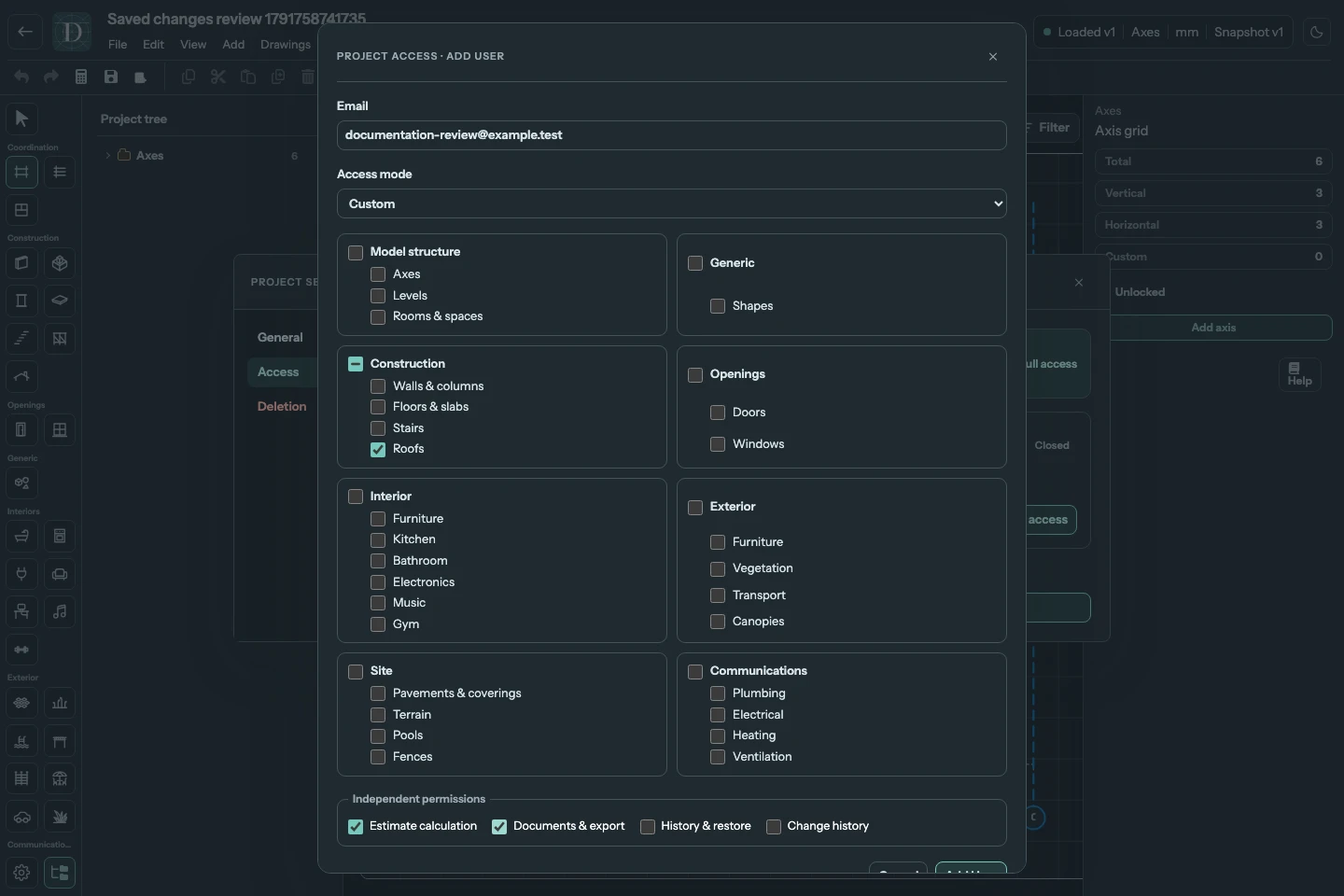
View the full-size Custom access dialog.
Use Edit access → Save access to apply changes. Check the member-list summary, then have the collaborator verify the relevant action. A collaborator sees their own access summary but cannot change these owner-managed grants. See add an account or remove access.