
The Workspace at /projects lists the projects available to your account. Select a project card to open its editor. Rename and removal actions are in the editor, so first check that you opened the intended project.
Create or find a project
Enter your own descriptive name in New project, then select Create. The new card appears in the workspace; select it to open the editor. A card shows the project name, latest snapshot version and update time. Preview after Save means a saved model preview is not available yet.
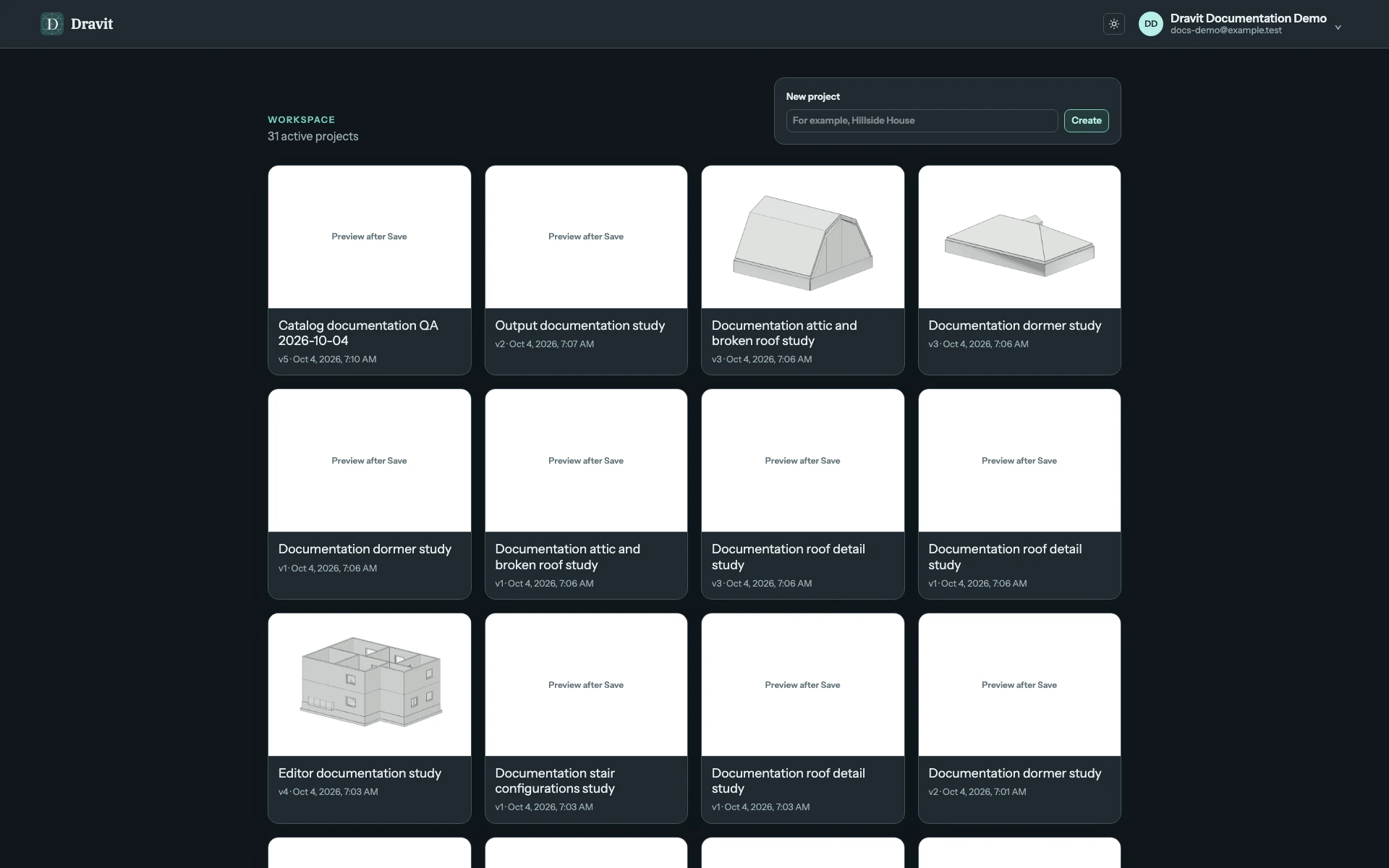
View the full-size Workspace screenshot.
When projects have been shared with you, Show offers All projects, My projects and Shared with me. Shared cards identify your access. Use each section's Previous and Next controls when its list spans several pages. The card preview and snapshot number help identify saved work; they do not show another editor's unsaved changes.
Use the rename controls
Select the project name in the editor header or choose File → Rename project…. Enter the new name and press Enter or move focus away to apply it locally. Esc cancels the name edit. The header displays the applied name during this editor session. The current header control is also available to participants, including those with view-only access.
The owner can also use File → Project settings and sharing… → General, change Project name, then Save settings. Participants see General as read-only and cannot save the project document.
Current limitation: the applied name is not retained when the current project document is saved. Reopening restores its previous saved name, even if the status reported Project settings updated and Saved v…. Do not use those messages as confirmation of a permanent rename. See project settings.
Permanently delete a project you own
- Open Project settings → Deletion.
- Select Delete project… and read the named confirmation.
- Type the project's exact current name. Delete project becomes available only when it matches.
- Confirm only if you intend to remove the entire project and every saved snapshot. You return to the Workspace after success.
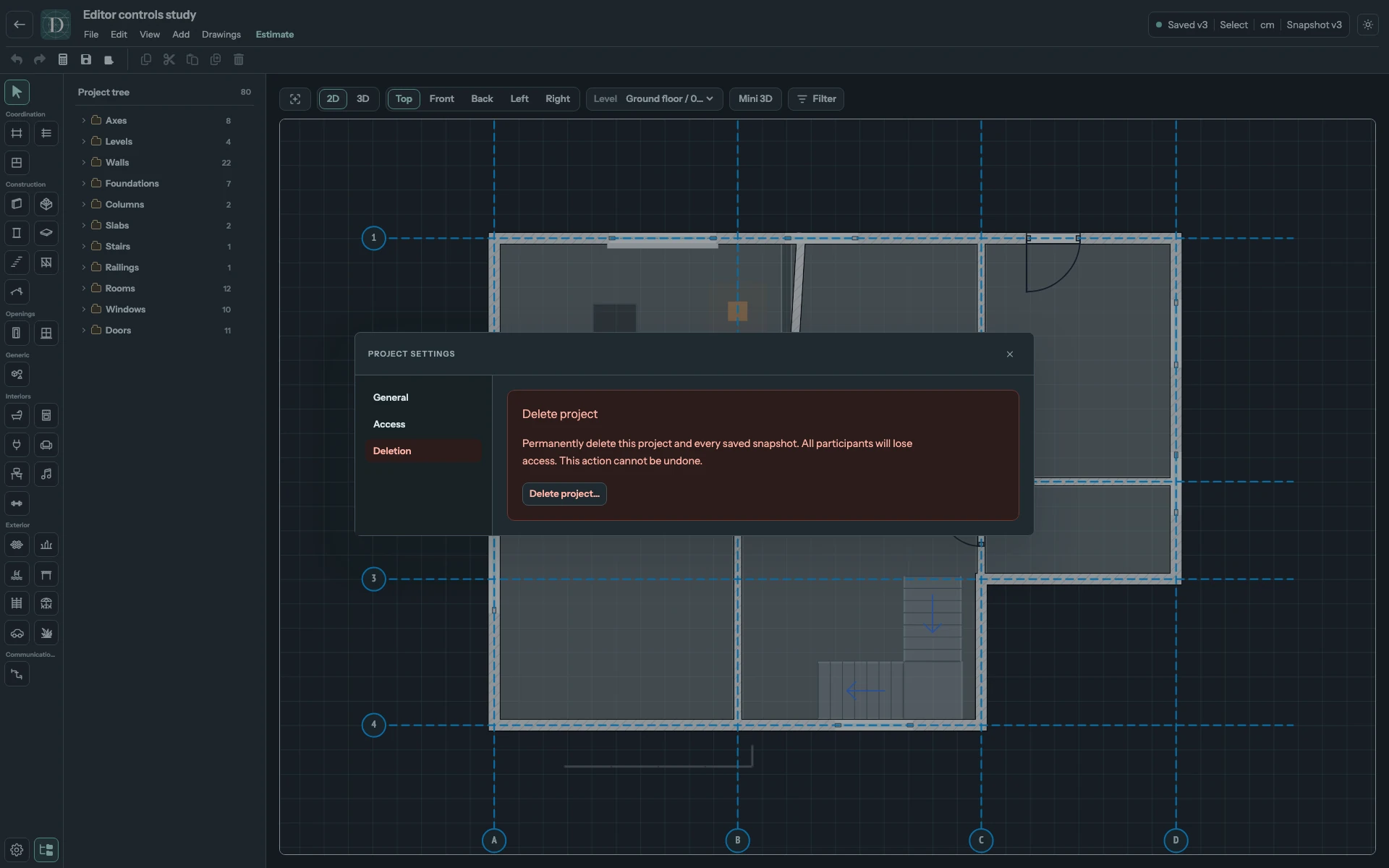
View the full-size deletion-settings screenshot.
This deletion cannot be undone, and all participants lose access. Deleting a selected model object with the toolbar Delete is a different operation with local Undo.
Leave a shared project
As a participant, open Project settings → Leave project and select Leave project…. Confirm Leave project in the dialog. The project disappears from your available projects; its owner's project remains. Only the owner can add you again. General project settings remain read-only for participants.
Archived entries
If Archived projects appears in the Workspace, those entries cannot be opened in the editor. Selecting an archived card opens its settings, where the owner can permanently delete it. The current Workspace does not offer Archive or Restore commands, so deletion is not a way to store a project for later recovery.
Before navigating away from unsaved work, use the editor's save or discard prompt. Save and reopen explains snapshot status and conflicts.