
Use Exterior → Transport to compare a vehicle's position and occupied envelope in a site layout. Choose a form factor such as Compact car, SUV or Bicycle. Each is one object with a fixed catalog size rather than an editable vehicle assembly.
Place a vehicle
- Choose 2D → Top and the working Level.
- Open Transport and choose a form factor.
- Set Level, Base offset, Rotation and Body color in the right panel.
- Position the complete preview and click, then choose Select or press Escape when finished.
- Select the object in the viewport or Exterior → Transport in the Project tree to inspect its settings.
Compare form factors
Dimensions is a read-only envelope for the chosen form factor. It always displays length × width × height in metres, even when editable offsets use another project unit. To compare a different size or vehicle body, place a different catalog example. The current tool does not resize a vehicle's width, length or height independently.
| Form factor | Length × width × height, m |
|---|---|
| Bicycle | 1.75 × 0.60 × 1.10 |
| Compact car | 3.30 × 1.66 × 1.50 |
| Sedan | 4.60 × 1.82 × 1.45 |
| Wagon | 4.75 × 1.85 × 1.50 |
| Hatchback | 4.25 × 1.78 × 1.50 |
| Coupe | 4.50 × 1.85 × 1.35 |
| Minivan | 4.90 × 1.90 × 1.80 |
| Sports car | 4.50 × 1.95 × 1.25 |
| Pickup | 5.80 × 2.03 × 1.95 |
| SUV | 4.55 × 1.87 × 1.68 |
| Off-road SUV | 4.70 × 2.00 × 1.85 |
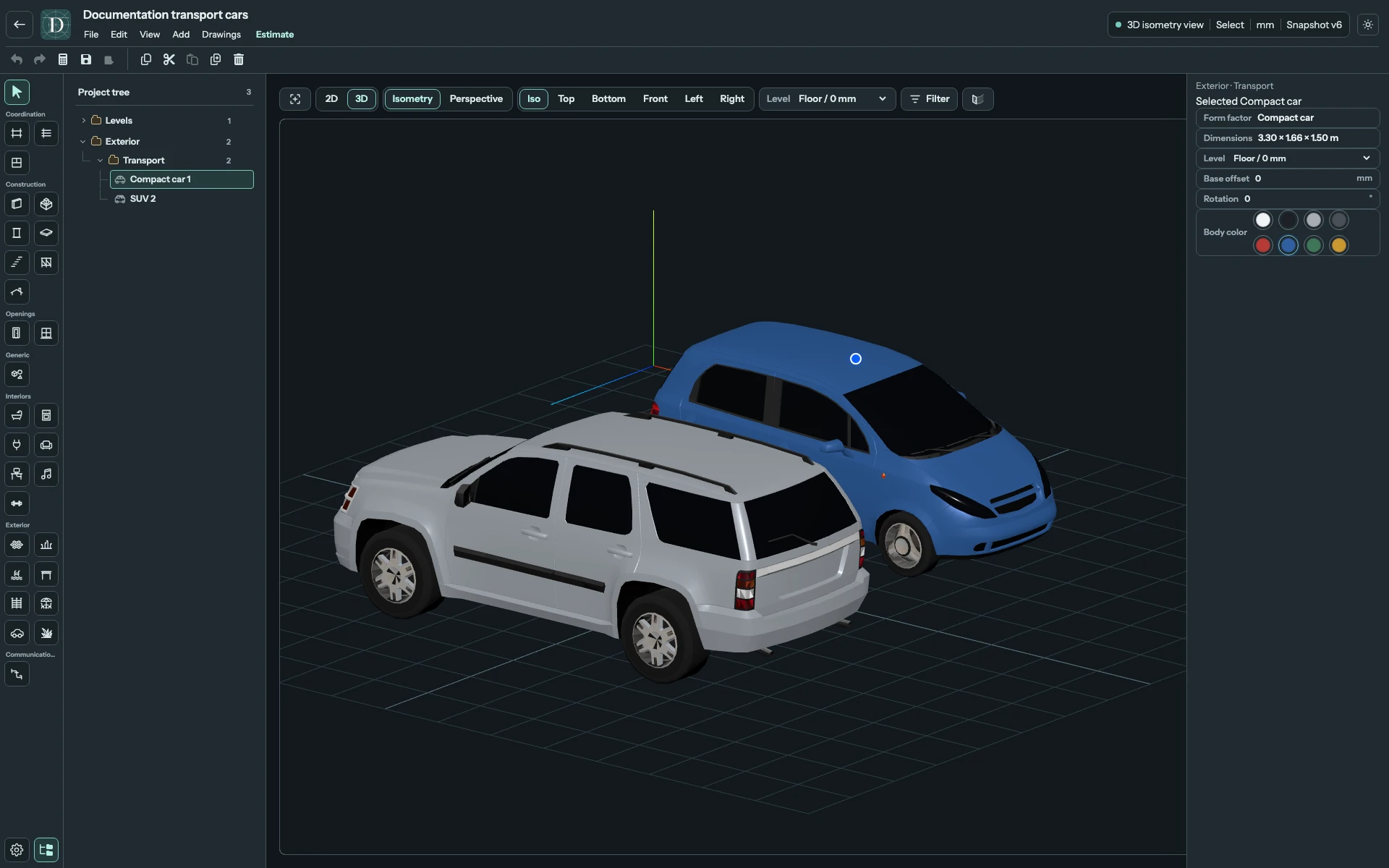
View the two vehicle envelopes at full size.
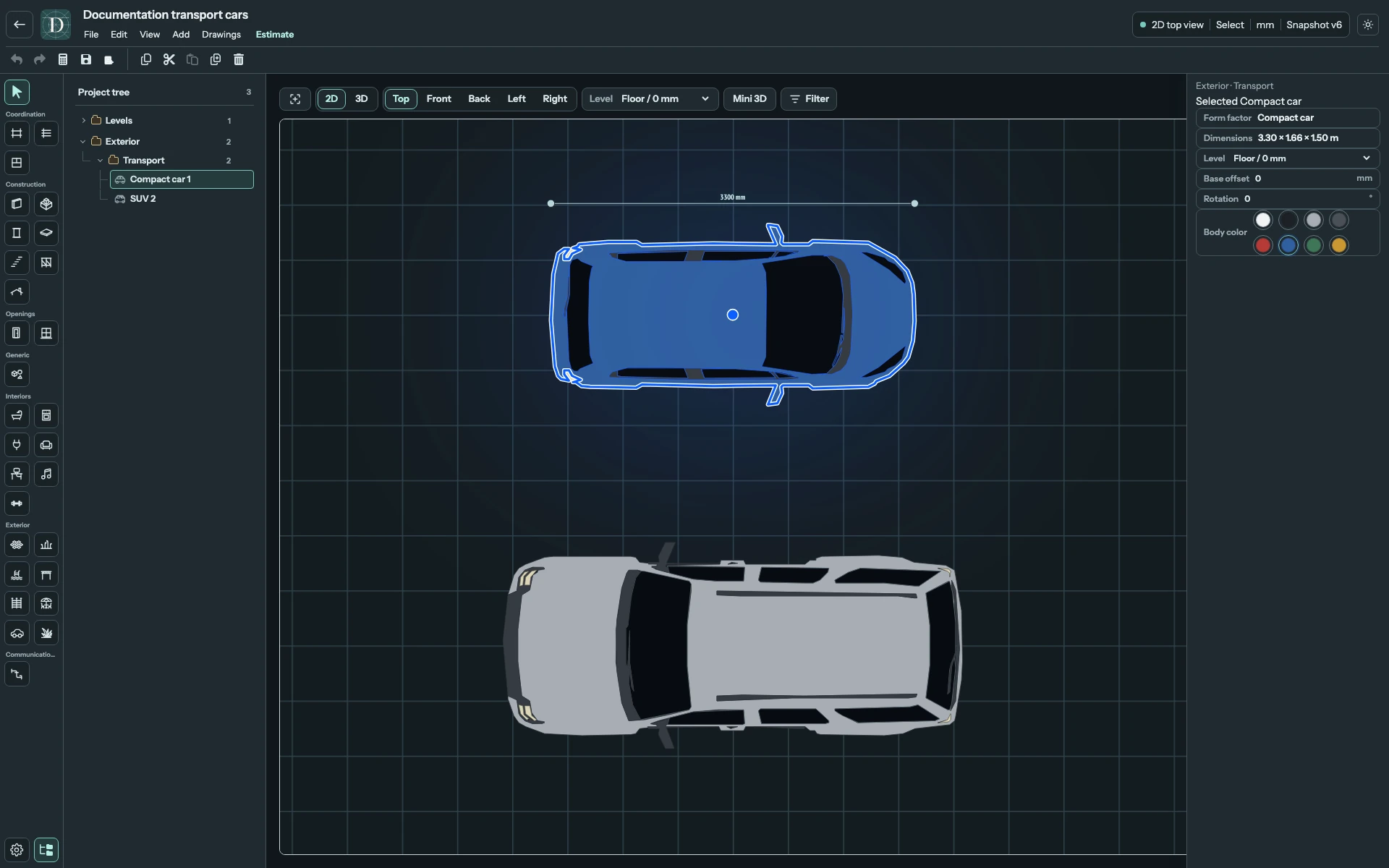
View the vehicle footprints in Top at full size.
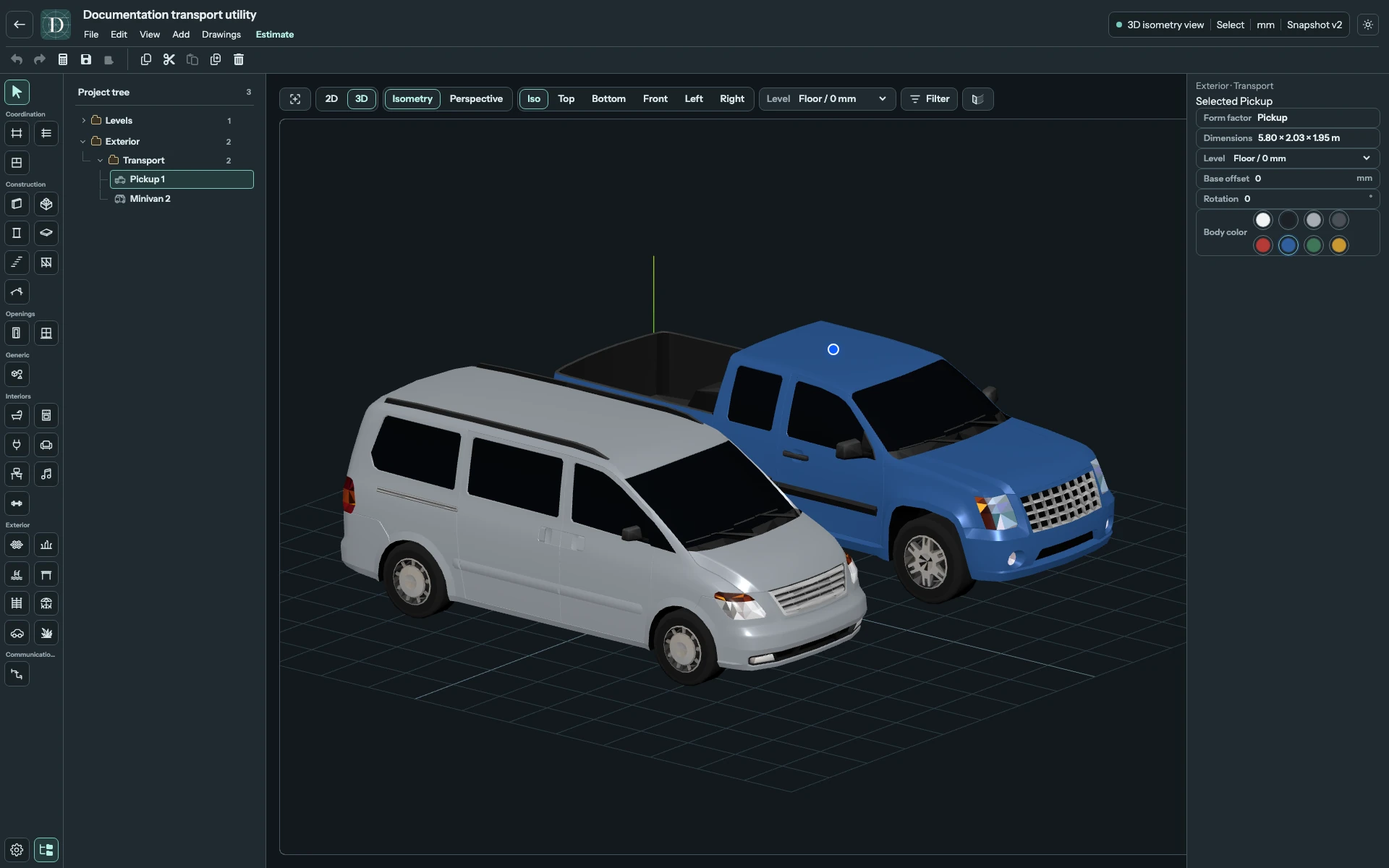
View Pickup and Minivan at full size.
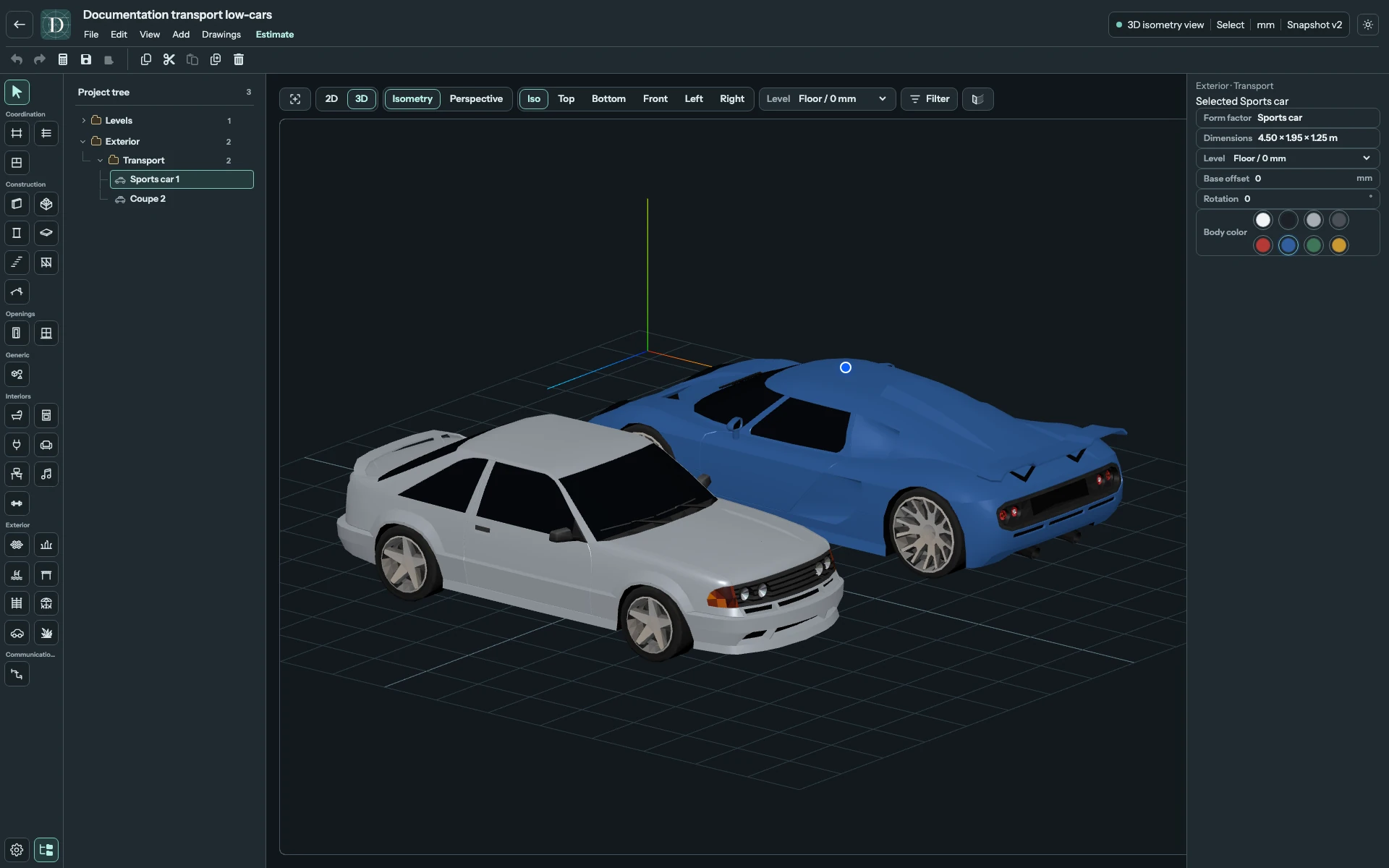
View the low vehicle forms at full size.
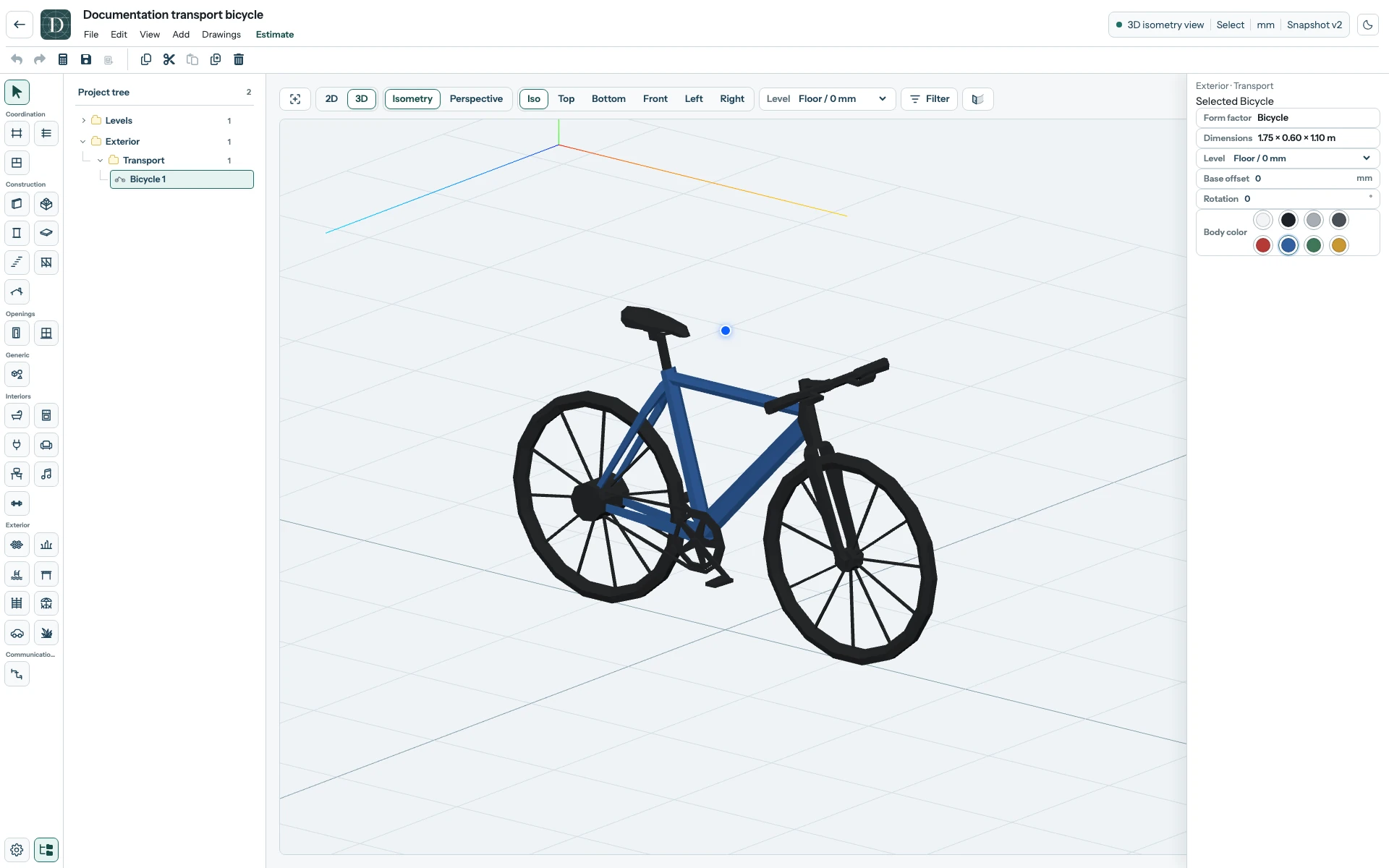
Configure the selected object
| Setting | Meaning |
|---|---|
| Form factor | Read-only catalog identity; choose another catalog item to place a different form. |
| Dimensions | Fixed length × width × height in metres. |
| Level | Required base elevation reference. |
| Base offset | Signed distance from the Level, in the displayed project length unit. |
| Rotation | Horizontal orientation in degrees. |
| Body color | One of White, Black, Silver, Graphite, Red, Blue, Green or Gold. Available for every form, including Bicycle. It recolors the body; wheels and glazing keep their own appearance. |
The palette has eight fixed swatches; there is no custom-color input. Changing color or rotation keeps the same fixed envelope.
Arrange and inspect the site layout
Use Rotation or the supported movement and rotation handles to orient the object. The vehicle belongs to the Site, while Level + Base offset sets its base elevation. It has no Room, Terrain or Pavement host; adjust its offset explicitly when comparing it with a raised surface.
Inspect Top for position and the fixed footprint, and 3D for the vehicle body and height. Wheels and other parts select the same parent object. Undo reverses an accepted edit and Redo reapplies it. Select the vehicle and use Delete to remove the complete object; Undo restores it. Save and reopen to check the selected form, color, Level, offset and placement.
The form factors are neutral layout illustrations. Their geometry does not calculate swept paths, turning radii, parking compliance, traffic conflicts or a particular manufacturer's vehicle specification.
Transport appears in Top and 3D and is omitted from architectural 2D side views.