
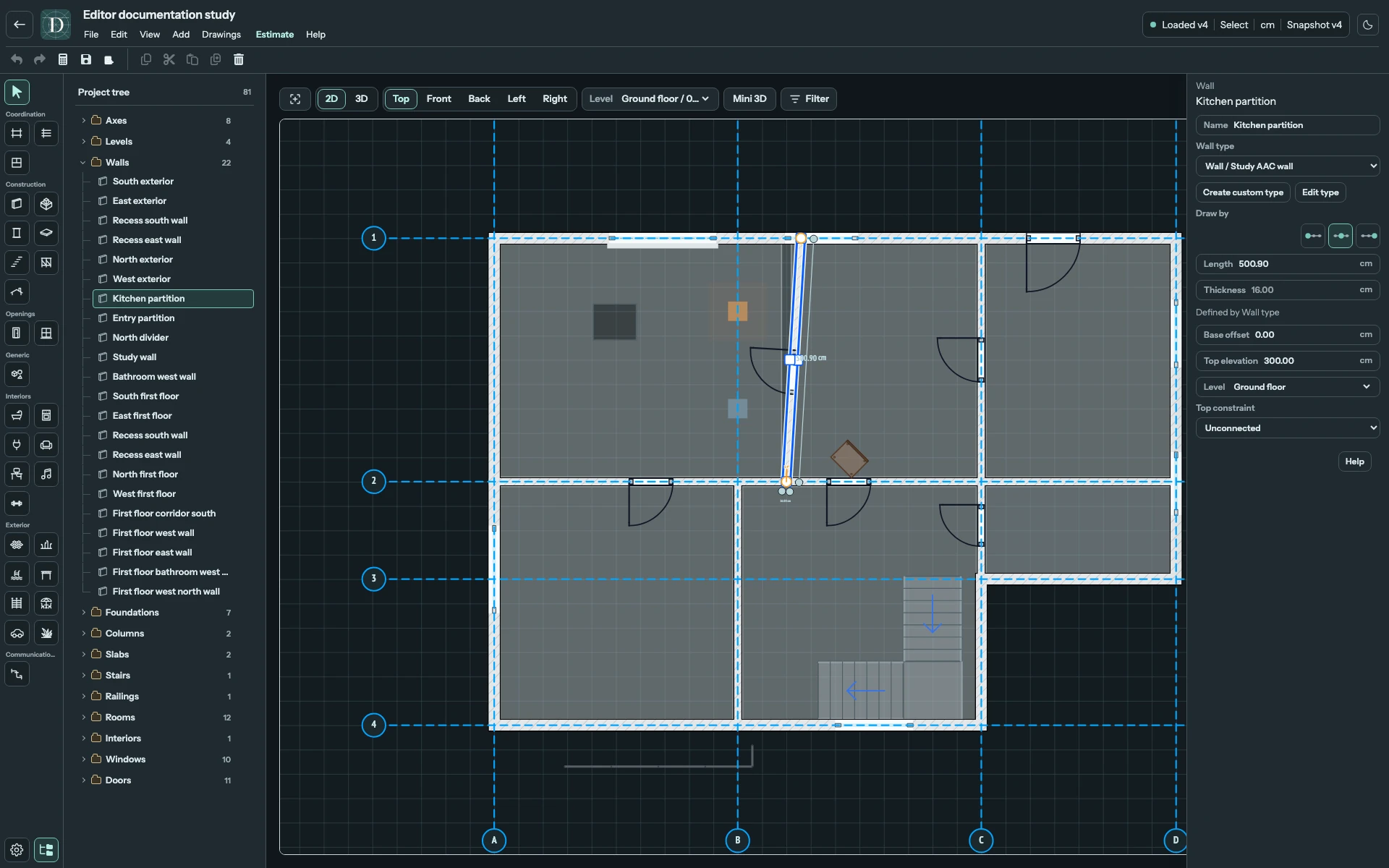
Use the header for project actions, the left rail for tools, the center for placement and inspection, and the right panel for the current tool or selection. This map locates the controls; the linked pages explain their operations.
View the full-size editor screenshot.
| Area | Controls and purpose | Detailed help |
|---|---|---|
| Header | Back to projects, name-edit control, File, Edit, History when available, View, Add, Drawings, Estimate, Help, theme control and document status. The toolbar below includes history, Save, drawing, clipboard and selected-object Delete. | Menus and shortcuts, manage projects, save. |
| Left tool rail | Select, Coordination tools, Construction, Openings, Generic, Interiors, Exterior and Communications. Bottom buttons open Project settings and toggle Project tree. Hover an icon for its name and available shortcut. | Add and delete, building elements, settings. |
| Project tree | Family groups, object counts, expandable entries and selection. Hover a row for its eye control; the bottom rail button hides the panel without hiding the objects. | Project tree, visibility. |
| Viewport toolbar | Fit viewport to content, 2D/3D, 2D projections or 3D projection/camera presets, working Level, wide-screen Mini 3D, Filter, and 3D Usage zones. | 2D views, 3D and Mini 3D. |
| Right panel | Current tool settings or the selected object's name, family, Level, dimensions and supported constraints. Material or assembly assignment appears for supported objects. When the panel shows a tool or selection, Help at its end (scroll down on long panels) opens the page that explains that panel in a dialog; Open in new tab opens the same page in a browser tab. | Select and inspect, move and reshape, materials and types. |
The header status reports document state, active tool, length unit and snapshot number. An error there can mean an edit or save was rejected; inspect it before assuming a visible change was persisted.
The working Level above the viewport is separate from the selected object's Level field. A camera, projection or visibility change does not delete geometry. To pan 2D, drag with the right or middle mouse button; scrolling zooms. These navigation gestures are separate from moving a selected object.
On a narrow screen, Tools, View, Properties, Tree and Levels open supporting panels. Close a panel to return to the viewport. The compact menu sheet provides the named commands. See the narrow-screen layout.