
- Select Levels in the left tool rail. The editor switches to 2D → Front, where the dashed Project Zero line is the fixed zero reference.
- Select Add level in the right panel. Select the new Level in the view or Project tree.
- Enter a meaningful Label and Elevation from Project Zero for your own building. Press Enter to apply an edited field, then select Save.
- Check the Level line in a side view, and choose it in the active Level selector before placing elements that belong there.
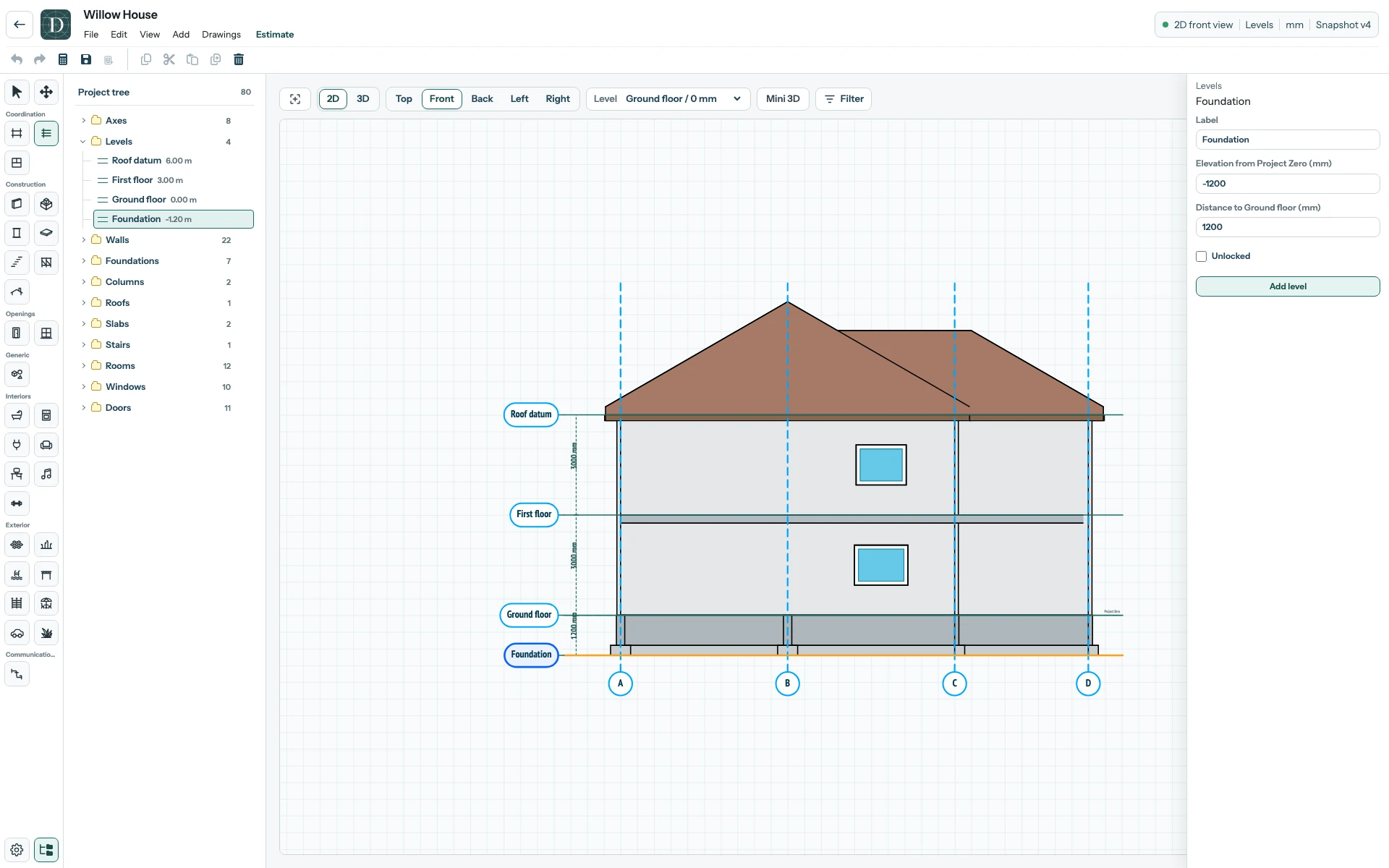
View the full-size Level editing screenshot.
Set a height by elevation or adjacent distance
| Field | Effect |
|---|---|
| Label | Name shown in the tree, Level selector and related height fields. |
| Elevation from Project Zero | Selected Level's absolute height relative to the fixed zero line. Negative values place it below zero. |
| Distance from … | Appears when a lower neighbouring Level exists. Sets the selected Level to that lower elevation plus the entered nonnegative distance. |
| Distance to … | Appears when an upper neighbouring Level exists. Sets the selected Level to that upper elevation minus the entered nonnegative distance. |
| Unlocked / Locked | Allows or prevents editing and moving this Level. |
The distance fields move the selected Level; they do not move its neighbours. For example, with Floor at 0 mm, First floor at 3000 mm and Roof at 6000 mm, select First floor and set Distance from Floor to 3200 mm. First floor becomes 3200 mm; Roof stays at 6000 mm, so Distance to Roof becomes 2800 mm. Entering Distance to Roof 3000 mm returns First floor to 3000 mm. The two distances are alternate ways to edit the same elevation.
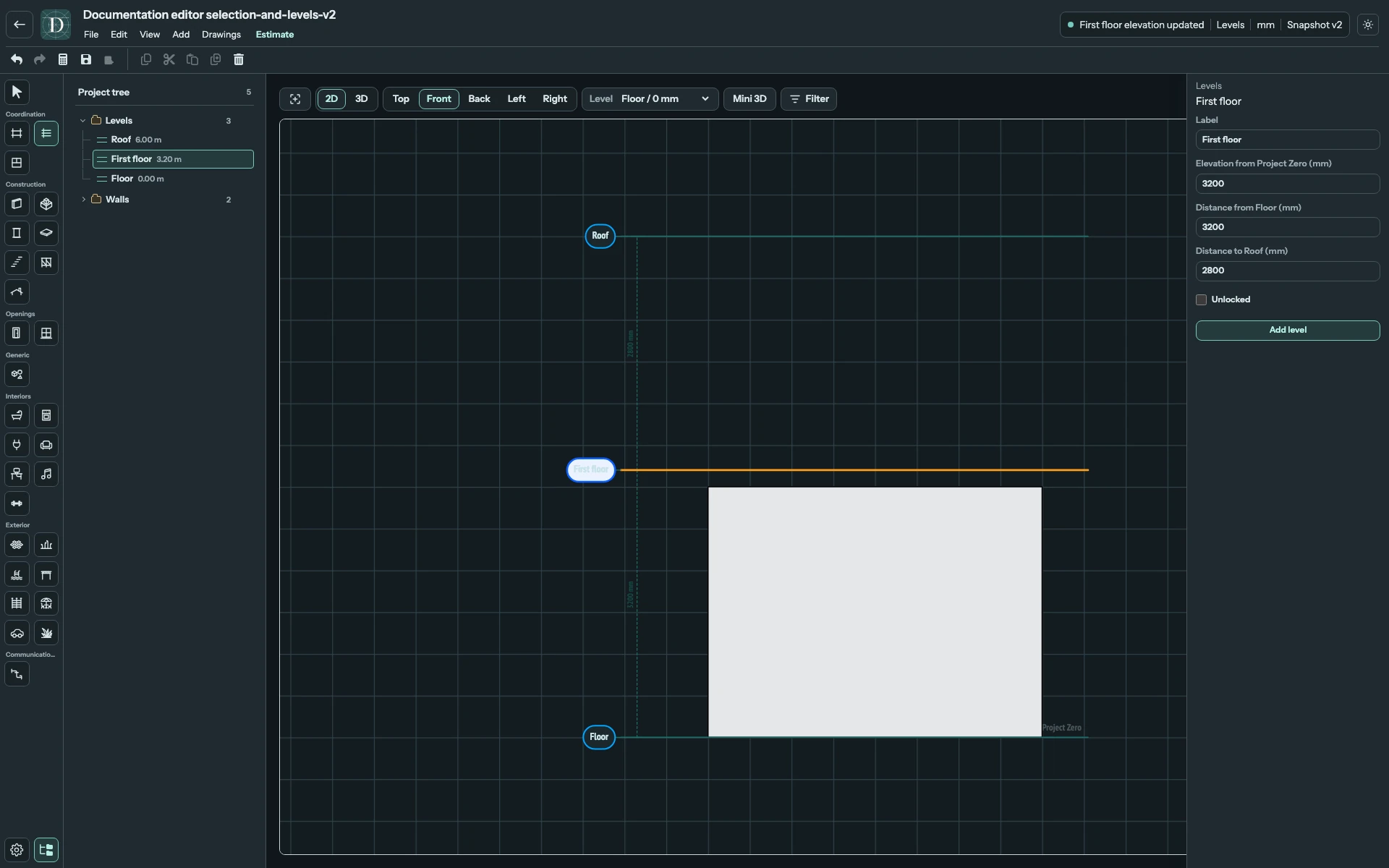
View the full-size adjacent-distance screenshot.
To rename a Level, select it and edit Label in the right panel. You can also change its elevation there; a locked Level must be unlocked before moving it. Recheck objects that use the Level after a height change. To delete a Level, select it and use Delete. If deletion is blocked, check the message: unlock a locked Level or reassign its direct objects first; editing access is also required. A Level is a reference, so add a separate slab or floor element when the model needs physical construction. What a Level controls explains the distinction.