
Select Filter above the viewport to open Display filter. Switch Exterior, Generic or Interior on or off, and choose Levels through to limit the visible upper Level. Select All levels to remove that cap. The small marker on Filter shows that a display restriction is active.
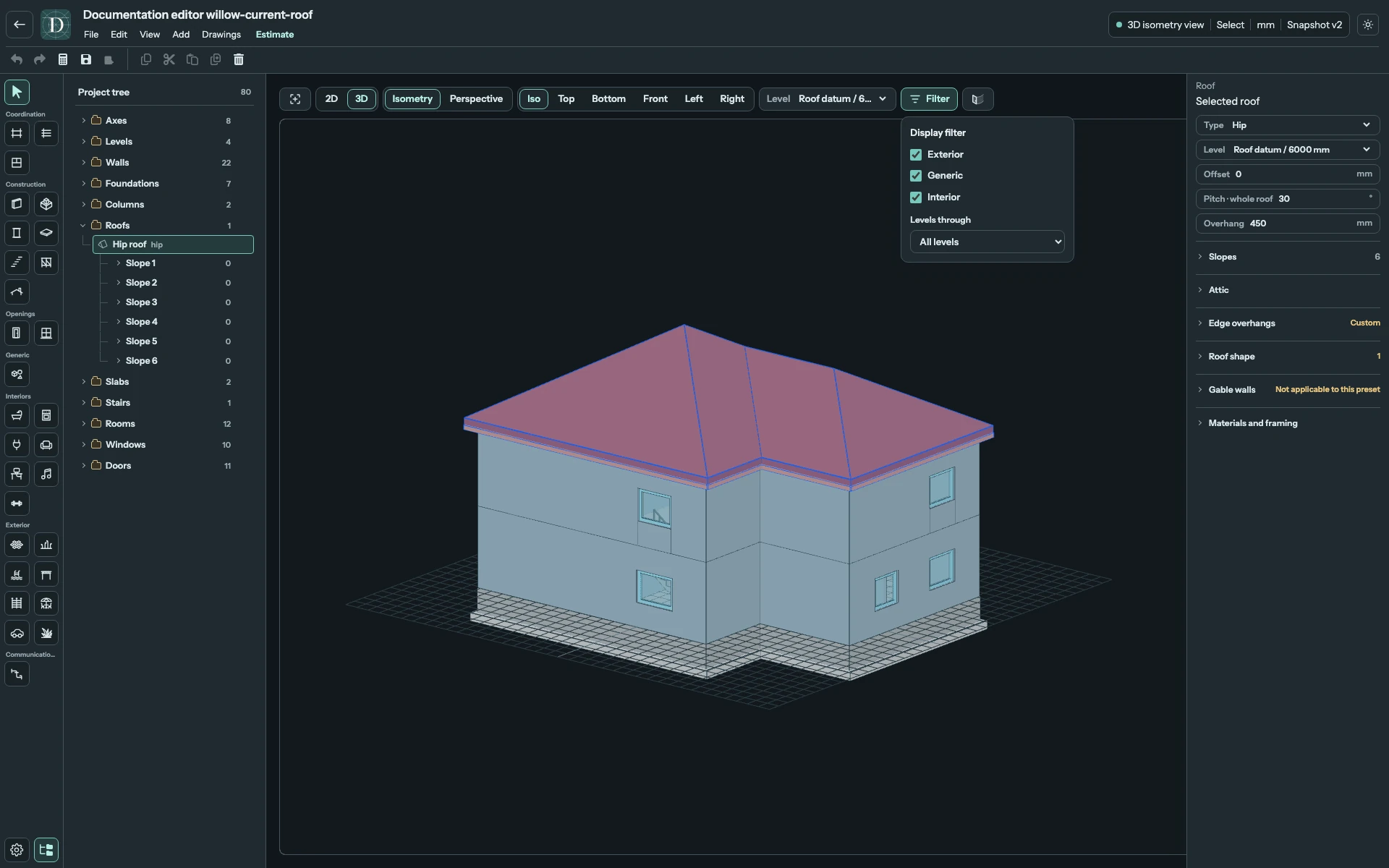
View the full-size Display filter screenshot.
To hide a category such as Exterior, switch it off in Display filter. For a single object or type group, use the eye icon in the Project tree. A slashed eye means hidden; select it again to restore visibility. To show a Roof hidden through the tree, restore its eye and check that the active Level or filter includes its height. The tree button itself only opens or closes the sidebar.
The active Level is a separate authoring decision. Top 2D shows that Level normally. Its faint underlay is limited to the nearest lower Level: Walls and Windows can help align construction, and Stairs show the route from below. It does not show every object on every lower Level. Both main 3D and Mini 3D exclude elements above the active Level; choose a higher Level to inspect the upper building.
Before checking an overall view or drawing, restore the categories and groups you intend to include. Hidden objects remain in the saved model. Use the Project tree covers the eye controls; views and visibility explains the distinction.
Add an element from a hidden category
Selecting a tool from a hidden Exterior, Generic or Interior category opens a confirmation to enable that category's display. Choose Yes to show the category and continue with the chosen tool. No cancels that switch and keeps the current visibility; Escape also cancels it. Neither choice creates an object. Complete the tool's placement gesture after enabling its display.
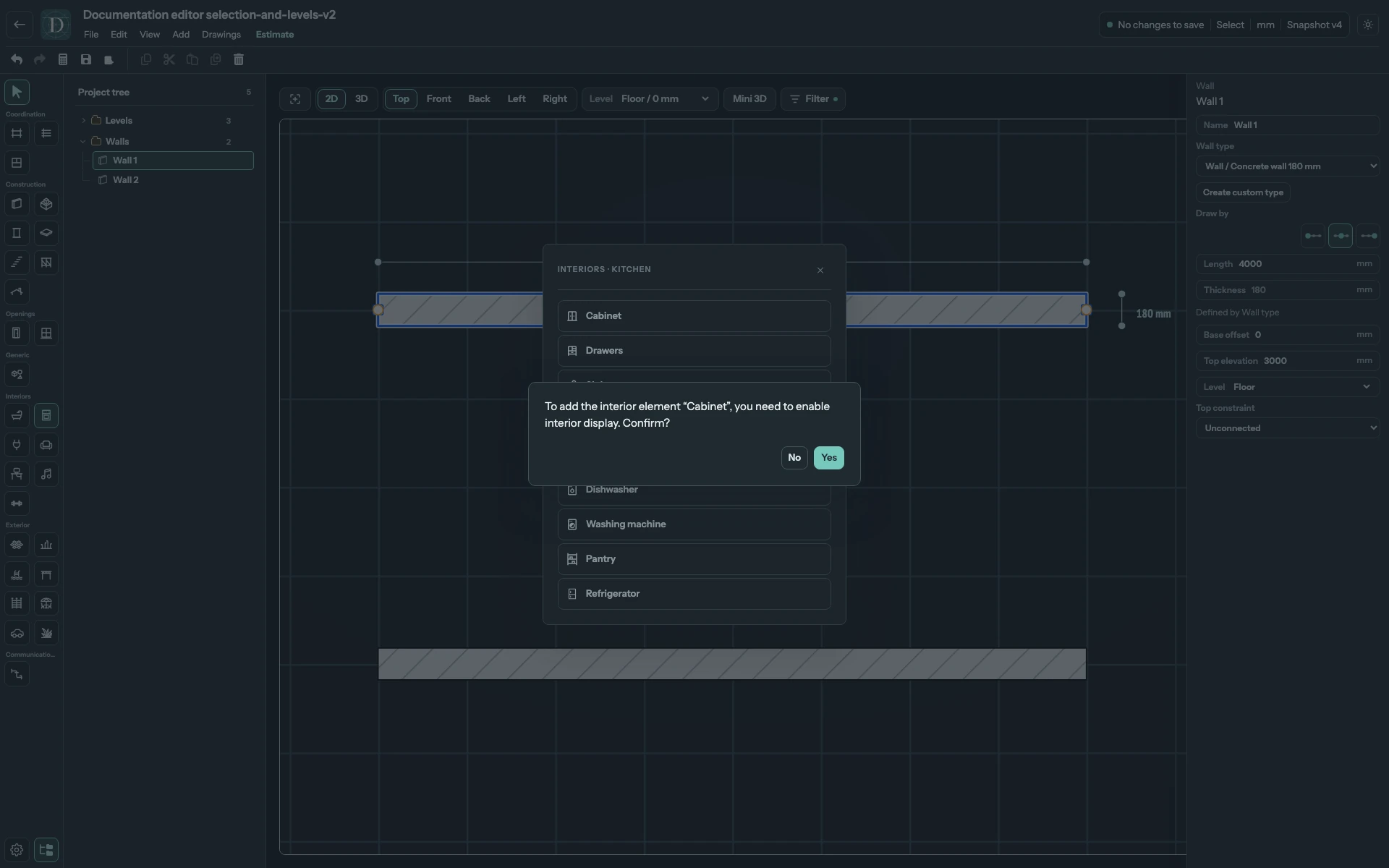
View the full-size hidden-category confirmation.
Visibility of imported objects
Objects created by IFC import use the same Level, object-family and individual visibility controls as other native objects.