
A Column is a vertical support envelope with one constant solid section. Choose its position, section and vertical limits, then optionally model a pad foundation below its base. The profile describes geometry; it does not size the support for loads.
Place and compare the profiles
- Open 2D → Top, select Column under Construction, or press C.
- Choose Profile and its dimensions in the table below.
- Set Base level, Base offset, Top binding and Material.
- Click the intended section center. Select the result in the viewport or under Columns in the Project tree to edit it.
| Profile | Editable section fields | Effect |
|---|---|---|
| Square | Size; Rotation | Equal width and depth. Changing Size changes both sides. |
| Rectangle | Width; Depth; Rotation | Independent side dimensions; Rotation turns the section around its vertical center. |
| Circle | Diameter | A circular section. Rotation is omitted because it does not change the shape. |
Section dimensions must be positive. The study below compares a 300 mm Square, a 300 × 600 mm Rectangle rotated 30°, and a 400 mm Circle. These are modeling examples, not recommended structural dimensions.
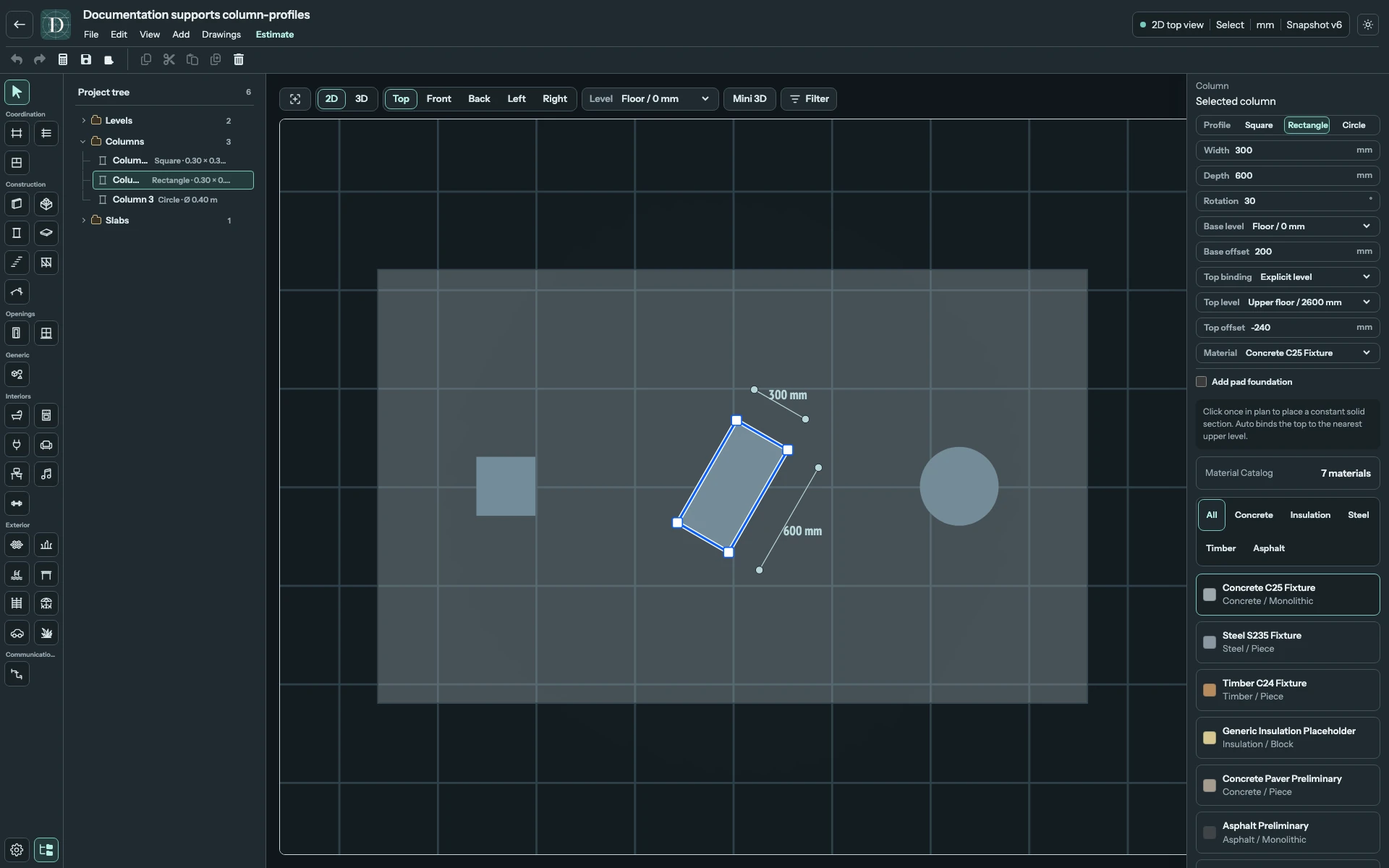
View the full-size screenshot.
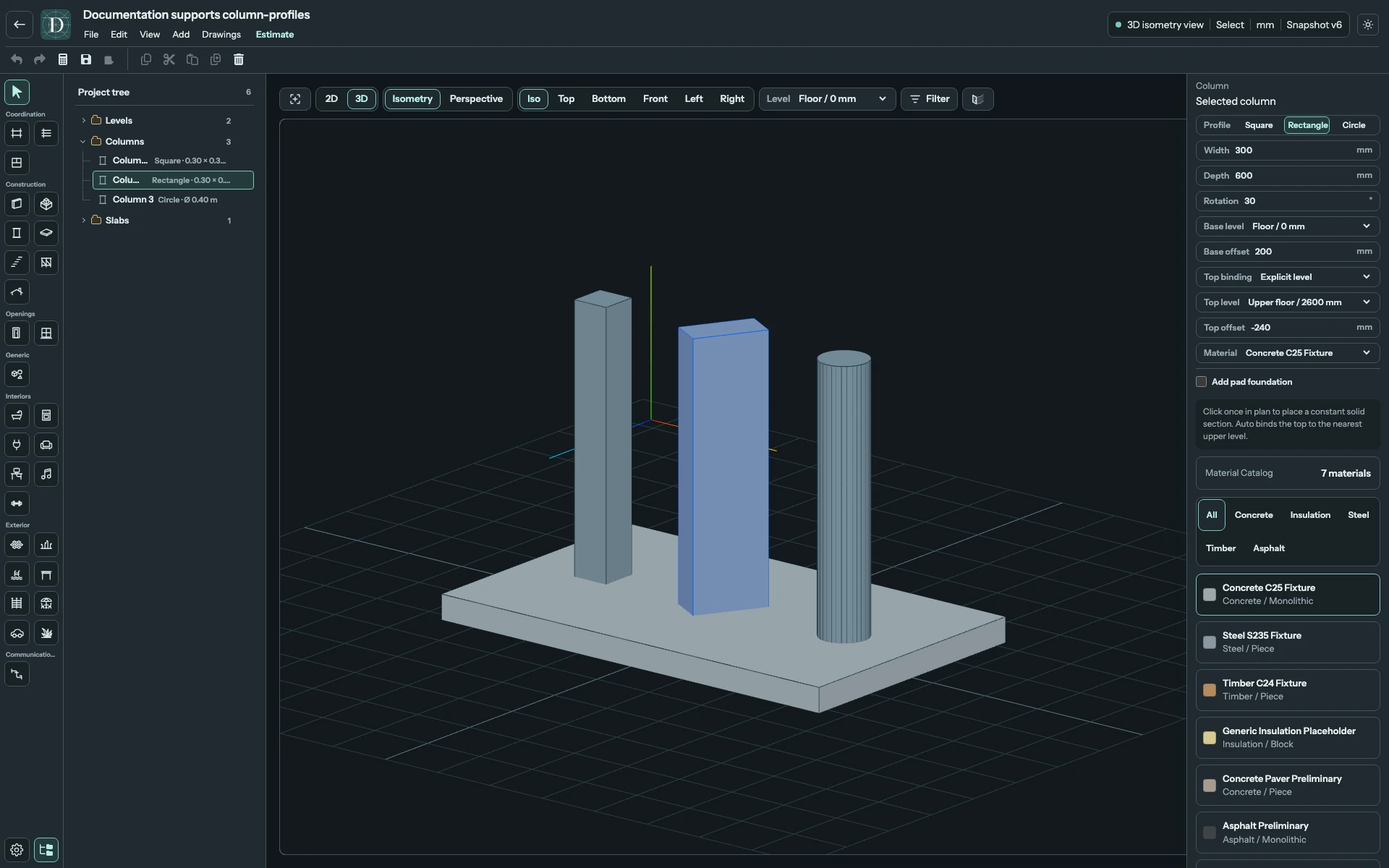
View the full-size screenshot.
Switching to Square links both sides to the current Width. Rotate a rectangular Column through Rotation, and change its section dimensions through the properties panel. Columns currently have no central move grip; the outlined corner marks are not general free-scale controls. Choose the center carefully when placing. To replace a Column at another location, record its settings, delete it and place the replacement; Undo is available if the replacement is unsuitable. A bound Axis move is a separate coordinated operation.
Control the base and top
Base level supplies the datum. Base offset is added to its elevation; positive raises the Column bottom and negative lowers it. The top controls change with Top binding:
| Top binding | Available fields and resolved top |
|---|---|
| Auto · nearest upper level | Top offset. Uses the nearest Level above the resolved Column base, then adds the offset. |
| Explicit level | Top level; Top offset. Uses the selected Level elevation plus the offset. |
| Unconnected height | Height. Adds this positive height to the resolved Column base. Top offset is not shown in this mode. |
For example, Base level 0 mm and Base offset 200 mm give a base at 200 mm. An upper Floor at Level 2600 mm with Top binding and Thickness 240 mm has its underside at 2360 mm. Choose Explicit level, that upper Level, and Top offset -240 mm to bring the Column top to that underside. The Column height is then 2360 - 200 = 2160 mm.
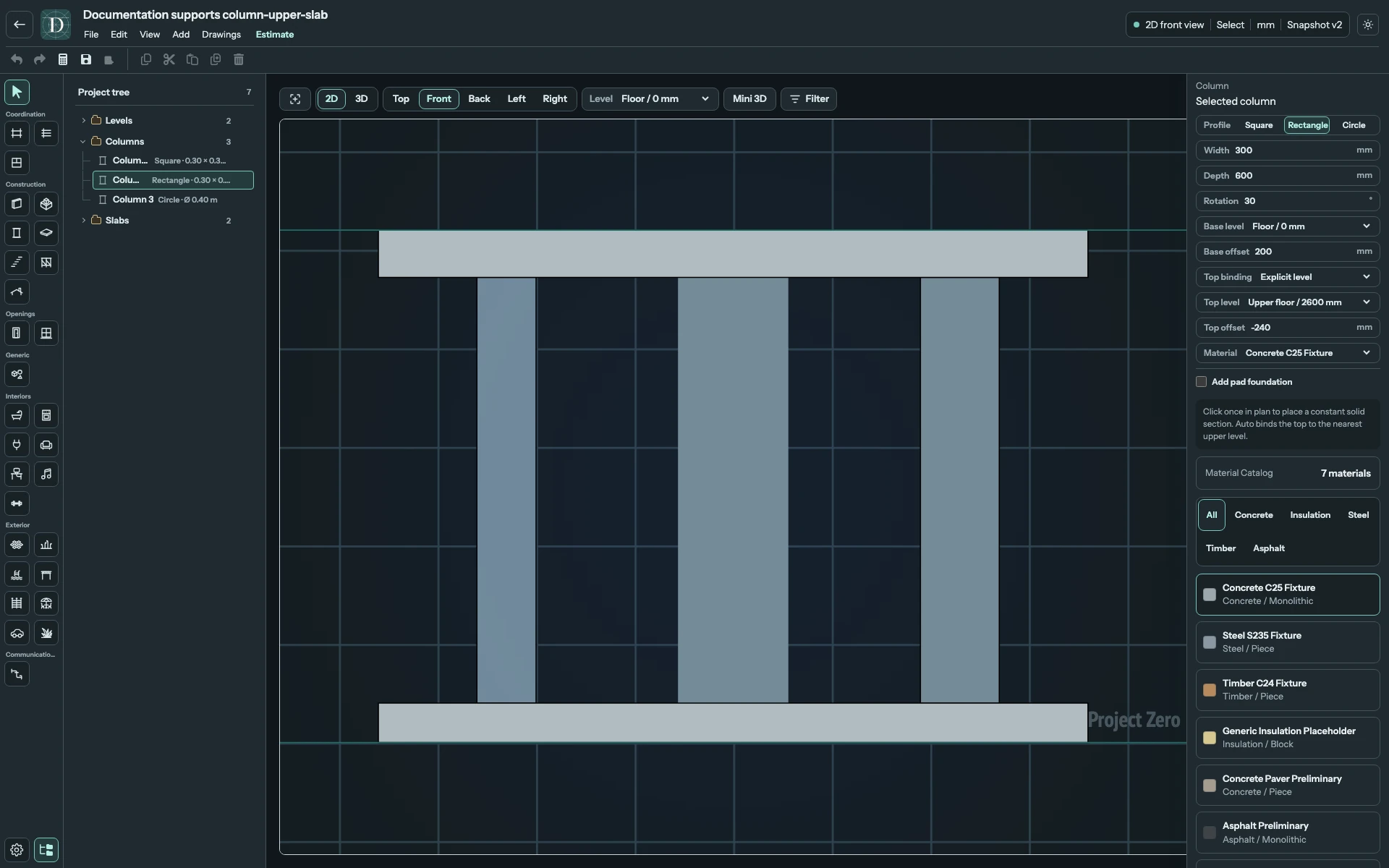
View the full-size screenshot.
A top must remain above the base. If Auto has no upper Level, Dravit uses the unconnected-height fallback and displays Review required. Choose an explicit upper Level or Unconnected height to make the intended relation clear. Read any Invalid geometry message before accepting a change. A Column does not trim itself to a Roof surface.
Configure the pad foundation
Enable Add pad foundation for a footing and a pedestal beneath the Column base. The pedestal uses the Column section and reaches up from the footing to the Column bottom.
| Pad field | Meaning |
|---|---|
| Founding depth | Positive distance from the Column base down to the footing bottom. |
| Footing width | Positive pad width; cannot be smaller than the section Width or Diameter. |
| Footing length | Positive pad length; cannot be smaller than the section Depth or Diameter. |
| Footing thickness | Positive thickness above the pad bottom; cannot exceed Founding depth. |
Enabling the pad enlarges its stored footprint if necessary to fit the section. Check it again after changing the Column dimensions. With a 1200 mm founding depth and 300 mm footing thickness, the pedestal height is 900 mm. Disabling the checkbox removes the modeled pad while retaining the Column.
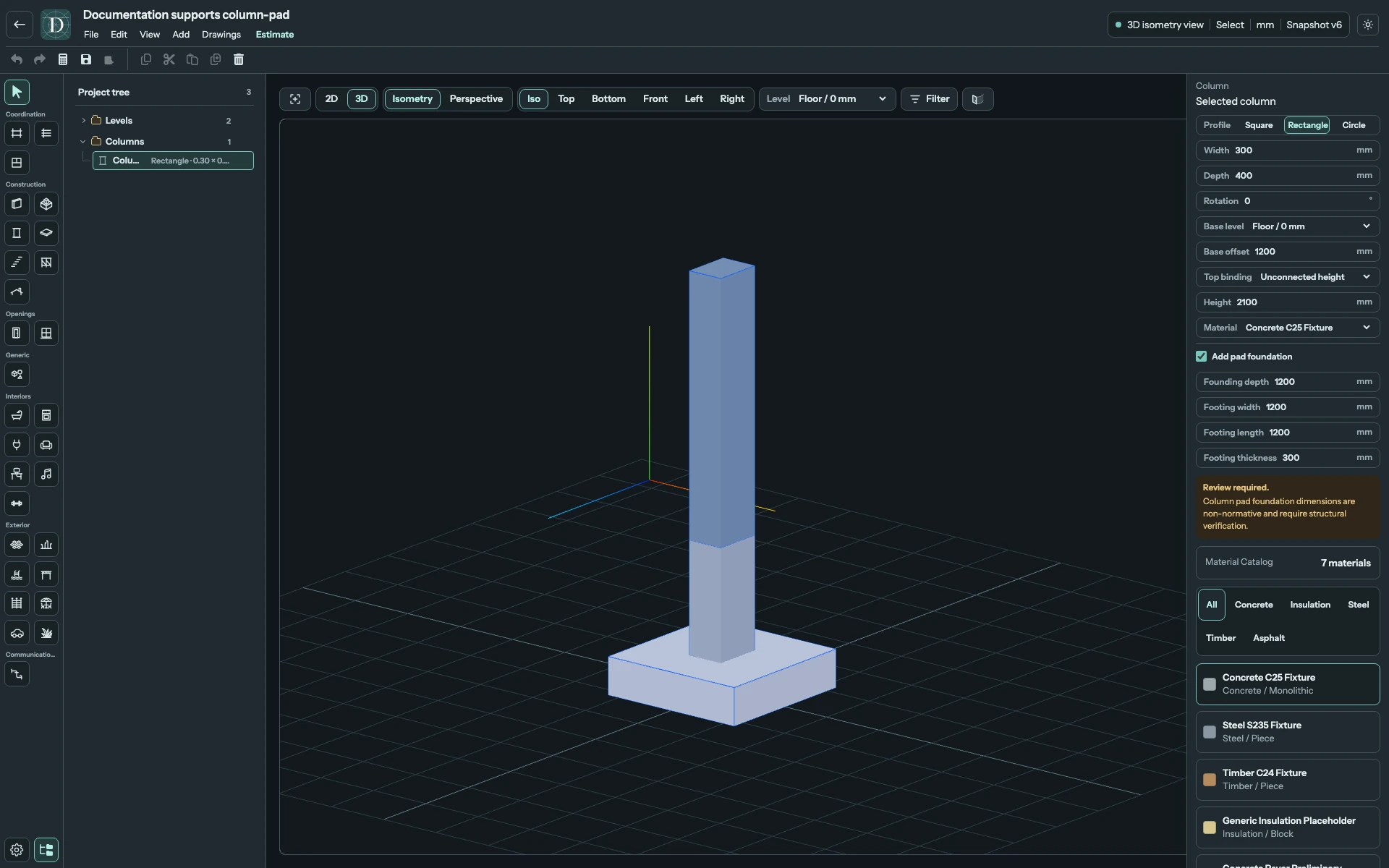
View the full-size screenshot.
The pad belongs to this Column configuration. It is distinct from a baseline Foundation. Its Review required message identifies the need for structural verification of the chosen sizes.
Material and saving
Material assigns the selected catalog material. It does not change a solid section into an I-section, hollow tube or built-up member. The Material Catalog is a separate shared editor panel.
The selected Column panel reports its geometry status beneath the configuration. It currently has no instance Name field or separate area and volume inspection rows. The section and vertical controls above define its geometry. The shaft volume follows section area multiplied by resolved height; the pad footing and pedestal have their own geometry quantities.
Check Top for the section and a side view or 3D for the height and pad. Save and reopen to verify dimensions, bindings, material and pad. Delete removes the selected Column and its configured pad; Undo restores an accidental deletion.