
Use Exterior → Furniture to arrange outdoor seating, tables and accessories. Each item is a complete Site object, including its derived legs, slats or canopy. Interior and exterior furniture can look related but have different ownership and placement settings.
Place outdoor furniture
- Choose 2D → Top and the working Level.
- Open the Furniture catalog under Exterior and choose an object.
- Set its dimensions, Level and Base offset in the right panel, along with the form options shown for that family.
- Position the complete preview and click. Choose Select or press Escape when finished placing items.
- Select an existing instance in the viewport or Exterior → Furniture in the Project tree to edit it.
The base elevation is the selected Level plus the signed Base offset. Referencing a building Level does not put the object in a Room. Placing furniture above Terrain or Pavement also creates no surface host; adjust offsets yourself if the supporting surface changes.
Bench and Waste bins
Bench has a slatted seat and back with its support frames. Waste bin offers Square · side, with a side opening, and Round · top, with a top opening. Changing Form resets Width, Depth or Diameter and Height to the new form’s catalog defaults. Check those dimensions after switching. The parts belong to the complete object; a slat or lid cannot be selected independently.
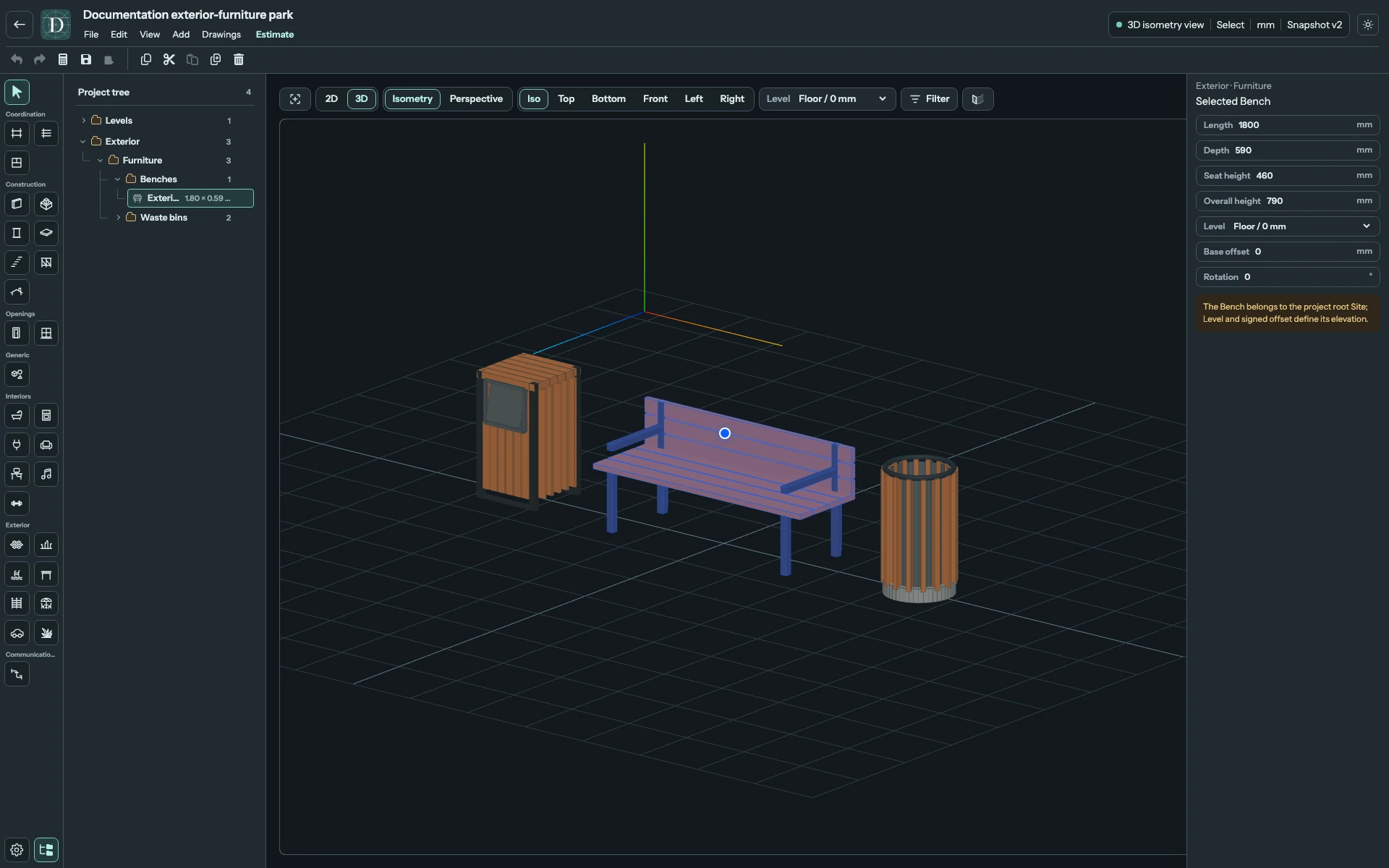
View the Bench and Waste bins at full size.
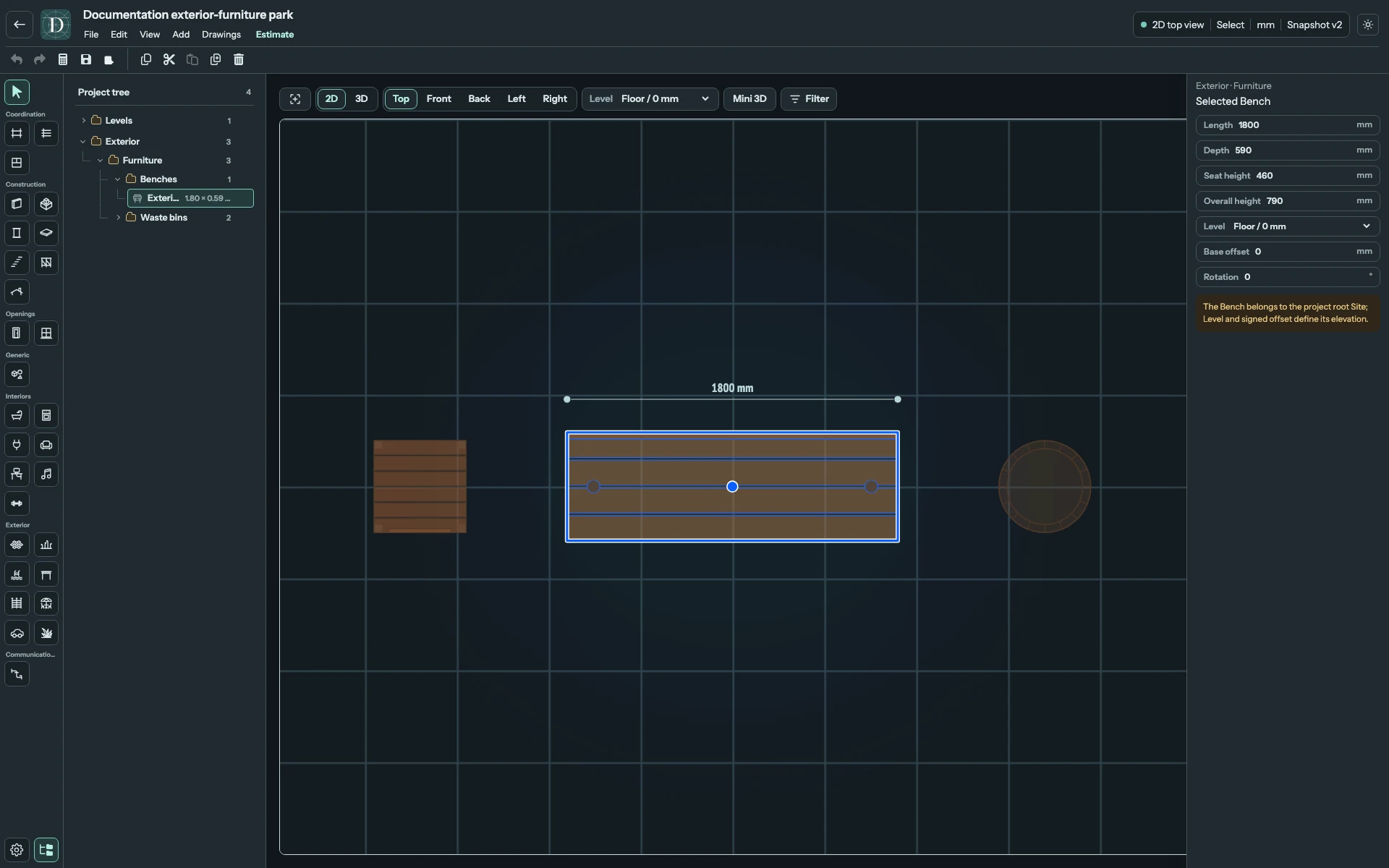
View the outdoor seating plan at full size.
Tables and Chairs
For Table, choose Top shape → Rectangular or Round. The rectangular table has four supports; the round one has a central support. Switching to Round makes Diameter equal the current Width and removes the separate Depth. Switching back to Rectangular starts with that same size in both directions; it does not restore the previous Depth. Chair is the exterior chair with a continuous tubular support frame, seat and back. Its dimensions do not enable the separate Interior Chair's form or backrest options.
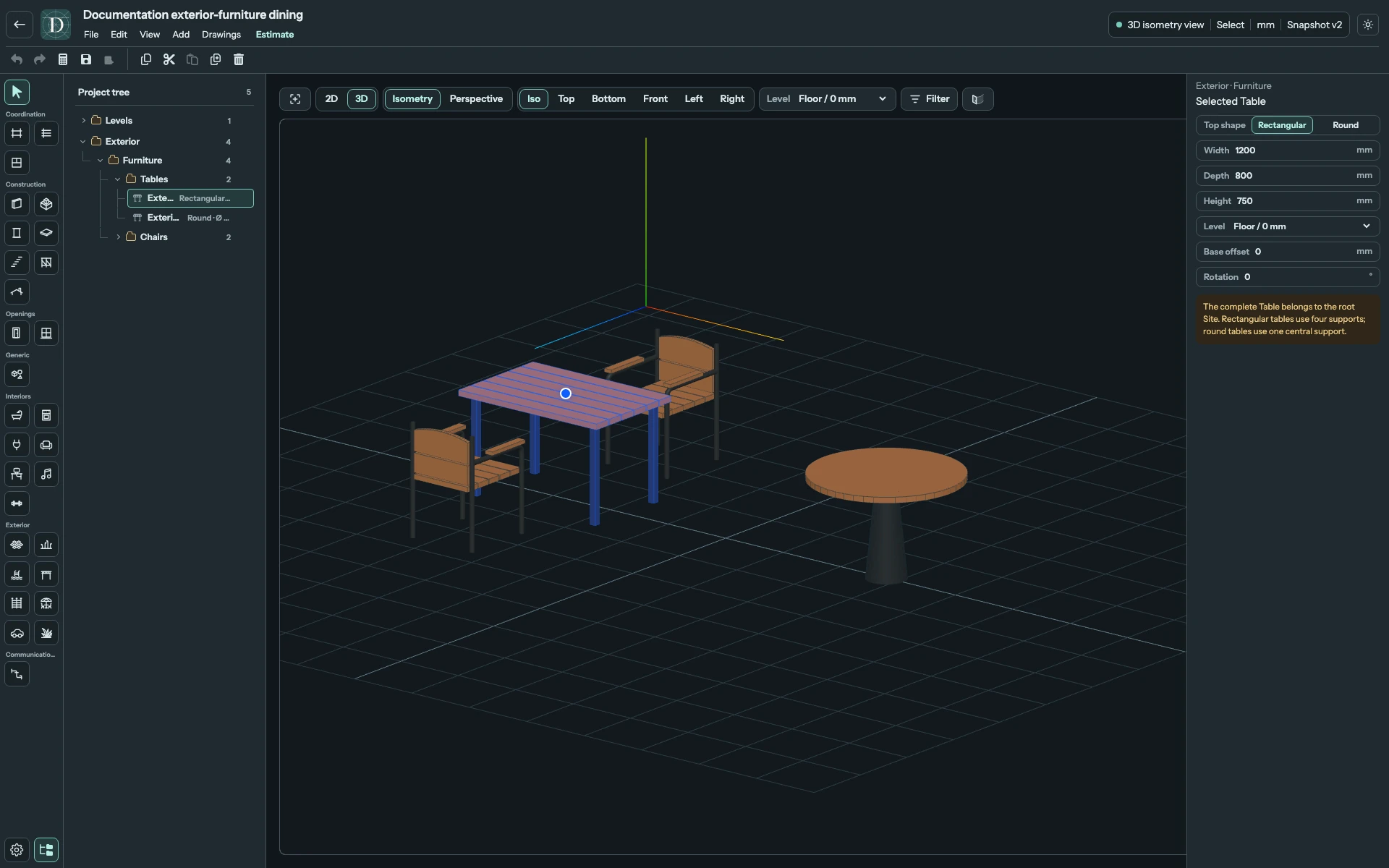
View both Table shapes and Chairs at full size.
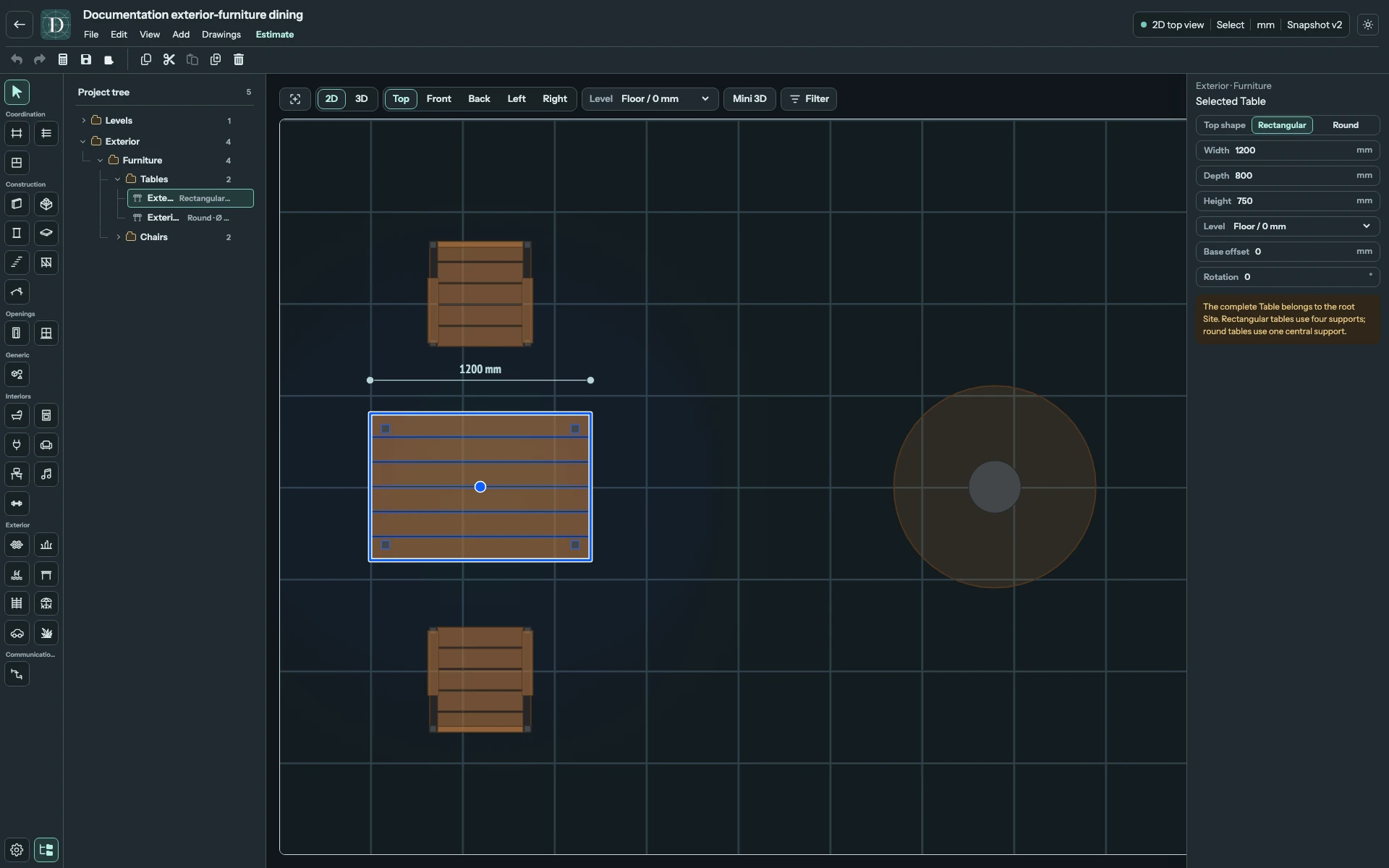
View the Table arrangement in Top at full size.
Sun lounger and Umbrella
Sun lounger has a flat deck and a fixed 30° backrest. Umbrella has a radial canopy, pole and optional weighted Base. Its Height is the pole length; Diameter is the canopy's horizontal span.
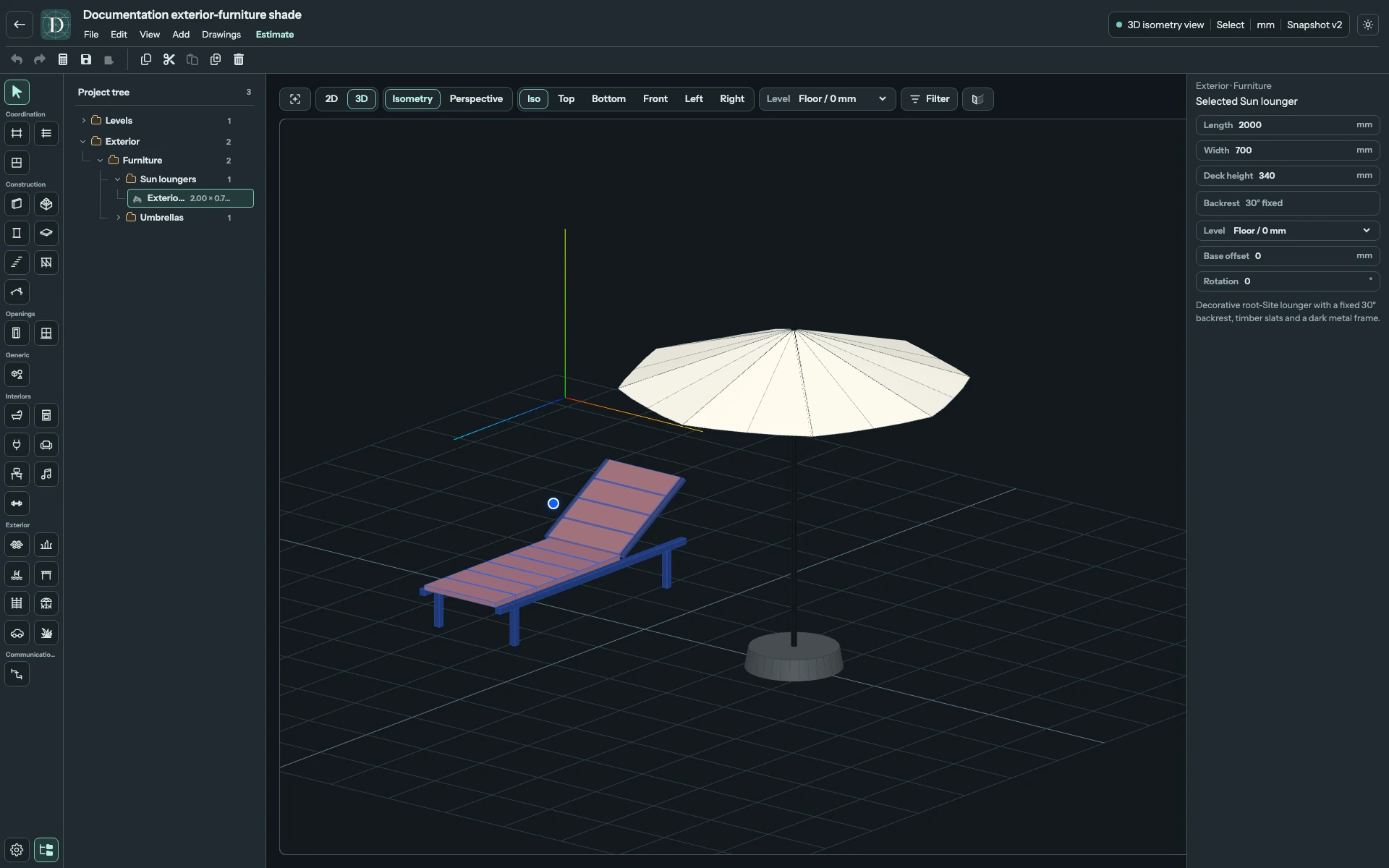
View the lounger and umbrella at full size.
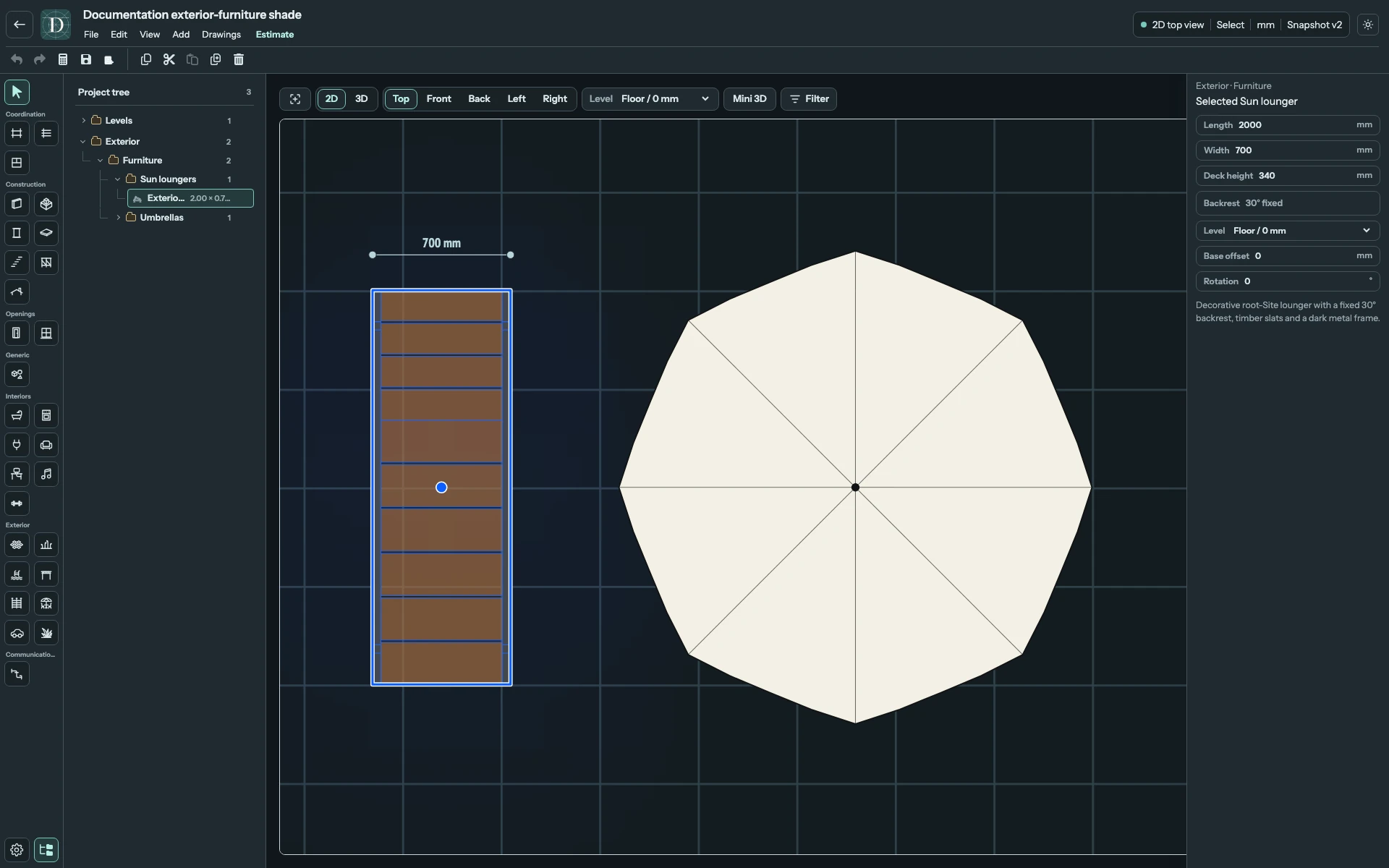
View the shade arrangement in Top at full size.
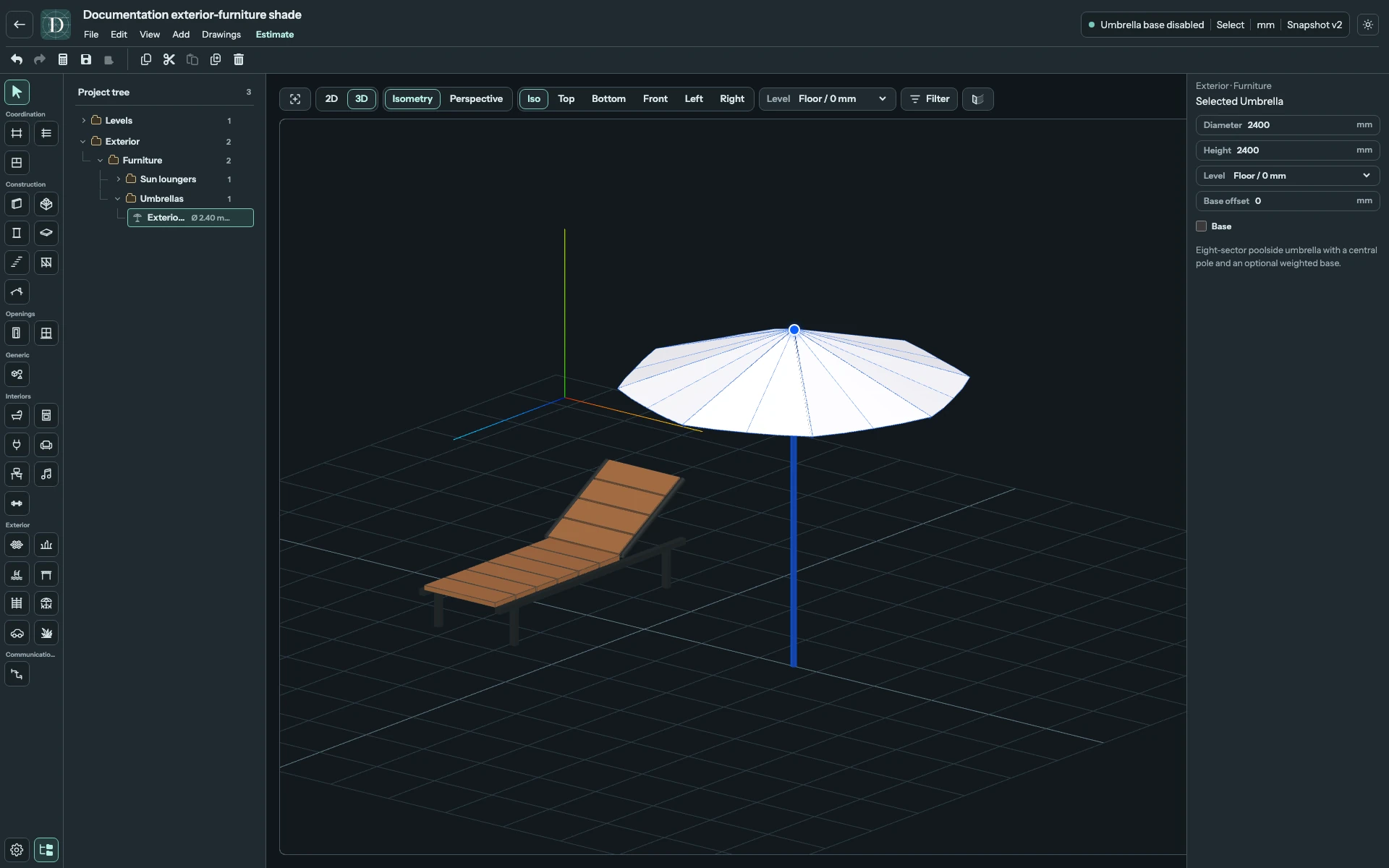
View the Base option at full size.
The dimensions in these examples are demonstration values. Enter sizes for your own arrangement in the displayed project unit.
Configure every family
| Family | Geometry controls and allowed values |
|---|---|
| Bench | Length ≥ 600 mm; Depth ≥ 350 mm; Seat height ≥ 300 mm. Overall height must be at least Seat height + 150 mm so a back remains above the seat. |
| Waste bin | Form → Square · side uses Width and Depth, each ≥ 250 mm. Round · top uses Diameter ≥ 250 mm. Height ≥ 500 mm applies to either form. |
| Table | Top shape → Rectangular uses Width and Depth, each ≥ 300 mm; Round uses Diameter ≥ 300 mm. Height ≥ 200 mm sets the tabletop height. |
| Chair | Width and Depth ≥ 400 mm; Seat height ≥ 300 mm. Overall height must be at least Seat height + 200 mm. |
| Sun lounger | Length ≥ 1500 mm; Width ≥ 500 mm; Deck height ≥ 200 mm. Backrest displays the fixed 30° angle and is not editable. |
| Umbrella | Diameter ≥ 1200 mm sets canopy width; Height ≥ 1500 mm sets pole length. Base switches the modeled weighted base on or off. |
These are modeling limits, not installation or accessibility requirements. Invalid dimensions leave the object at its previous valid size. Increasing Seat height can require increasing Overall height first to retain the required back height.
| Shared setting | What it changes |
|---|---|
| Level | Required reference for the base elevation of every family. |
| Base offset | Signed vertical distance from that Level; enter it in the displayed length unit. |
| Rotation | Horizontal orientation in degrees for Bench, Waste bin, Table, Chair and Sun lounger. There is no Rotation field for the radially symmetric Umbrella. |
Use Rotation to enter an angle for any family that provides the field. Rotation handles appear for Bench, the square Waste bin, the rectangular Table, Chair and Sun lounger. Round Waste bins and Tables have the field but no rotation handles; their horizontal orientation does not change their circular footprint. Umbrella’s radial symmetry makes horizontal orientation visually redundant. Resize through the family-specific fields rather than trying to select a slat, leg or canopy rib.
Changing a field rebuilds that object's complete seat, back, supports, cover or base while keeping the other objects separate. Undo reverses an accepted change; Redo reapplies it. Select an object and use Delete to remove the complete assembly; Undo restores it.
Inspect Top for footprints and spacing, and 3D for heights, supports and openings. Save and reopen to retain the form, dimensions, Level, Base offset and orientation. A catalog form and its visual dimensions do not establish anchoring, load capacity, weather resistance or an installation specification.
Exterior furniture appears in Top and 3D and is omitted from architectural 2D side views.